


Some tasks are too small to deserve another complicated application, but too frequent to ignore: finding the right file, keeping a reference visible, jotting down the next step, or checking the time while you work.
Aelrox lets you assemble a useful set of desktop micro apps around those tasks. Choose existing tools from the community, open them as desktop windows, and arrange the ones you need around your main application. You can start using the platform without building an app yourself.
A practical first toolkit might include File Search Desk, Snip Capture, and a note or clock. The value comes from how they help the same piece of work, not from how many tools you can install.
Begin with the work, then choose the tools
Consider preparing a short software tutorial. You need to find the example material, keep a reference handy, and remember what to explain next. Those are three clear tasks with three understandable results.
Open the Aelrox micro-app store and look for tools that match them. Read each app's description, open the relevant detail page, and install the tools you want to use. If a permission prompt appears, relate it to the action you are about to perform: a file-search tool and a screen-capture tool have different needs.
Once installed, the micro apps are reachable from Aelrox's launcher. You can use the search bar to find a tool instead of remembering where you placed its icon.
Find the material you need
Use File Search Desk to search for a known filename or a part of its name. The results give you a route back to the actual file and its containing folder. Its configured search source matters: the Windows and macOS setup paths differ.
In the example accompanying our file-search tutorial, a materials CSV is found and previewed inside the tool. That makes it possible to check that it is the right output before continuing. For repeated file types, the filter settings provide another way to narrow the search.
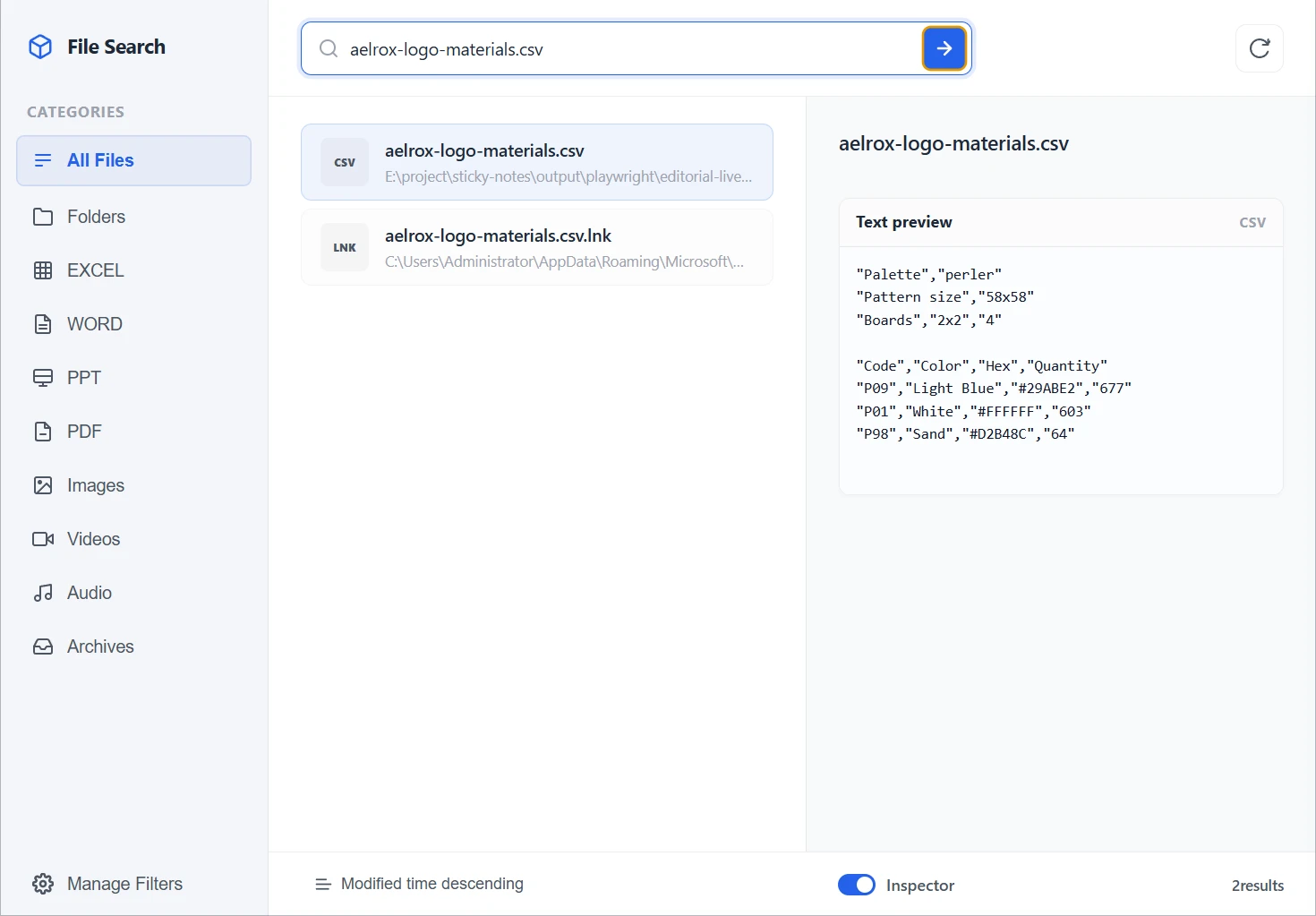
A real Windows session from the file-search walkthrough: finding the exported materials CSV and checking its contents before continuing.
Follow the File Search Desk guide if you are setting up the search source or want a reusable file-type filter. Keep this step focused on finding the next input; you do not need to rebuild your folder structure to use it.
Keep a reference close to your work
If the next step involves comparing a screen or following a visual reference, open Snip Capture. Select the useful region rather than capturing a large desktop full of unrelated content. The capture toolbar provides the actions for copying, saving, and pinning the result.
Choose the action that matches the job. Copying is useful when you need to paste the image somewhere else. Saving produces an image file. Pinning is useful when you want the reference to remain available while working in another window.
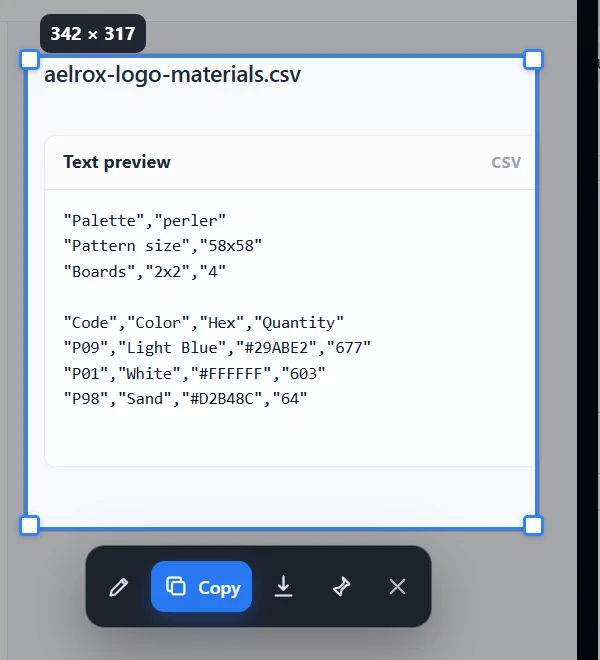
The real capture toolbar after selecting a region. This image shows the selection and available actions; it is not a screenshot of a pinned window.
The screenshot reference guide walks through those controls. For a public tutorial, capture only the material you intend to show; a smaller, relevant region is also easier for the reader to understand.
Leave the next step where you can see it
A short note can hold the part of the task that is easy to forget: “Check the exported file,” “Capture the final result,” or “Update the example name.” Place it near the application you are using so it remains connected to the work.
A clock can serve a different purpose: a compact time reference that does not require opening another page. Choose tools you expect to glance at, and give each enough space to remain readable.
You can also use Aelrox's drawing mode when the task benefits from a visible mark or explanation. Keep temporary annotations purposeful; an organized working area should help you notice the next action.
Make room when you need it
A useful desktop toolkit should be easy to reach and easy to put aside. Aelrox provides a Show/hide all Micro Apps shortcut for temporarily hiding the current workspace's visible micro-app windows and bringing those windows back.
Check Settings → Shortcuts for the active binding on your computer. Use visibility controls when you need space for a presentation or another task, then use the same shortcut to bring the windows back.
As your setup grows, organize different kinds of work into Aelrox workspaces. A tutorial workspace might hold reference tools and notes, while a personal workspace uses a different collection. You can keep each setup recognizable instead of placing every installed tool on one desktop.
Expand only when a repeated task calls for it
Try the first toolkit for a real piece of work. Notice which tool you reopen, which one stays useful beside your main application, and which one you rarely touch. That gives you a better guide than a long feature list.
You can later add a specialized tool such as the bead-pattern generator, a screen recorder, or a Modbus test setup when your work calls for it. Builder is available when you have a more personal requirement, but using existing micro apps is a complete starting point.
Download Aelrox and choose one small task you do repeatedly. Build the rest of your toolkit around what proves useful.