
File Search Desk gives you a place in Aelrox to search for local files, narrow the results, and open the file or its containing folder. On Windows it connects to Everything; on macOS it uses the Spotlight index.
It is most useful when you remember part of a filename but not where you saved it. This guide starts with that simple search, then adds a reusable file-type filter.
Open the app and check the search service
Install Aelrox, open the File Search Desk page, and choose Open in Aelrox.
Look at the service status near the bottom of the sidebar before interpreting an empty result list. A service that is not ready and a search that genuinely finds nothing are different situations.
On Windows
File Search Desk uses Everything together with an ES connector. If the interface shows Install ES Connector, complete that setup. If it shows Open or install Everything, open the service or follow the indicated installation step, then refresh the search status.
The connector and Everything are separate parts of the setup. Installing a connector alone does not establish that the search service is running or that your files are indexed.
On macOS
The app uses Spotlight rather than Everything. Check that the service reports ready and begin with a file you can already find through the system's search.
Search syntax differs between providers. Do not copy a Windows Everything rule into the Mac interface without checking the rule guidance shown there.
Start with a filename you recognize
Choose All Files, enter a distinctive part of the name, and run the search. For example, if your file is called workshop-notes.txt, start with workshop rather than a broad word such as notes.
Select a result to inspect its details or available preview. Use the name and location together to distinguish files with similar names. Preview support varies by file type; you can still open a file in its normal application when an inline preview is not available.
Double-click a result, or select it and press Enter, to open it with the system's default app. The arrow keys move through the result rows. If you need neighboring files, use the action that reveals the result in its containing folder.
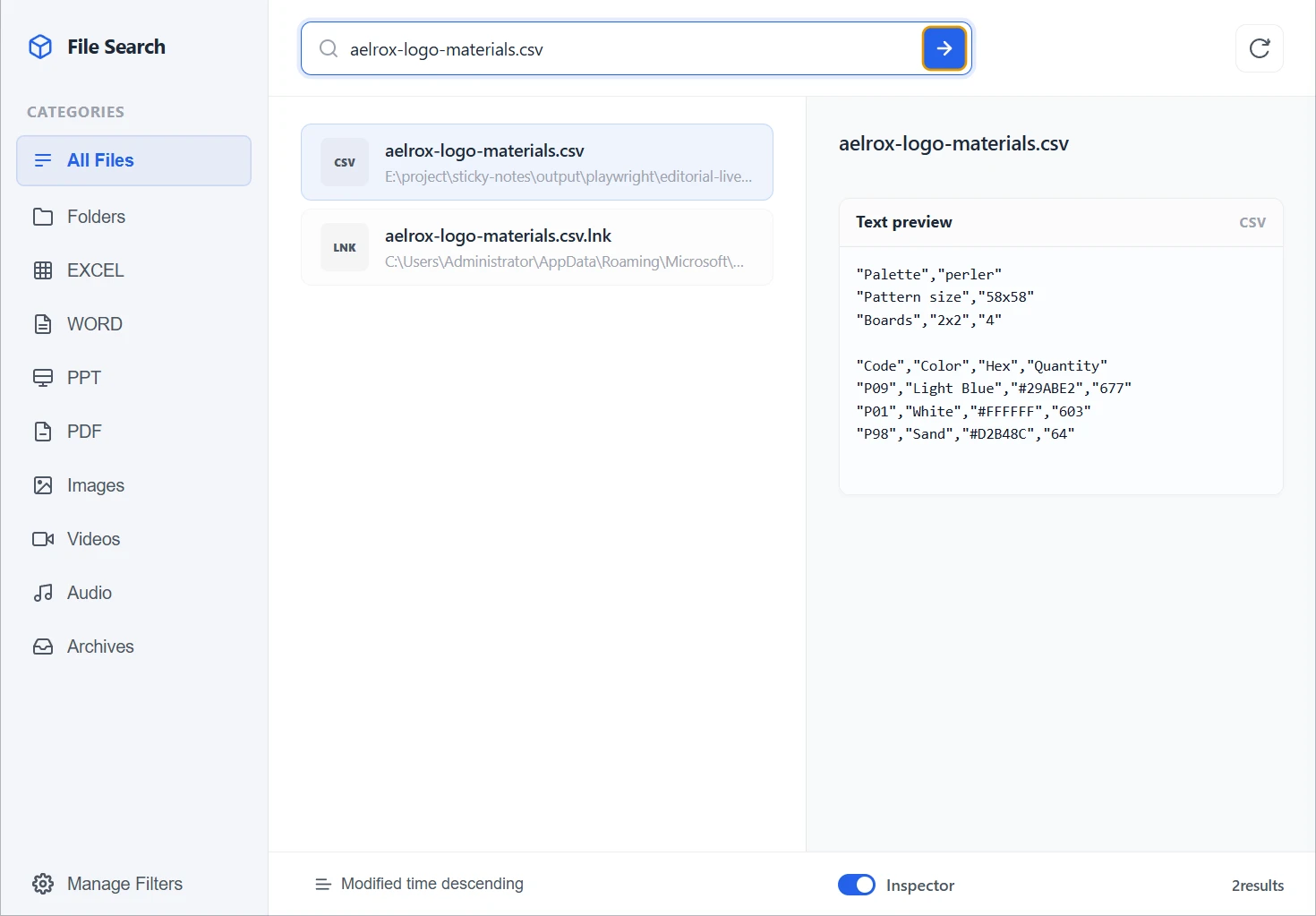
A real Windows search for aelrox-logo-materials.csv, created during the bead-pattern example. The selected CSV is previewed on the right; Windows also returned a recent-file shortcut.
Narrow the search by file type
Use one of the result categories when you know the kind of file you want. A PDF search is easier to inspect when pictures and folders are not mixed into the same list.
For a reusable Windows filter:
- Open Filter Settings.
- Choose Add Custom Filter.
- Give it a name such as Text and Word files.
- Set its Search Rule to
ext:txt;docx {query}. - Save it, select the filter, and search for a filename fragment.
In that rule, {query} stands for the text you enter in the search box. Keep it in the saved rule. The extension portion limits the search to TXT and DOCX files.
This is an Everything-style example for Windows. The app displays separate guidance for Spotlight filters on macOS. The Everything search documentation explains the underlying Windows query syntax.
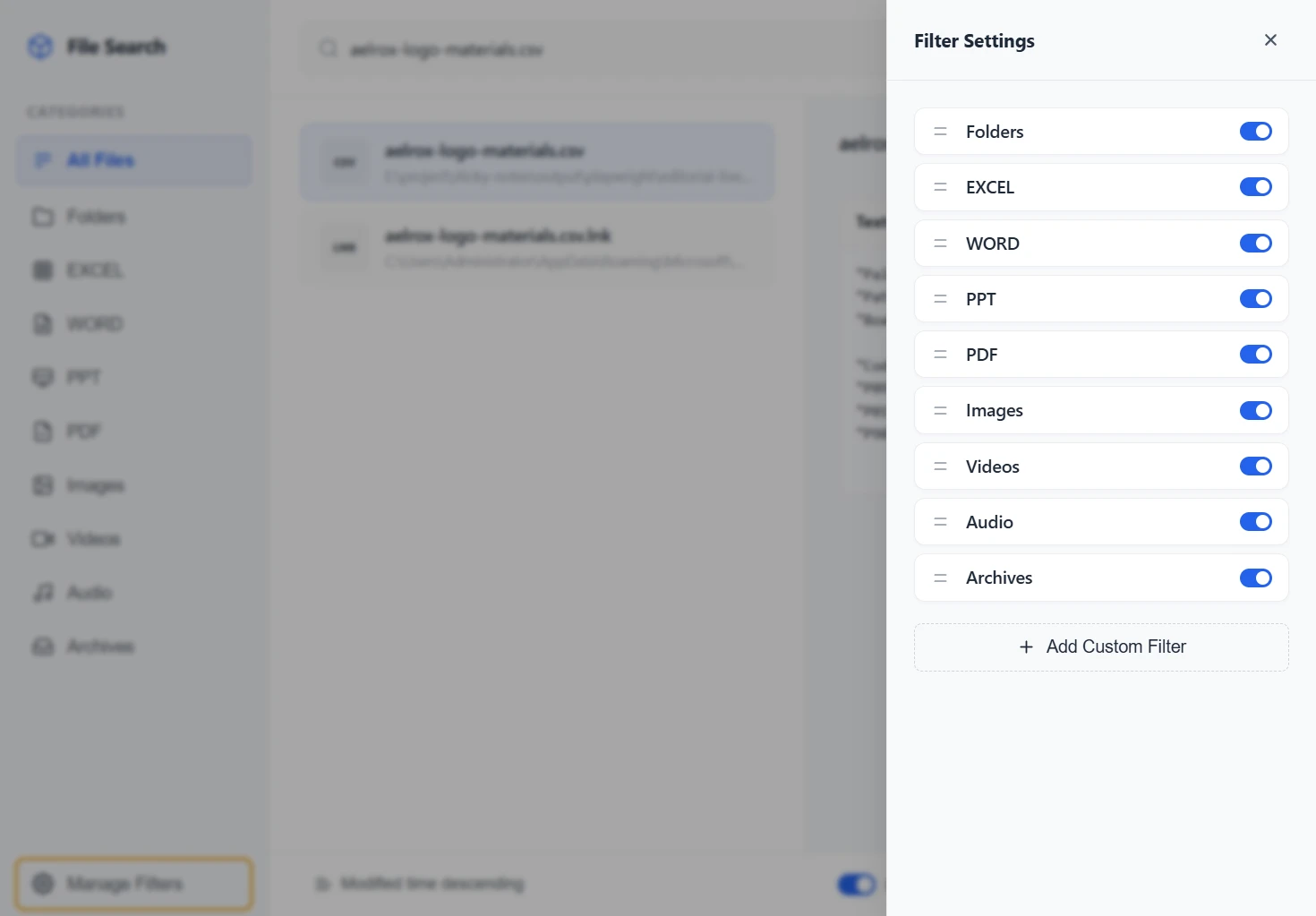
Manage Filters opens these category switches and the Add Custom Filter action. This is the Windows interface captured for this walkthrough.
Search from the Aelrox launcher
File Search Desk can receive a search handed over from All Apps when the launcher's query does not match an app. When you select the file-search handoff, the existing File Search Desk window is reused and the query is passed into it.
This lets you begin from the launcher rather than opening the search tool and typing the same words again. If the handoff is not available in your installed client, open File Search Desk directly and use its search box.
When the file does not appear
First return to All Files and simplify the query. A saved filter can exclude the file even when the filename is correct.
Next check the service status and whether the same file is visible to Everything or Spotlight. File Search Desk relies on those indexes; it cannot return a file that its active search provider does not expose. A newly created or moved file may also require the provider to catch up.
Use a distinctive filename as your first test. Finding a name does not imply that arbitrary text inside every document is searchable, and searching the index is not a way to recover deleted files.
Open File Search Desk, find one file you regularly use, and save a filter only if it makes that recurring search easier.