
Sometimes the next useful action fits in one sentence: check a link, review a screenshot, or send a draft. Putting that action in a small desktop note keeps it nearby while you work, without creating a larger planning project first.
Sticky Note is an Aelrox micro app for a short, visible piece of text. You can change its paper color, switch its text style, and choose a ruled, dotted, or plain appearance. Here is a practical setup using a real Windows desktop session.
Open a note for the task in front of you
Install the Aelrox desktop client, then find Sticky Note in the Micro Apps Store. Choose Install, then Open. Once installed, the tool is also available through Search Bar.
Start with a short heading and only the actions you expect to need soon. Our example is:
NEXT STEP

Check the download link.
Add one clear screenshot.
Send the draft for review.
This is ordinary editable text. The lines are reminders, not interactive checkboxes, scheduled notifications, or assigned team tasks. When an action is finished, edit or remove its line.
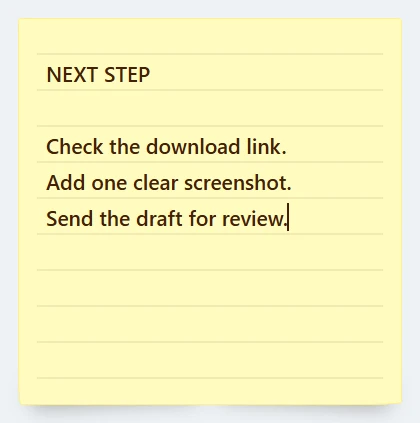
An actual Sticky Note 1.0.0 window in the Windows client, filled with a small demonstration task list.
Keep the note easy to scan
Use words that tell you what to do. “Check the download link” is easier to act on than “website,” especially when you return after an interruption.
The current note has a compact, fixed-size layout. A few short lines fit its purpose better than an entire project brief. If you need headings, tables, or an exported document, use a document editor for that material and let the sticky note carry the immediate next step.
Place the note where it is useful without covering the controls you need for your main work. The goal is to reduce the effort of remembering the task, not to fill the desktop with reminders you stop reading.
Make its appearance recognizable
Move the pointer over the note to reveal the controls along the bottom. The color dots select yellow, pink, green, blue, or gray paper. The font button switches between the clean text style and a handwritten appearance. The grid-style button cycles through the available paper patterns.
In our example, we changed the yellow ruled note to blue, selected the handwritten style, and switched to the dotted background. The task text stayed the same while those appearance choices changed.
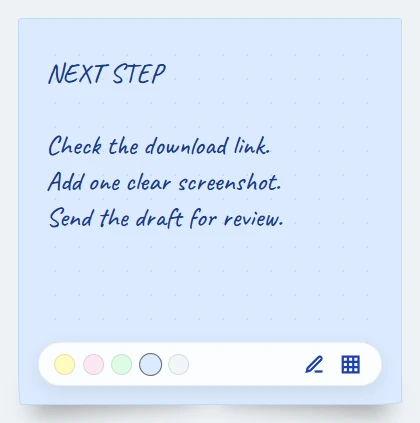
The color, font, and paper controls change how the note looks; the three reminder lines remain unchanged.
Choose a style you can read comfortably. You could reserve one color for the current task and another for reference material, but a color is a visual cue, not an automatic category or status.
Make room without discarding the current note
When you temporarily need more space, minimize or hide the current tool window and bring that same window back. In this Windows session, we verified that minimizing the note and restoring it kept the entered text.
Closing the window and opening Sticky Note from the launcher was different: it opened a blank note in our check. Do not use that close-and-relaunch path as a way to store an important note for later. Keep a separate copy of text that must survive closing the tool.
The tool visibility guide explains the broader Aelrox hide-and-show workflow. This article does not claim cross-device note sync, restart recovery, or scheduled reminders.
Use the note alongside your actual work
A simple combination is a reference screenshot plus a short next-action note. Keep the image available with Snip Capture, then use the note to say what you need to change or check. The image carries the detail; the note carries the action.
At the end of the task, remove finished lines and rewrite the next useful step. That keeps the note relevant instead of turning it into a permanent list of things you no longer notice.
Open Sticky Note and begin with one action you want to keep visible. If you have not installed the client yet, download Aelrox first.