Desktop tools are useful because they remain close to your work. A reference image, a short note, or a small utility can save a trip to another window. Sometimes you need that same screen space for a presentation, a larger application, or a different task.
Aelrox's Show/hide all Micro Apps shortcut lets you put the current workspace's visible micro-app windows out of sight together and bring them back with the same shortcut. You can make room for an interruption without closing each tool individually.
Check the shortcut that is active on your computer
On Windows, the default main binding is Ctrl+Alt+B. Open Settings → Shortcuts and find Show/hide all Micro Apps. Check that the binding is enabled and available, especially if another application uses the same key combination.
The settings screen also lists Open launcher, which uses Ctrl+Space by default on Windows. One shortcut helps you find and open a tool; the other changes the visibility of the tools already on your desktop.
Use the values shown in your own settings if you have customized them. A shortcut that is disabled or in conflict will need attention before you can make it part of your routine.
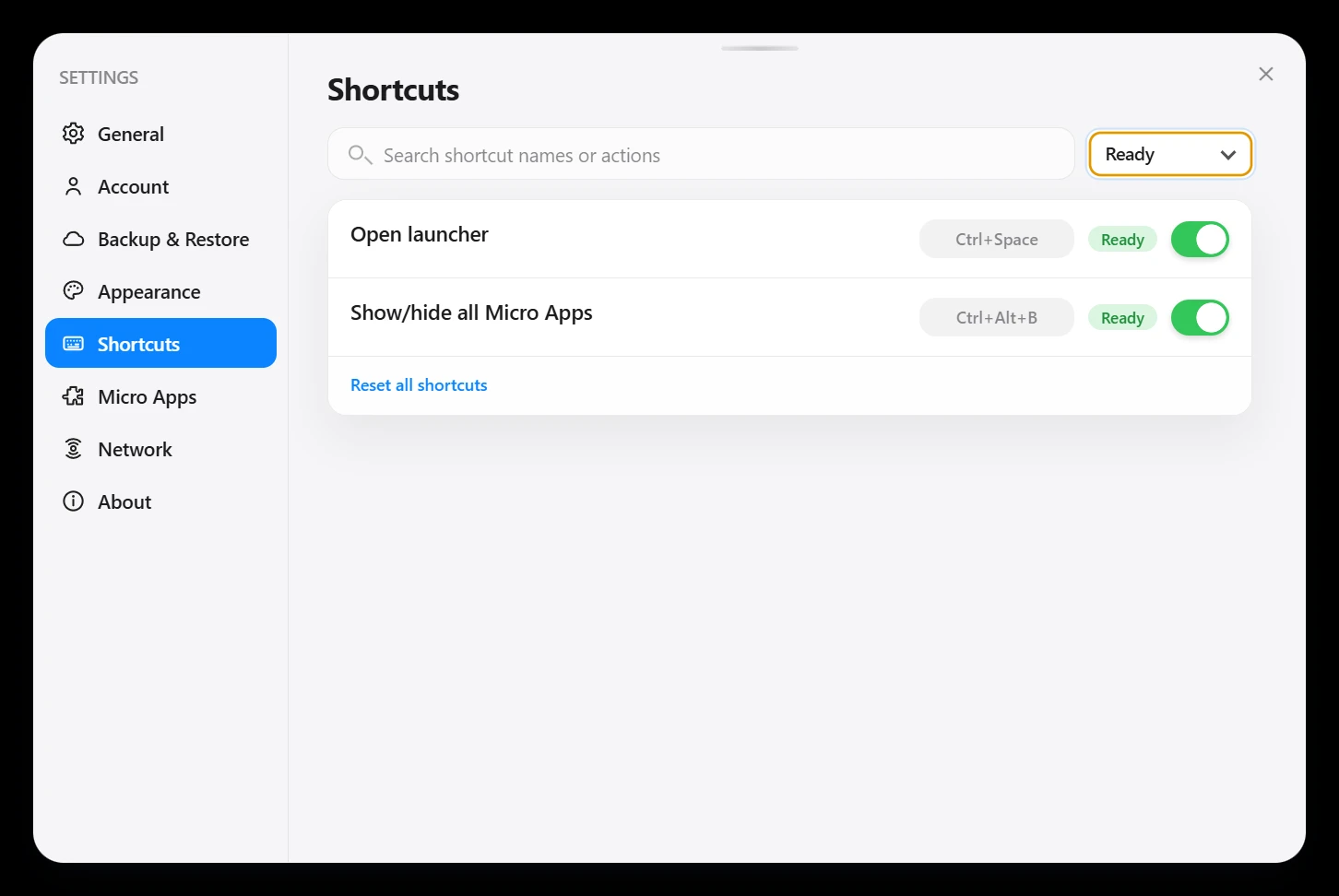
The Windows client reports Open launcher and Show/hide all Micro Apps as Ready. Check this page for the bindings active on your own computer.
Try a short interruption
Begin with a micro app whose content is easy to recognize. In this walkthrough, Quick Shelf contains a Tutorial project group with a website, a checklist file, and a folder. It gives us a simple way to recognize the same working state afterward.
Press Ctrl+Alt+B to hide the visible micro apps. Focus on the application you need for the interruption. When you want the tools back, press the same combination again.
In the real Windows session used for the screenshots, Quick Shelf and the visible desktop pet disappeared from view. Using the shortcut again brought them back. Quick Shelf still showed the same three entries and its one registered shortcut.
That is a useful routine before switching attention to a large document, checking a full-width design, or clearing space for a demonstration. You do not need to close each utility and search for it again afterward.
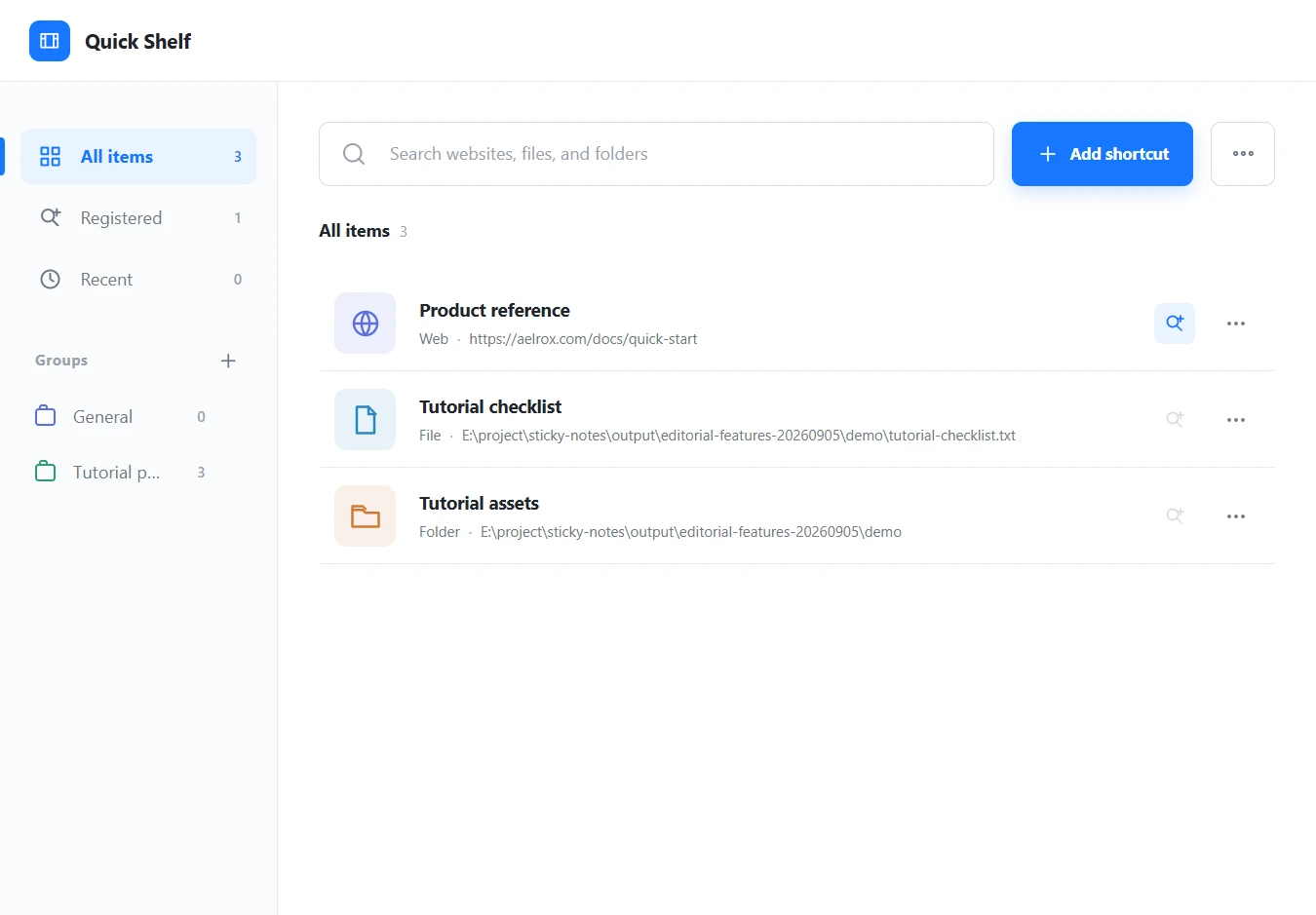
Quick Shelf after hiding and showing the current micro apps again. The same three demo shortcuts and registration count remain visible.
Choose between hiding and switching
Hiding works well for a temporary interruption. You still want the same tools, just after you have finished something else.
A workspace switch fits a different situation: you want a different Aelrox arrangement for another activity. A tutorial project may use reference and file-search tools, while a personal setup uses a creative app and reminders. Open Workspaces when that is the change you need.
| What you need | Useful action |
|---|---|
| A clear view for a moment | Show/hide all Micro Apps |
| The same visible tools back afterward | Use the visibility shortcut again |
| Another Aelrox arrangement | Switch workspace |
| A tool that is not open yet | Find it through the launcher |
| An output you can keep or share | Use the tool's save or export command |
You can use both visibility controls and workspaces in a small setup. The choice depends on whether you are pausing the current activity or moving to another one.
Keep visibility separate from the tool's own work
Hiding changes what is visible. It does not replace a save command or establish that an active recording, connection, or background task has stopped. Use the relevant micro app's own controls when you need to stop that work or save its result.
For example, finish a recording through the recorder before treating the recording as complete. Export an important result through the app that produced it. Then use the visibility shortcut whenever you need more room.
Likewise, the Quick Shelf screenshot demonstrates restored visibility and unchanged entries in this session. It is not a claim that every live activity resumes in the same way after the application or computer has been closed.
Make it a small daily habit
Start with one or two tools that you actually use beside your main application. Hide them for a task that needs more space, then bring them back afterward. If you frequently need a completely different collection, give that activity a named workspace.
The useful result is a desktop that can adapt to what you are doing. Keep your tools close when they help, make room when you need it, and return with one familiar shortcut.
Download Aelrox, open a micro app you use regularly, and check Show/hide all Micro Apps in Settings → Shortcuts.