

Opening a tool should be a small part of getting something done. Yet a normal day can involve the Start menu for one application, a settings page for another task, a browser bookmark for a project, and a separate collection of small utilities.
Aelrox Search Bar brings desktop applications, system settings, installed micro apps, and compatible micro-app actions into one searchable entry point. Start with the name of what you need, choose a result, and continue your work. As you add useful micro apps, the same entry point can connect you to more of your daily routine.
You can begin with ordinary application launching. You do not need to create an AI app or configure a collection of extensions first.
Start with something you already use
Install the Aelrox desktop client and open its launcher. The default Windows shortcut is Ctrl+Space. If your computer already uses that combination, check Settings → Shortcuts and choose an available binding for Open launcher.
Type the name of a familiar desktop application or an installed Aelrox micro app. Use the arrow keys to select a result and Enter to open it. The result label tells you whether you are opening a desktop application, a micro app, or a system setting.
This is useful when several tools belong to the same task but live in different places. A screenshot utility and an installed desktop application can appear in the same search interface; you do not have to choose their category before typing.
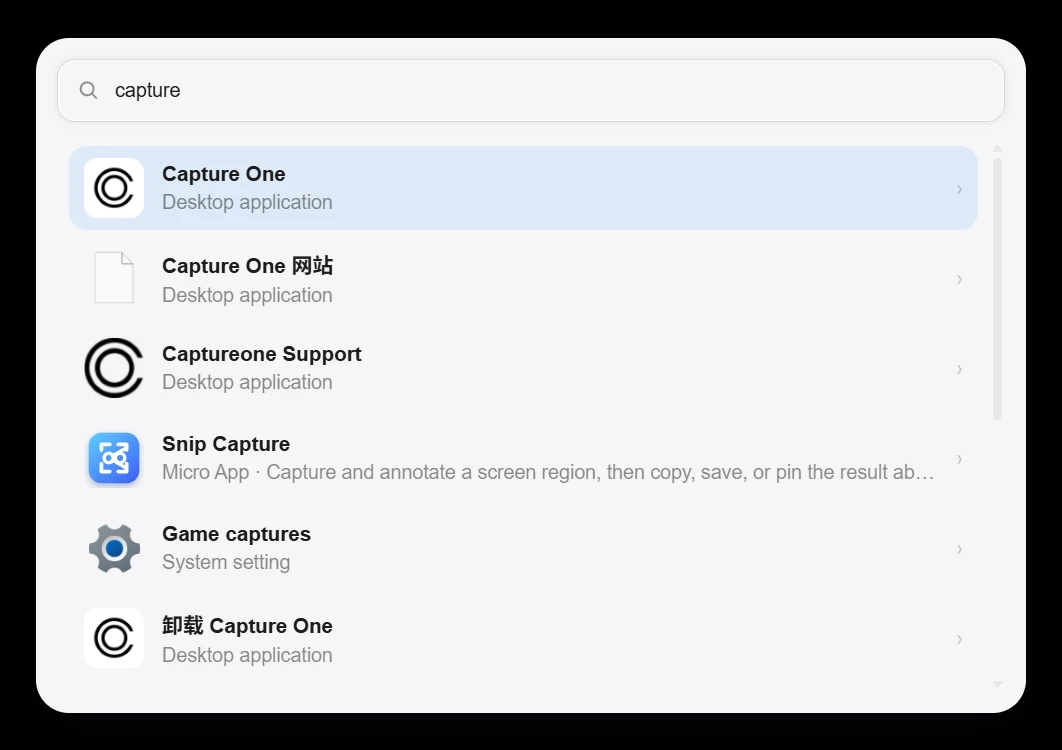
One real Windows query, several kinds of result: desktop applications, Snip Capture, and a system setting.
Search results depend on what is installed and available on your computer. Adding a micro app changes the tools you can reach from Aelrox; it does not automatically install every tool shown in an article.
Reach a setting without remembering its menu
Display scaling, audio output, and other settings are easy to use once you find their page. Remembering the route through the operating system is the distracting part.
In Aelrox, ordinary search includes desktop applications and system settings alongside micro apps. Put / at the beginning when you want to limit the results to system applications and settings.
For example, enter /display to look for display-related settings. On Windows, the results can include Display, Scale, HDR, and other relevant pages. Choose the page you want and open it directly.
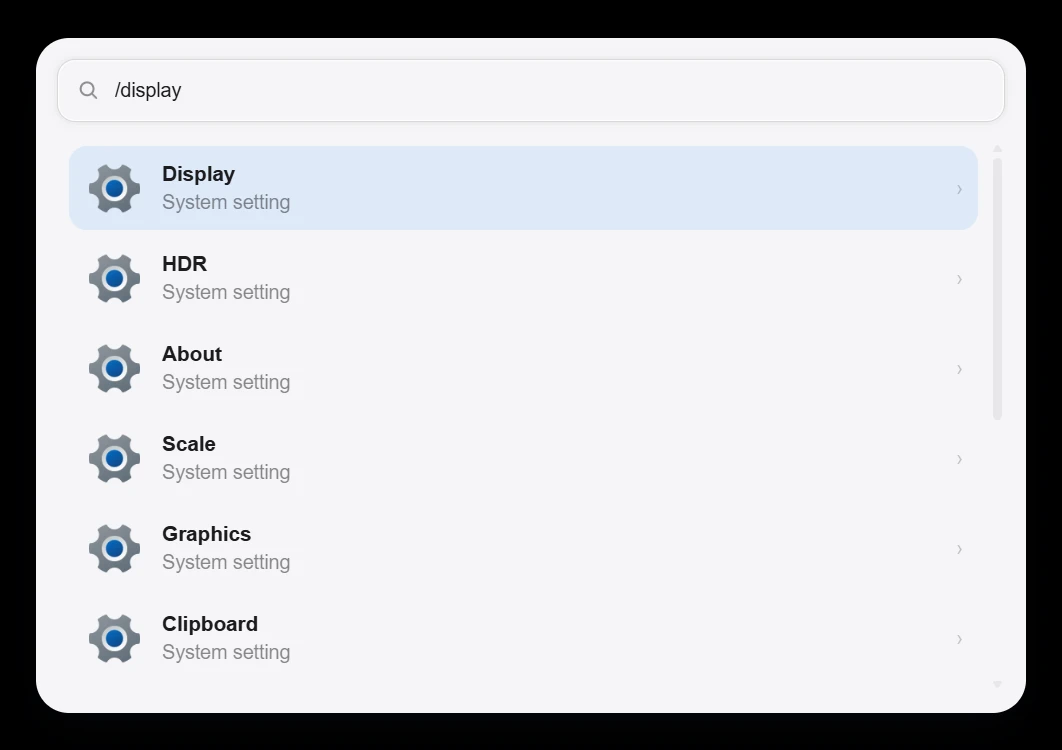
Typing /display narrows this Windows session to system results.
The slash changes the search scope. It is not a terminal prompt, and you do not need to learn a hierarchy of slash commands. The available setting names vary with the operating system.
Give a tool its input before opening it
Some tasks begin with content rather than a tool name: a filename you want to find or an expression you want a calculator to handle.
Compatible Aelrox micro apps can receive input from the launcher. Search for the micro app, select its result, and look for Tab to enter input. Press Tab, type the content, and press Enter to open the tool with that input. Esc returns to global search.

Select File Search Desk and press Tab to give the tool a filename before opening it.
With File Search Desk installed, this provides a direct route from a filename in your head to a file-search session. You can enter the query in the launcher and let the micro app handle the actual search, result details, and file actions. See the File Search Desk walkthrough for its search-provider setup and filters.
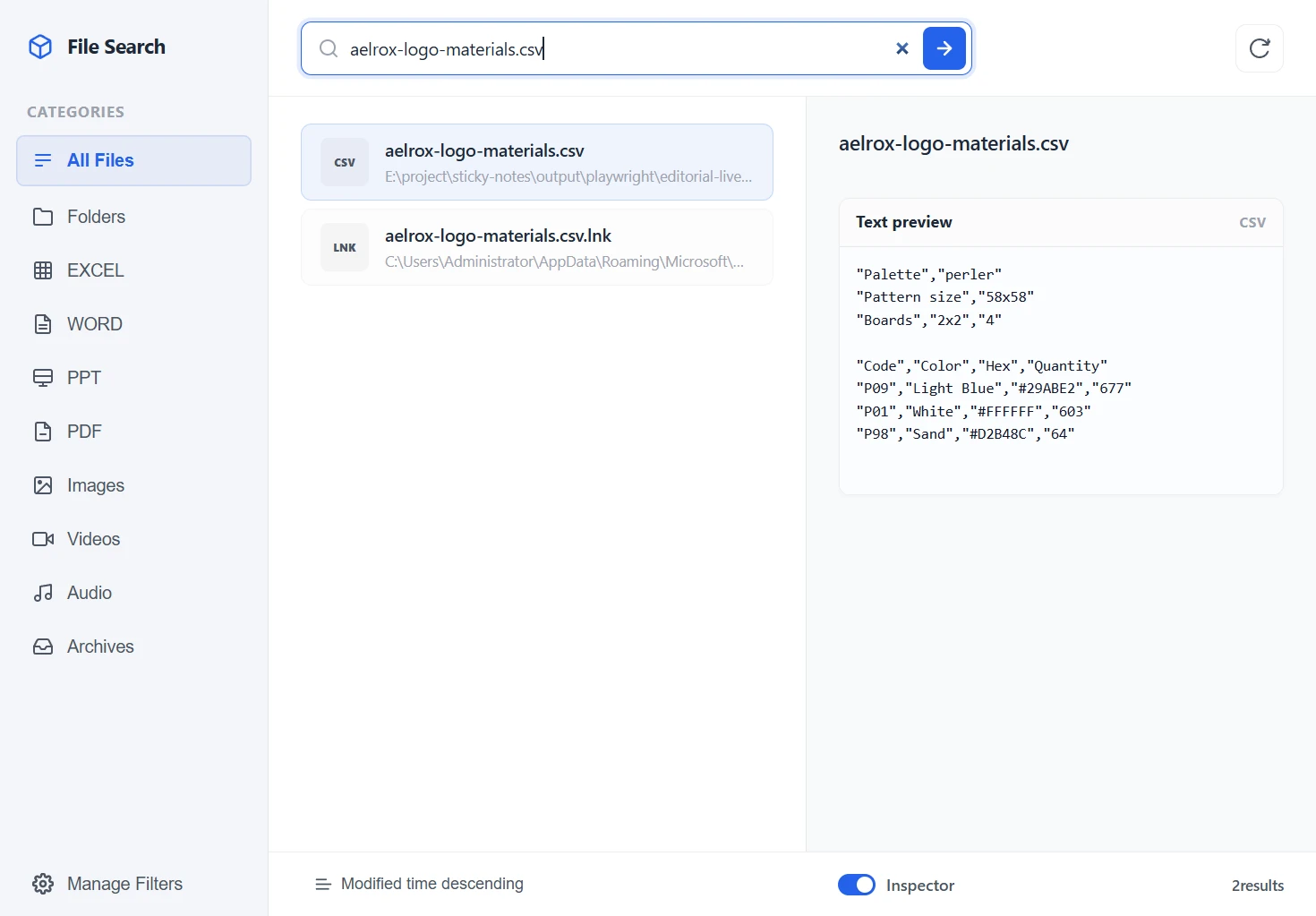
After Enter, File Search Desk receives the same filename and displays the materials CSV. This is the actual result of the launcher handoff.
Input support belongs to the individual micro app. A tool that accepts a file query may behave differently from one that accepts an arithmetic expression. Look for the input hint instead of assuming every result accepts extra text.
Aelrox can also suggest compatible tools for otherwise unmatched input. These suggestions open a tool to process what you typed. They are not a promise that every calculation or conversion will appear as an instant answer inside the search bar.
Find project shortcuts from the same search bar
Application names are only part of a working day. A project might also need a local folder, a reference document, and a website.
Quick Shelf is a micro app for organizing those targets into groups. Give websites, files, and folders short names that describe why you need them, then use Register in All Apps for the entries you want to reach from Search Bar.
Start with the project folder and reference page you open repeatedly. Open Search Bar, type the saved shortcut name, and select the matching entry to open its target directly. Keep occasional material in the shelf and register the shortcuts that deserve a faster route.
Opening a saved Quick Shelf shortcut uses a target you added. Searching a filename through File Search Desk uses that tool's configured search source. Neither means that the basic launcher automatically searches the full contents of every file on your computer.
Make the first useful setup small
For your first session, choose three things: one desktop application, one system setting, and one micro app you expect to use again. Find and open each through the launcher. Then try input mode in a compatible tool.
That is enough to make the search bar part of a real workflow. Add personal shortcuts and more micro apps when you encounter another repeated task, rather than building a large collection before you know what you need.
Download Aelrox, open Search Bar, and start with an application you already use every day.