
Use Serial Debug Studio to connect to a serial port, send readable text or exact hexadecimal bytes, inspect the traffic, and save a log. The important distinction is between what you send, what the device sends back, and how the log displays it.
This guide covers the basic workflow in the publicly listed 1.5.0 release. It uses short example payloads, not a recorded hardware test or a claim that every device will echo them.
Prepare the connection
Install Aelrox, open Serial Debug Studio, and choose Open in Aelrox.
You need a serial device or a loopback setup appropriate for your adapter. Obtain the connection settings from the device or setup you are using: port, baud rate, data bits, parity, stop bits, and any flow-control requirement. Do not assume that a preset baud rate is correct for the connected device.
For a first check, use equipment you can safely send a test message to. An arbitrary string is not a valid command for every instrument, and connecting two ports is not enough unless their electrical interfaces and wiring are compatible.
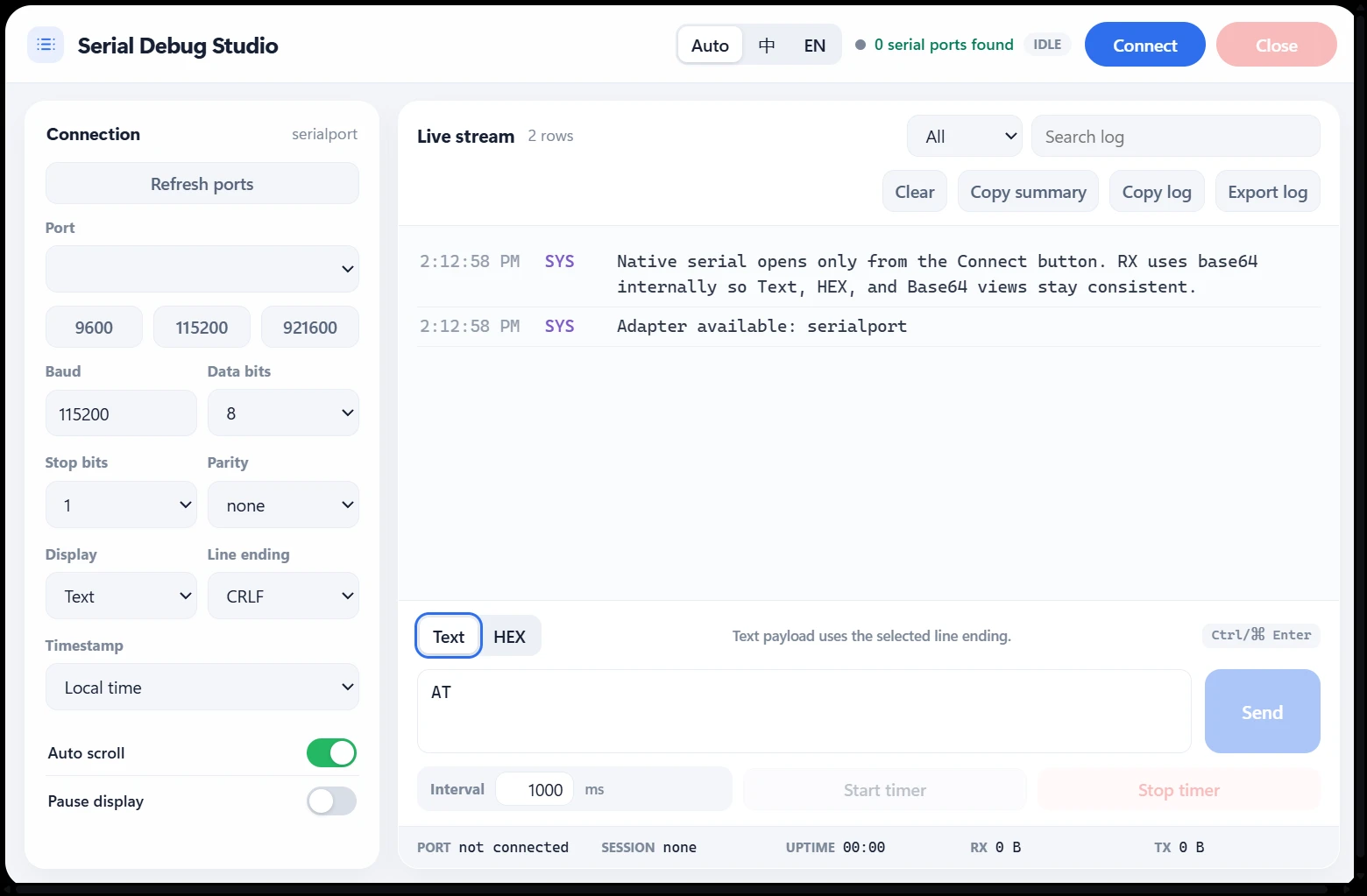
Connection settings in the Windows client. This computer reported 0 serial ports during capture, so the screenshot shows setup only; RX and TX are both zero.
Connect before sending
Refresh the port list, choose the intended port, and enter matching connection settings. Connect and check the reported state before trying a payload.
If opening the port fails, verify that the device is present, its driver is available, and another terminal is not already holding the port. Changing the payload cannot fix a connection that never opened.
Keep timed sending off while you establish the first successful exchange. A single request is easier to inspect than a stream of repeated traffic.
Send a short text message
Choose text mode and enter a message that is appropriate for your test setup. For an echo fixture, a short ASCII string such as HELLO is easy to recognize.
Check the Line ending setting before sending. A device may expect no extra bytes, carriage return, line feed, or a pair of line-ending characters. Those choices can change whether it recognizes a command.
Send once and distinguish the transmitted entry from a received entry. A TX line records what was sent; it does not prove that the device replied. In a correctly configured echo test, look for a corresponding RX payload. A device that does not implement echo will behave differently.
Send the bytes explicitly in HEX mode
Switch the send mode to HEX when the protocol calls for bytes rather than a typed string. For the ASCII word HELLO, the byte values are:
48 45 4C 4C 4F
Use that sequence only for a test setup that should accept those bytes. If the protocol requires a terminator or checksum, include the required bytes according to its specification; the example above is just the five letters.
Compare the payload at the byte level when the response is binary. A text view can contain non-printing characters or replacement symbols even when bytes were received. Conversely, readable text in the log does not establish that a binary message has the correct length or checksum.
Changing the receive display helps you inspect data. Changing the send mode determines how the next payload is interpreted; they are different operations.
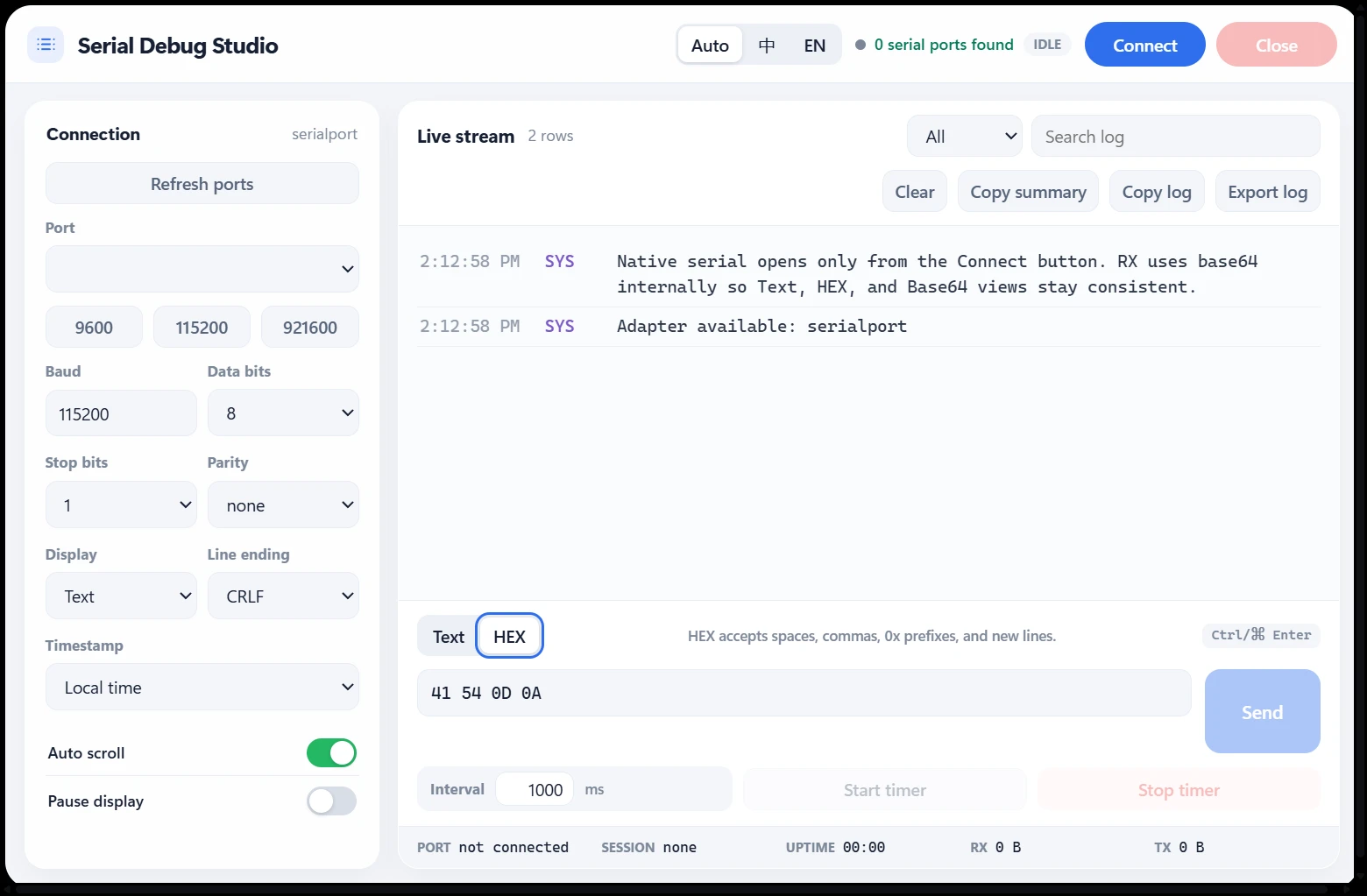
HEX mode with 41 54 0D 0A in the input. These bytes are prepared input, not a transmitted packet or a received reply; no serial device was connected for this screenshot.
Filter deliberately before exporting
Use the log's filters to focus on the entries you need. Before saving a report, decide whether you want the filtered view or a broader record of the session.
Export log follows the currently matching log rows and their displayed representation. Clear restrictive filters if you want the other retained rows included, and choose the display that makes the result useful to its reader.
Select Export log, choose a location, and open the saved .log file. Check that it contains the exchange you intended to keep. A text log is not the same as a complete raw binary capture, and it should not be presented as one.
For a useful handoff, record the port settings and the exact request alongside the log. That gives the next person enough context to repeat the exchange instead of guessing how the connection was configured.
Finish the session
Stop any timed sending you enabled, then disconnect when you are done. If you need another attempt, reconnect deliberately and send one known request before restarting a repeated sequence.
Open Serial Debug Studio for text or byte-level serial work. For a register-based example that uses a local TCP simulator instead of serial hardware, follow the Modbus TCP tutorial.