
To read a QR code that is already in a screenshot or image file, open QR Studio's Read image tab and choose the image. The decoded content appears as text, so you can inspect or copy it without pointing a phone at your monitor.
This is useful when a QR code arrives inside a project document, event graphic or saved screenshot. A QR code can contain a web address, plain text or connection information; recognizing it and deciding what to do with its contents are separate steps.
This walkthrough uses QR Studio 1.0.1. We generated a QR code for Aelrox's Quick Start page, captured the preview as a PNG screenshot, and read that screenshot back into the app. The browser-preview round trip returned the original address exactly.
Open QR Studio and switch to Read image
Install QR Studio in the Aelrox desktop app. Open it and select Read image, alongside the Text, Website and Wi-Fi tabs.
Choose Choose image, then select a PNG, JPEG or WebP containing the QR code. You are selecting an existing image; this workflow does not scan your screen continuously or use a camera.
For this example, the source screenshot contains a code generated from:
https://aelrox.com/docs/quick-start
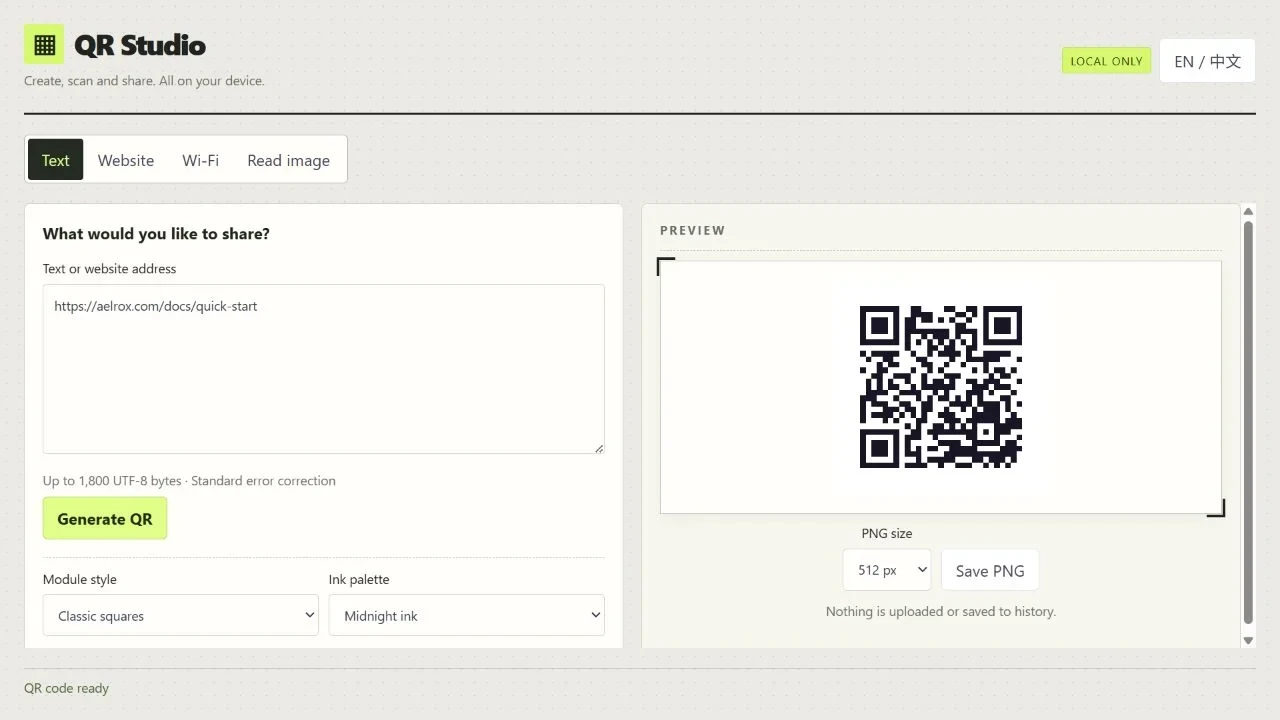
The prepared source screenshot used for the reading step. The app was running in a browser preview.
Check the decoded result before copying it
After recognition, look for QR code decoded and read the output. In the example, the result is:
https://aelrox.com/docs/quick-start
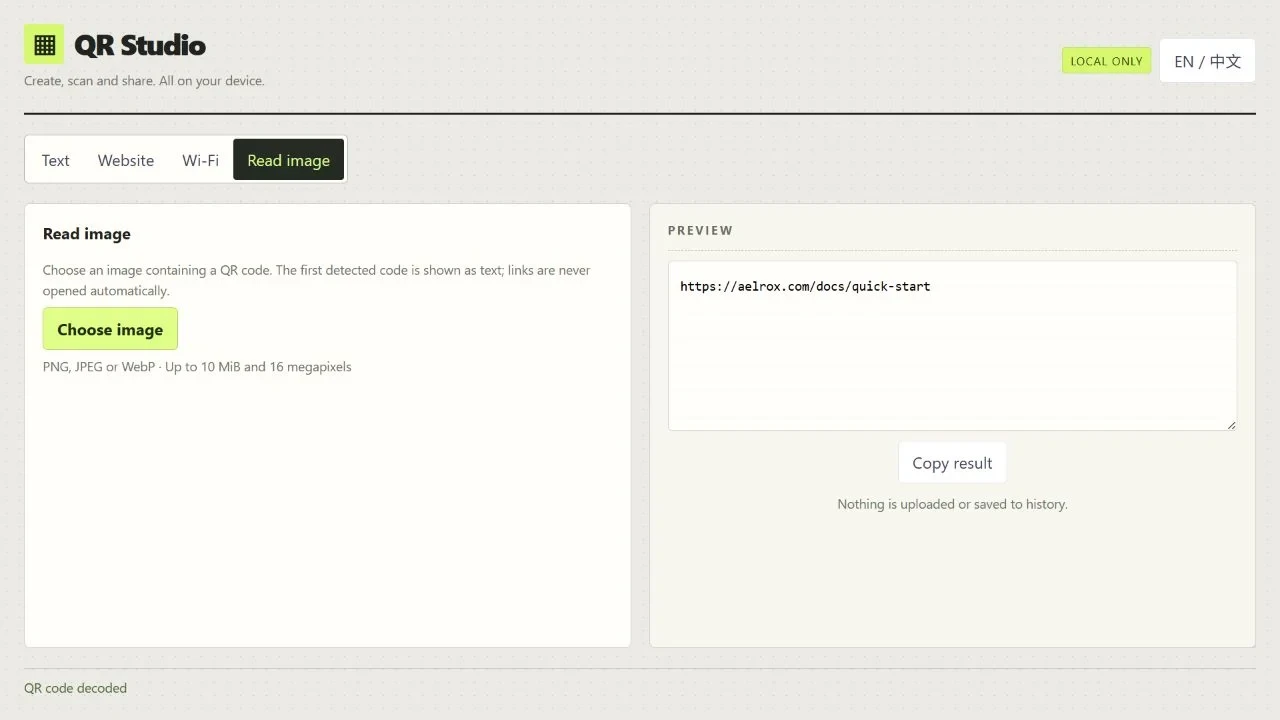
The decoded address matches the text used to generate the code, including its path.
Select Copy result if you want to paste it into another application. QR Studio does not automatically open a decoded link. Check the actual domain and destination before choosing to visit it; a recognizable graphic around a code does not establish where the code points.
If the result is plain text or Wi-Fi information, copying it does not automatically perform an action. In particular, reading a Wi-Fi code is not the same as connecting your desktop to that network.
If the image will not decode
The current reader accepts images up to 10 MiB and 16 megapixels. It reduces large images to a longest edge of 1,600 pixels for decoding. That means a tiny QR code inside a very large screenshot may become too small to read.
Try a clearer source image or crop around the code while retaining its surrounding white margin. Avoid cutting into the code or removing all of that margin. If you need a crop tool, Image Munch provides a separate cropping workflow.
Do not assume every stylized, blurred or partially covered code can be recovered. A sharp original generally gives the reader more usable information than an enlarged blurry copy.
Use one code at a time
The app returns the first detected QR code from an image. It is not a batch inventory of every code in a poster. If the image contains several codes, make separate crops and check each result against the label beside that code.
QR Studio also creates text, website and Wi-Fi codes, but you do not need to generate a new code to read an existing one. For this task, the complete workflow is simply Read image → Choose image → inspect the text → Copy result.
Open QR Studio to read your next saved QR image.