
A screenshot for a support reply, a graphic for a launch post, or an image for a project note often needs the same small edits: remove the extra space, reduce its dimensions, and save a lighter copy. Image Munch brings those steps into one Aelrox desktop window.
Image Munch lets you crop, resize, and compress a static JPG, PNG, or WebP image locally, with an automatic before-and-after preview. You can inspect the result as you adjust it, then export a separate file. You do not need to upload the image to a compression website.
Follow along with a launch-card graphic: remove its border, resize it for sharing, and save a smaller JPG. The screenshots show Image Munch 1.2.4 on Windows using an image prepared for this walkthrough.
Open an image and see the result immediately
Download Aelrox, then open Image Munch in the Micro Apps Store and install it. Launch the tool and select Choose image, or drag one supported image into its window.
JPG is the default output format. Once the image loads, Image Munch automatically generates a result using the current settings. There is no separate Preview button to press. The file-size comparison appears beside Export, and the dividing line reveals the original on the left and the result on the right.
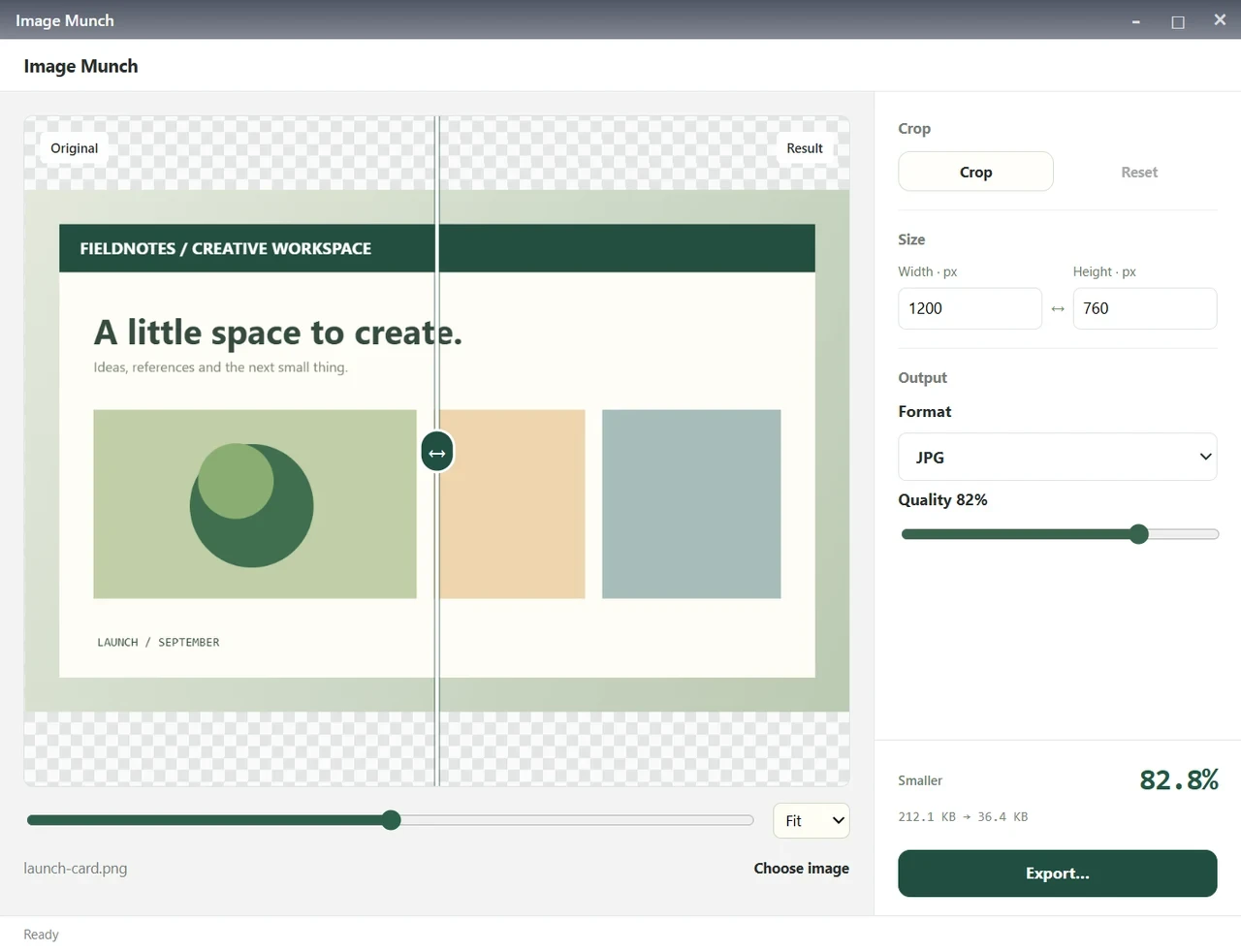
A 1200 × 760 PNG opened in Image Munch, with the result ready to compare.
The right-hand panel keeps the work in three places: Crop, Size, and Output. Start with the picture itself, then decide how much detail the destination needs.
Crop the composition before reducing its size
Select Crop. Drag inside the selection to move it, or drag one of its eight edge and corner handles to change the area you keep. Choose Freeform for an unconstrained selection, or use a ratio such as 1:1, 16:9, or 9:16 when the destination calls for a particular shape.
Use Apply to keep the selection. Cancel returns to your previous result. If you reopen Crop, the previous selection is available on the full original so you can adjust it again; Reset restores the original image.
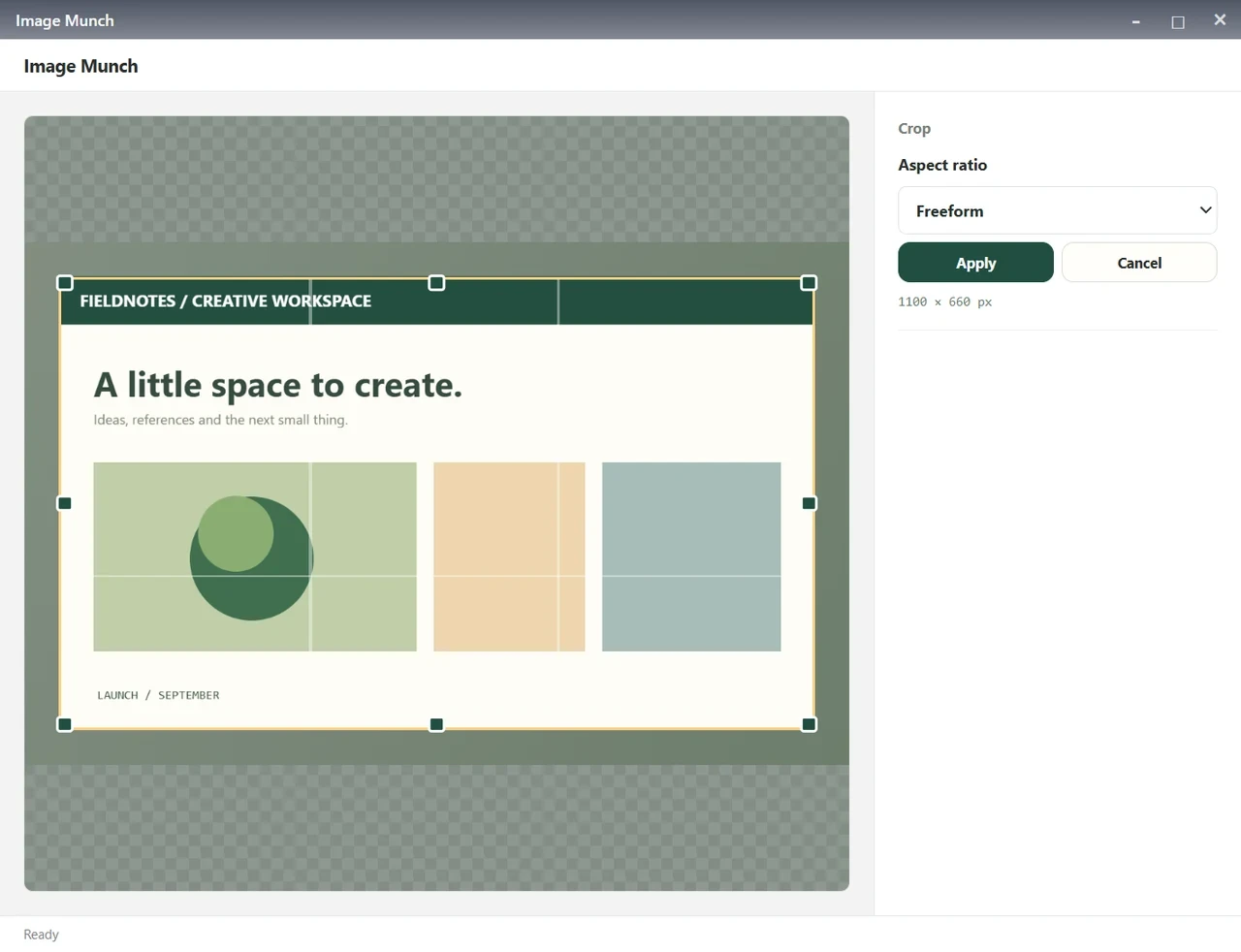
Here, the selection keeps the 1100 × 660 launch card and removes the surrounding border.
Cropping changes the composition. Resizing changes how many pixels represent that composition. They are separate decisions: crop unwanted margins first, then reduce the dimensions if the destination needs a smaller image.
Set the output dimensions
Under Size, enter a width or height. The other value follows automatically to preserve the proportions. Image Munch starts with the original dimensions on import, or the retained dimensions after applying a crop; it does not enlarge the source.
For this example, we changed the cropped card's width to 800 px. Its height became 480 px. That produces a smaller copy while keeping the card's proportions and text placement.
Use dimensions that fit your destination. A small illustration inside a project note may not need the same resolution as a full-width presentation image. Resizing too far can make text difficult to read, so inspect it before exporting.
Adjust Quality and inspect the same detail
For JPG or WebP, Quality controls the encoder's tradeoff between file size and image detail. A lower setting generally produces a smaller file, with more potential artifacts. It is not a percentage of visual detail retained: Quality 40 does not mean the picture must look 60% worse.
Changes automatically update the result. Drag the divider across the same text, edge, or textured area to compare it. Fit is useful for composition; 100% or 200% makes fine detail easier to inspect. At the far left, the view is almost entirely the result; at the far right, it is almost entirely the original.
If the two sides look close at the size you will actually use, that can be a useful outcome. Check small lettering and gradients rather than expecting the whole picture to change. PNG output does not use the lossy Quality slider.
Export a copy you can use
Select Export and choose where to save the file. Our finished JPG is 800 × 480 pixels and 20.0 KB, down from the original PNG's 212.1 KB. It keeps the launch card's composition in a smaller file ready to share.
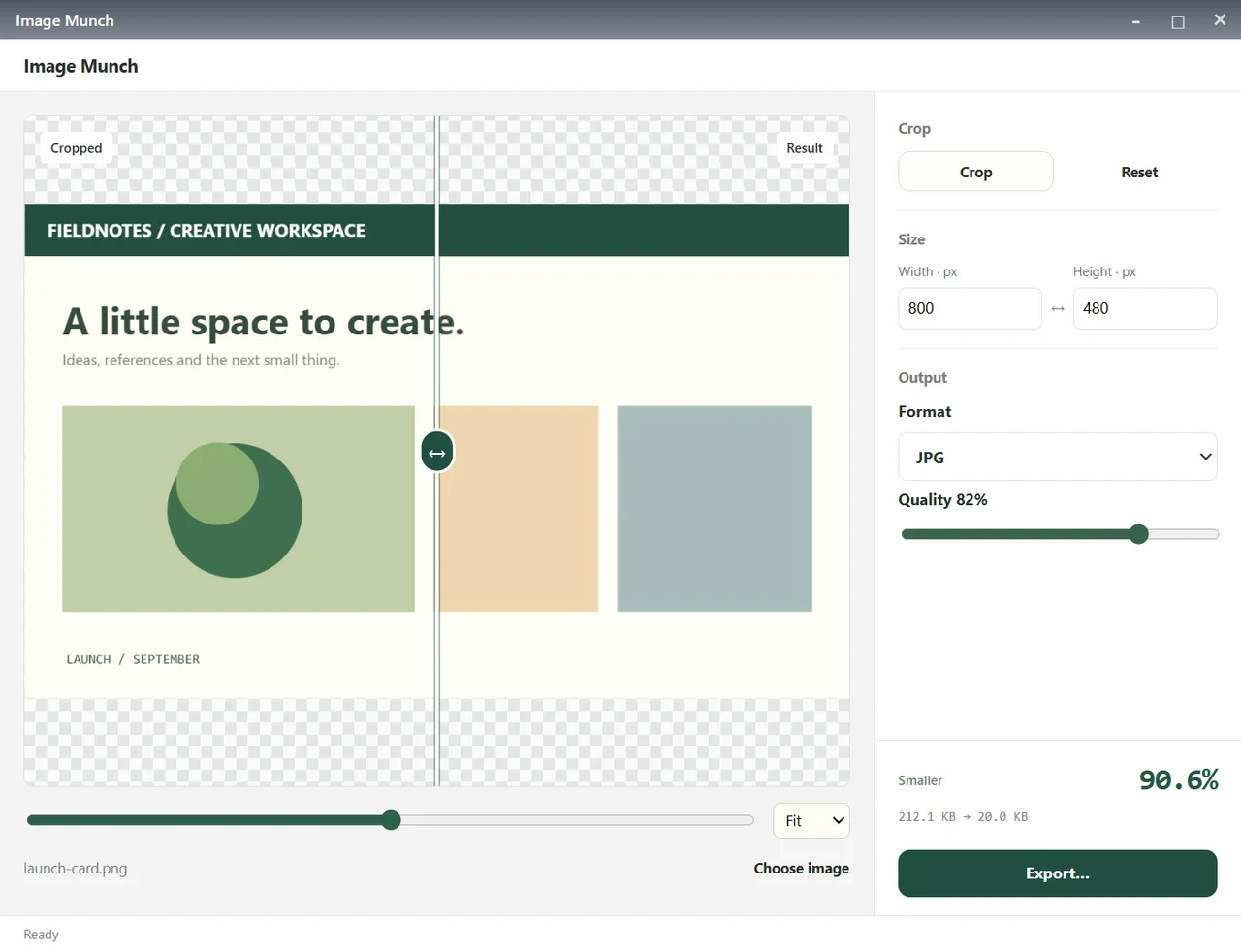
The displayed 90.6% reduction belongs to this example. It combines cropping, resizing, and PNG-to-JPG encoding; it is not a promised compression rate for other images.
Image Munch reports the actual size even when an output becomes larger. With the same format and unchanged dimensions, an uncropped conversion that offers no size benefit keeps the original bytes. Export opens a save flow; the app does not automatically replace your source file.
Know what stays local
Image Munch processes the selected image locally. Its file access is used for the file you choose or drop, and its download access opens the export flow. This is an image-processing workflow, not a claim that every Aelrox feature operates offline. The micro-app safety guide explains the broader permission controls.
The current tool accepts one static image at a time, up to 32 MB and 24 megapixels. Animated images, HEIC, AVIF, PDF, and video are outside this workflow. JPG fills transparent areas with white; choose PNG or WebP when transparency matters. Image contents are not restored after closing and reopening the tool, so export the copy you want to keep.
Make one image ready to share
Start with a graphic you already need for a reply, a post, or a project document. Crop it, choose useful dimensions, check one important detail, and export. That is a complete task without building a larger editing project.
Open Image Munch, or download Aelrox to run it on your desktop. For more small tools that fit around everyday work, explore the Aelrox desktop toolkit.