
A useful color is often already on your screen: the blue in a reference image, an accent in a presentation, or a background you want to reuse. Guessing a similar shade adds an unnecessary step. A screen color picker gives you a value you can take into your own work.
Desktop Color Picker in Aelrox lets you sample a screen color, copy its value, and return to recently picked colors. This walkthrough uses two simple reference swatches so you can see the relationship between the source and the result.
Open the color picker
Install the Aelrox desktop client, then find Desktop Color Picker in the Micro Apps Store. Install it and choose Open. If it is already installed, you can also find it through Aelrox Search Bar.
The tool puts a color wheel on the left and numerical color formats on the right. The eyedropper button starts Pick from screen. The recent-color area sits below the format fields.
Keep the reference you want to sample visible. For this example, we used a small project palette containing a blue swatch, #2563EB, and an orange swatch, #F59E0B. Those are demonstration inputs, not colors you need to use in your project.
Pick one screen color
Select Pick from screen, move the pointer over the desired area, and click to choose a pixel. The color-picker window moves out of the way during the picking session and returns with the selected color.
Choose a flat area for your first attempt. Text edges, shadows, and gradients contain several nearby colors, so a different pixel can produce a different value even when the area looks uniform at a glance.
In our Windows desktop session, choosing the blue reference produced HEX 2563eb and RGB 37, 99, 235. The result matched the reference swatch, and the blue appeared in the recent-color area.
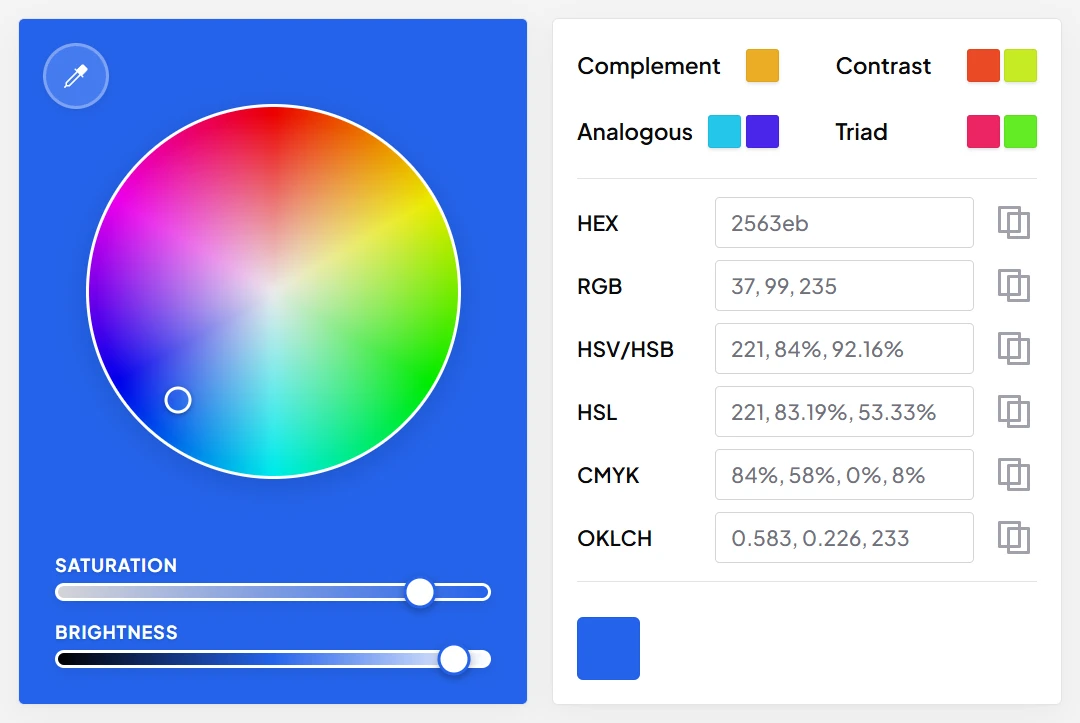
An actual Windows result from Desktop Color Picker 1.0.8. The sampled blue is visible both in the format fields and in the recent palette.
Copy the format your next tool needs
Use the copy button beside the format you want. The current interface includes HEX, RGB, HSV/HSB, HSL, CMYK, and OKLCH fields, so you can choose a representation that suits the destination.
We clicked the copy button beside HEX and checked the clipboard result: 2563eb. In this version, that copied value does not include a leading #. Add it if the field or code you are pasting into expects one. For example:
.primary-button {
  background: #2563eb;
}
The format tells you how a color is represented. It does not guarantee an identical physical print result; a screen sample is not a substitute for a print color-management workflow.
Build a small recent palette
Repeat the pick action for a second reference. We sampled the orange swatch and obtained HEX f59e0b, with RGB 245, 158, 11. Both the orange and the earlier blue then appeared in the history area.
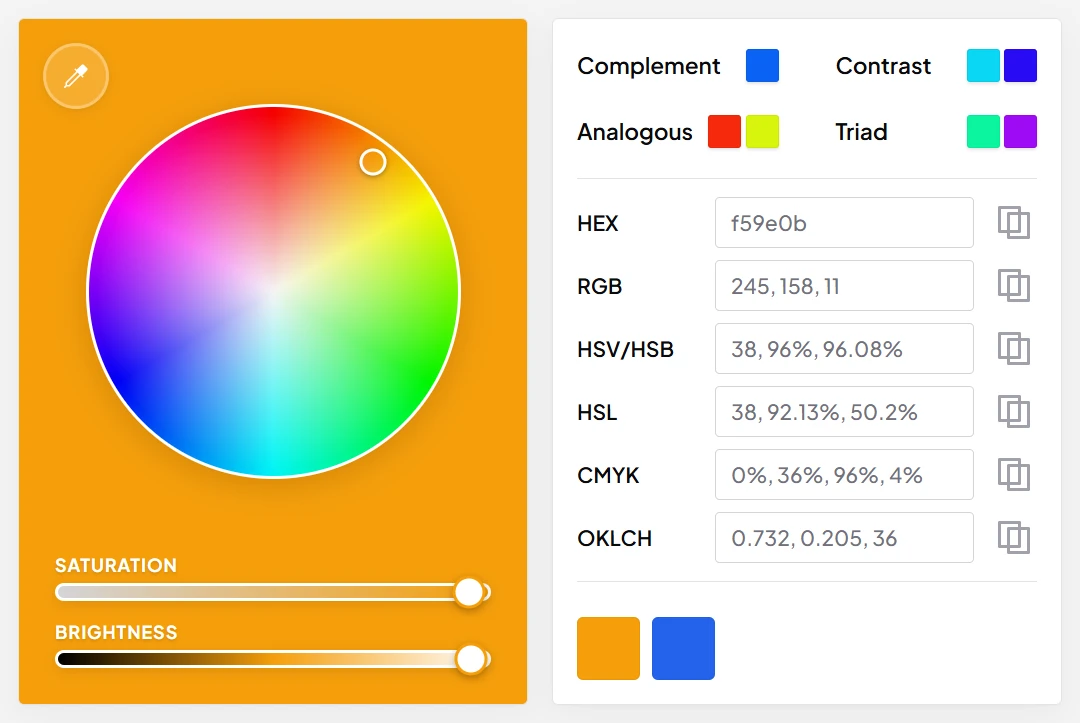
The second pick adds orange to the recent palette while keeping the earlier blue available.
Select a recent swatch to return to it. In this session, choosing the blue history swatch and copying HEX again returned 2563eb. This is useful when you need to move between a primary color and an accent without sampling the same reference repeatedly.
The wheel, saturation and brightness controls, and related-color suggestions give you additional ways to explore a variation. If the task is to match a reference, copy the sampled value before changing it.
Take the result into a real task
A short workflow is enough: pick a primary color, pick an accent, copy the values, and apply them to a button, slide, or project note. If you also need the visual reference itself, pin a screenshot above your work.
These screenshots verify the two picks, HEX copying, and recent-color selection in one Windows session. They are not a color-accuracy benchmark across displays or an HDR test.
Open Desktop Color Picker and start with one color you already want to use. If you are new to Aelrox, download the desktop client first.