
White Noise Box lets you combine rain, ocean, café and wind sounds in one desktop window, with a separate volume control for each track. Start with one sound, then add another only if you like what it contributes.
Despite the app's name, these are environmental recordings rather than a control for generating a mathematically uniform white-noise signal. Choose them by how they sound to you, not by a promise that a particular combination will improve concentration or sleep.
The controls below are from White Noise Box 1.0.4. Screenshots show the published app's settings in a browser preview, before playback. They illustrate how to build a mix; they do not demonstrate audio output or confirm stopping on your desktop.
Open the app and begin with rain alone
Install White Noise Box in the Aelrox desktop app, then open it. The app starts with playback off.
For a simple starting point, set Rain to 40%, then set Ocean, Café and Wind to 0%. The interface should show 1 sound selected. A track at zero is labeled Silent.
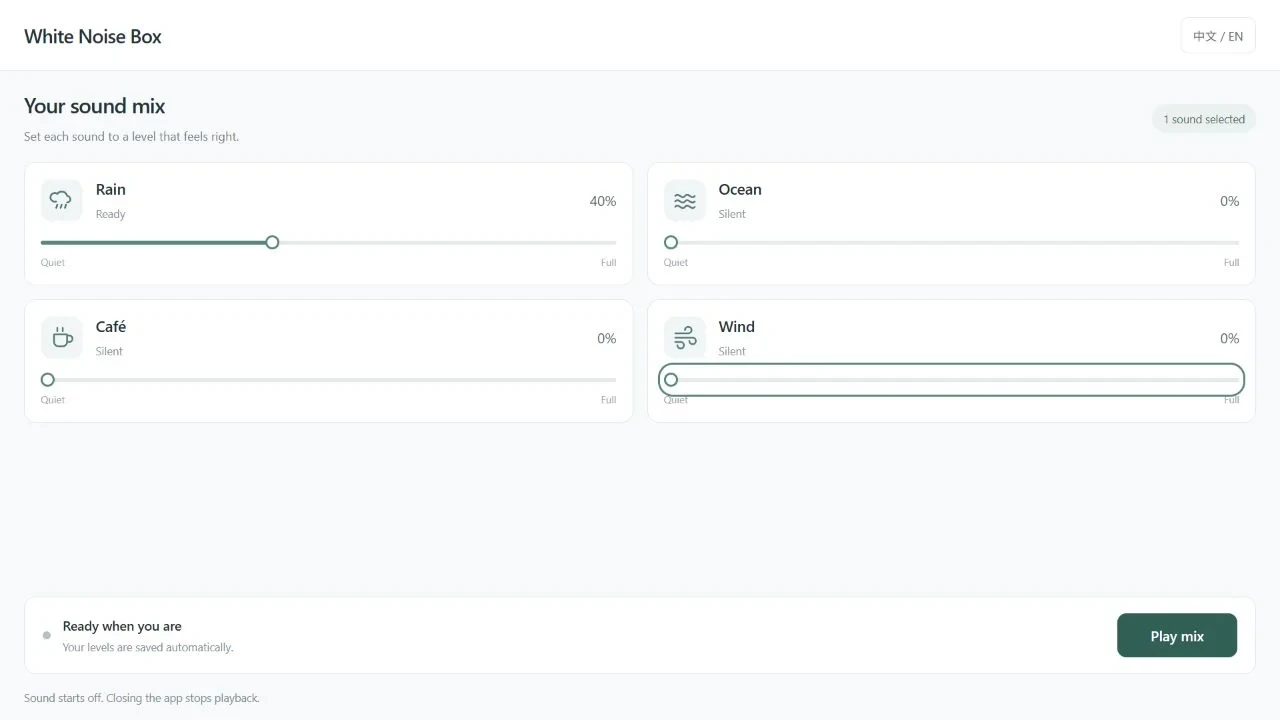
One selected sound, ready to play. The numbers are an example configuration, not a recommended listening level.
Keep your device's output volume comfortable, then select Play mix and approve the audio permission if requested. Start listening before increasing any of the individual sliders.
Add one layer and compare
Leave Rain at 40% and bring Wind to 15%. Keep Ocean and Café at zero for now. This gives you a two-track setup that is easy to compare with rain alone.
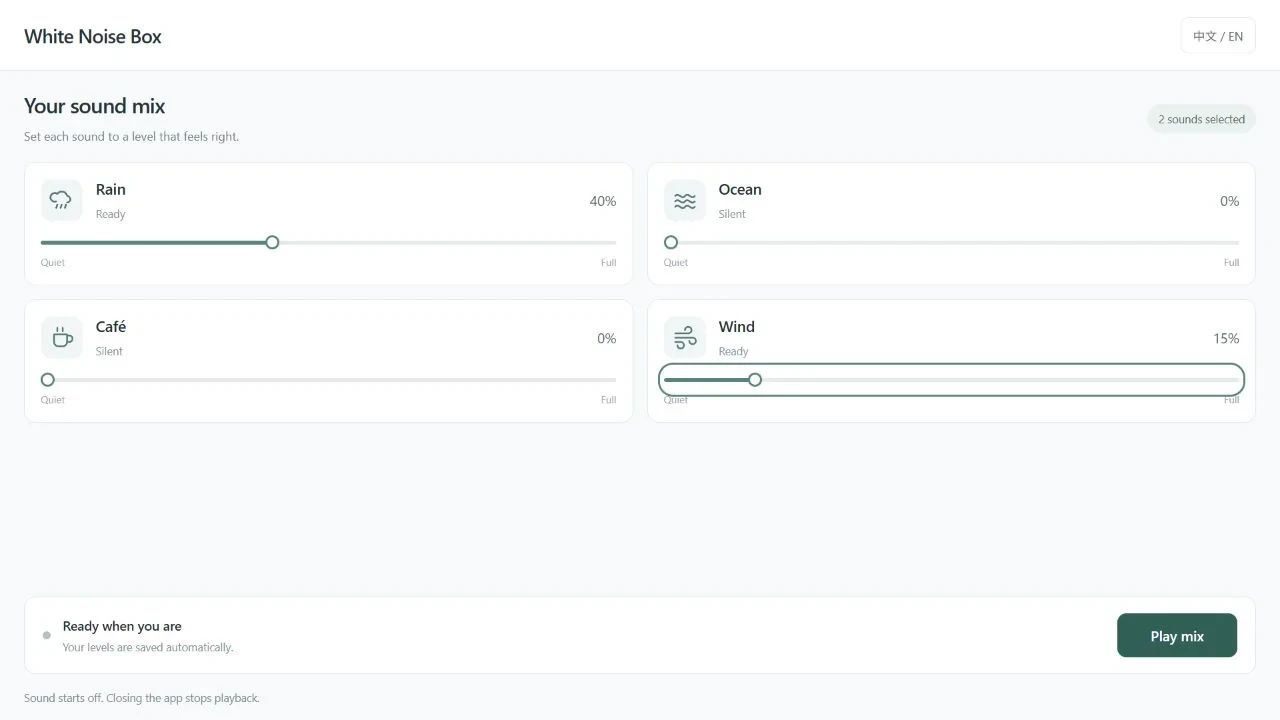
The second configuration adds Wind while leaving the other two tracks silent.
Move Wind between zero and your chosen level while listening. If it adds detail you do not want, return it to zero. Try Ocean or Café separately before combining all four; changing one thing at a time makes the result easier to judge.
Equal percentages do not guarantee equal perceived loudness. Recordings have different content and levels, and your headphones, speakers and system volume also affect what you hear. A 40% slider setting is not a sound-pressure measurement.
Understand the selected-sound count
The count describes how many tracks have a volume above zero. It is not proof that audio is playing. Before playback, selected tracks can say Ready; a zero-volume track says Silent.
Check the player state and listen to the output when deciding whether the mix has started. Setting every slider to zero silences the configured mix, but it is clearer to use the dedicated stop control when you are finished.
Stop deliberately and check the result
Select Stop mix to stop playback. Confirm that the interface returns to its ready state and that the sound has actually stopped. If audio continues, treat that as a playback problem rather than assuming the button's label proves success.
The app is designed to retain your volume preferences and start with sound off on the next launch. Closing the app is intended to release its playback. Before depending on that behavior in your routine, check it once in your installed desktop version, especially after updating.
Keep the mix simple enough to reuse
Once you like a combination, leave the levels there and use the play and stop controls for the next session. The current app has four bundled tracks; this workflow does not include uploading your own recording, a sleep timer or a library of named presets.
You can keep a short next action beside it with Sticky Note, or hide and restore your desktop tools when you need a clear screen. Open White Noise Box to try a mix that suits your workspace.