Desk Ruler measures horizontal spans, vertical spans and rectangular areas. Use it to inspect visible spacing when comparing a layout, checking a window, or explaining a gap to someone else.
Its measurements use logical pixels, with an estimated device-pixel result based on scale. It does not measure the physical width of your monitor in millimeters or inches.
This article covers Desk Ruler 1.0.1. The illustrated exercise uses its browser practice canvas. The desktop-overlay steps describe the current implementation; the screenshot is not evidence of a measurement over another desktop application.
Learn the drag on the practice canvas
Install Desk Ruler in Aelrox. Open it and choose Area.
Drag from one point on the practice canvas to another, then release. In the illustrated exercise, the rectangle measures 360 DIP wide and 120 DIP high. At the preview's 150% scale, the estimated device-pixel result is 540 × 180.
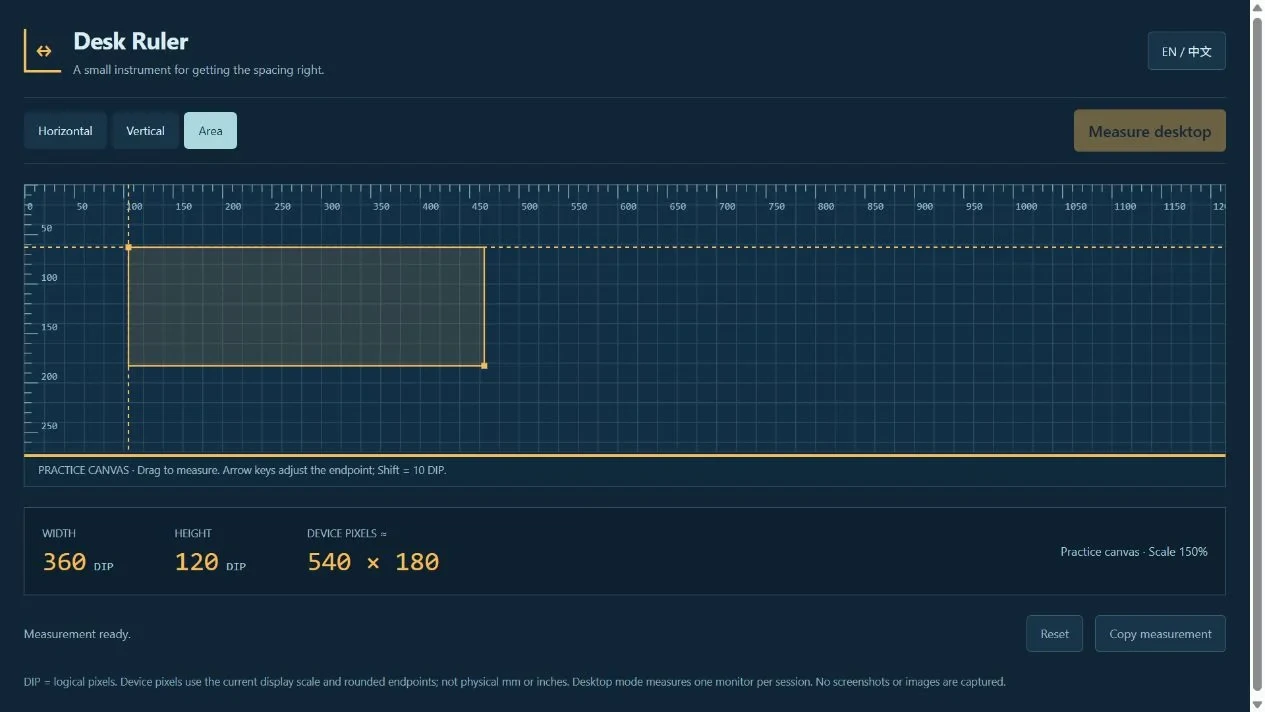
A practice-canvas reading, not a physical-size measurement or a cross-monitor test.
With the canvas focused, use arrow keys to move the endpoint by 1 DIP. Hold Shift for 10-DIP steps. This lets you make a small adjustment without starting the drag again. Reset clears the reading.
Choose the mode that matches the question
Use Horizontal when only the left-to-right distance matters, such as the gap between two panels. Use Vertical for a top-to-bottom gap. Use Area when you need both dimensions of a visible region.
Choosing a different mode resets the previous reading. Decide what you want to measure before beginning. For a layout comparison, also decide which edges count: a button's outer border and its text baseline answer different questions.
Measure over a desktop application
In the desktop host, arrange the target window, choose the measurement mode, and select Measure desktop. The transparent measurement session uses one monitor. Drag between the intended points and release to finish.
Use Escape, right-click or the session's Cancel control to exit without completing the measurement. Copy measurement copies the available result for a note or bug report.
If the app says the desktop overlay is unavailable, the practice canvas is still usable, but it cannot establish the spacing in another application. Check that you are running the tool in a desktop version with overlay support before relying on that workflow.
Explain the units when sharing the result
DIP means device-independent, or logical, pixels. The device-pixel estimate uses the display scale and rounded endpoints. A 100-DIP span at 150% scale is approximately 150 device pixels; that does not make it 150 millimeters, and it does not automatically equal an element's CSS width.
Browser zoom, application zoom and display scaling can change the relationship between a visible distance and the value in a design file. Include those settings when they matter to the comparison.
A useful handoff states the target window, the edges measured, the mode, the DIP result and the scale. For example: “Practice rectangle, Area mode, 360 × 120 DIP, preview scale 150%.”
Keep each measurement on one monitor
The current desktop session covers a single monitor. Do not treat a drag across two differently scaled displays as one calibrated result. Desk Ruler also does not capture a screenshot of what you measured.
If your handoff needs an image, take it separately and use Snip Capture's screenshot workflow. For matching colors, see Desktop Color Picker. Desk Ruler complements those tools by describing visible dimensions.