To improve an AI-generated desktop app, continue in the same Builder project and describe four things: what happens now, what should happen instead, what should stay unchanged, and how you will check the result. Try the new version before asking for the next change.
This guide follows a real Pomodoro timer created in Aelrox AI Builder. The first draft could start, pause, resume, and reset a session. We then asked for saved duration settings and protection against accidental resets. The reset change was verified through actual interaction; saving settings across a desktop restart still needs a desktop check.
Case recorded on September 3, 2026. The app and follow-up prompts are in English. Screenshots come from the browser preview. The app was generated and revised with AI; the results below distinguish observed behavior from requested behavior.
Start with a small, usable first draft
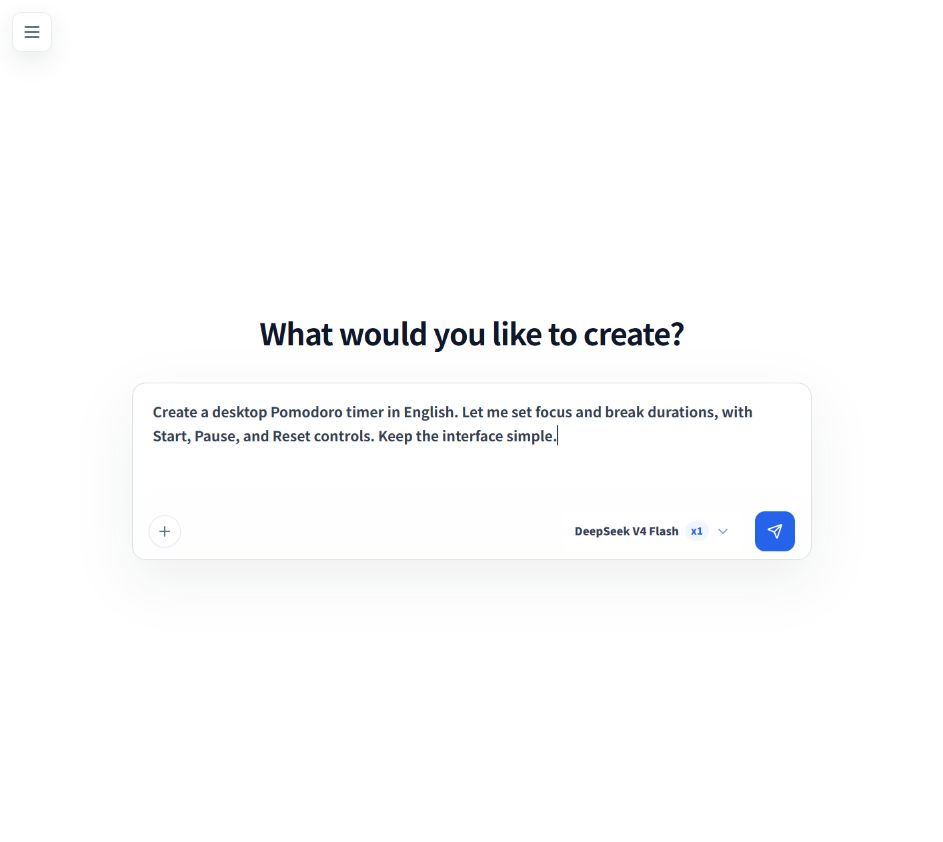
Open AI Builder, sign in, and describe one tool you want to use. This was the initial request:
Create a desktop Pomodoro timer in English. Let me set focus and break durations, with Start, Pause, and Reset controls. Keep the interface simple.
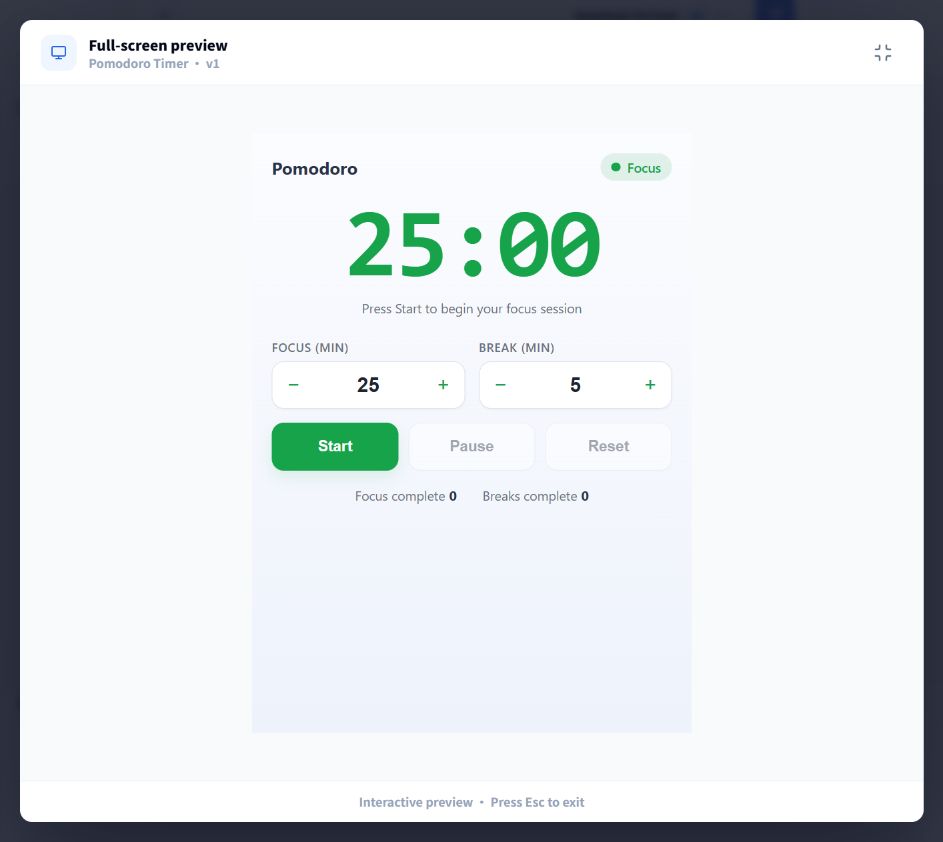
Builder produced Pomodoro Timer v1, with a large countdown, focus and break duration inputs, and three controls. The initial values were 25 minutes of focus and a 5-minute break.
View the original English prompt.
You can use the same approach for a note, countdown, or another small utility: name its main job, the inputs you need, and the controls you expect. The AI Builder guide covers the full creation workflow.
Try the app before writing a follow-up prompt
Test one normal use of the tool. For this timer, we changed the durations to 15 minutes of focus and 3 minutes of rest, started a session, paused it, and resumed it.
The first draft handled those controls. Pausing held the countdown at 14:55, and resuming continued the session. However, pressing Reset while the timer was running immediately returned it to 15:00. There was no confirmation.
That gave us a concrete improvement to request: protect a session from an accidental click. The original prompt had not asked for this behavior, so the follow-up added a missing requirement.
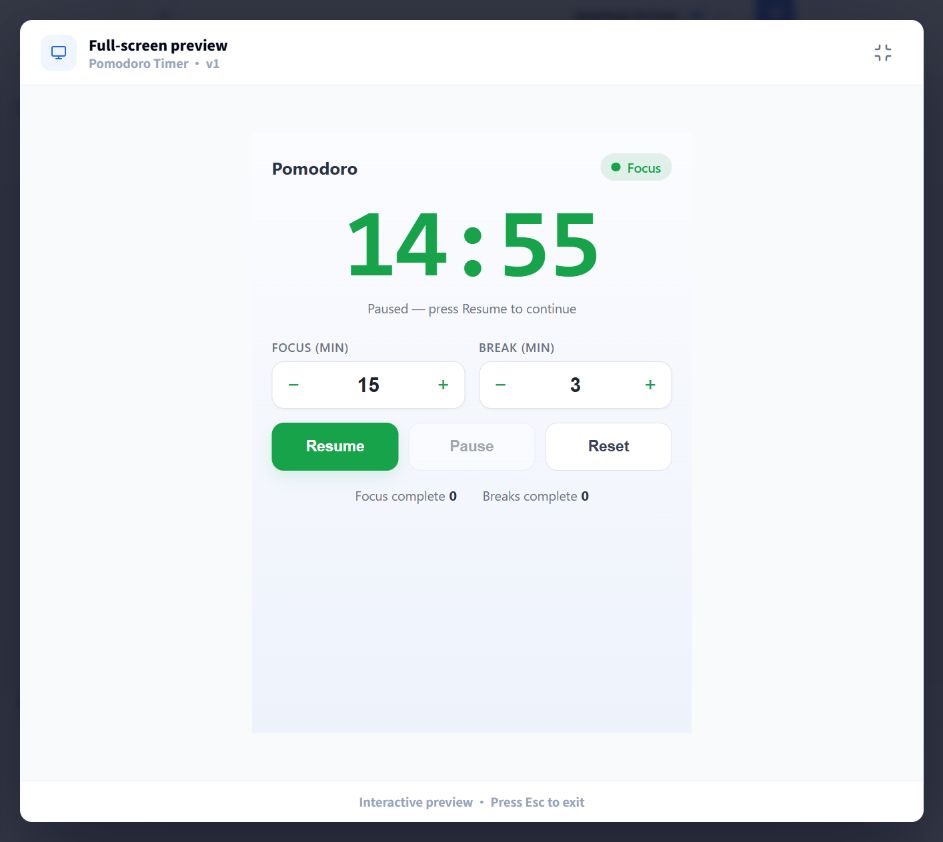
When you try your own app, record the action and result: “I clicked Reset during a session and lost the countdown” gives you a much clearer starting point than “the timer feels wrong.”
First refinement: ask it to remember your settings
Before changing Reset, we asked for duration settings to survive reopening. This produced v2. Here is the exact request:
Remember my focus and break durations when I close and reopen the app. After reopening, show the saved focus duration and stay idle; do not automatically start or resume a session. Keep the English interface, current layout, Start/Pause/Resume/Reset controls, and automatic focus/break switching unchanged. I will set 15 and 3 minutes, reopen the preview, and check that both values are retained and the timer is stopped.
This request separates remembering a preference from resuming an activity. A timer can remember your preferred duration while waiting for you to press Start.
It also exposed a limit in our verification. Switching between the embedded and full-screen browser previews returned the values to 25 and 5 minutes. That switch creates a fresh preview environment, so it does not establish whether the installed desktop app saves its settings correctly.
Desktop restart persistence remains unverified in this case. To check it, set the durations in the desktop app, close the tool, reopen it, and confirm both the values and the stopped state. Builder's completion message alone is not proof that the behavior works.
Second refinement: make Reset ask for confirmation
We continued in the same project and submitted this request, producing v3:
Reset currently ends an active session immediately. Ask for confirmation before resetting a running or paused session, with Keep session and Reset session buttons. Canceling must preserve the session; confirming should return to the configured focus duration and stay idle. Keep the English UI, layout, saved durations, and other timer controls unchanged.
Each part gives the change a clear boundary:
- Current behavior: Reset ends an active session immediately.
- Desired behavior: Ask first, whether the session is running or paused.
- Actions: Keep session cancels; Reset session confirms.
- What to preserve: The English interface, layout, duration settings, and other controls.
The resulting app displayed this confirmation during a running session:
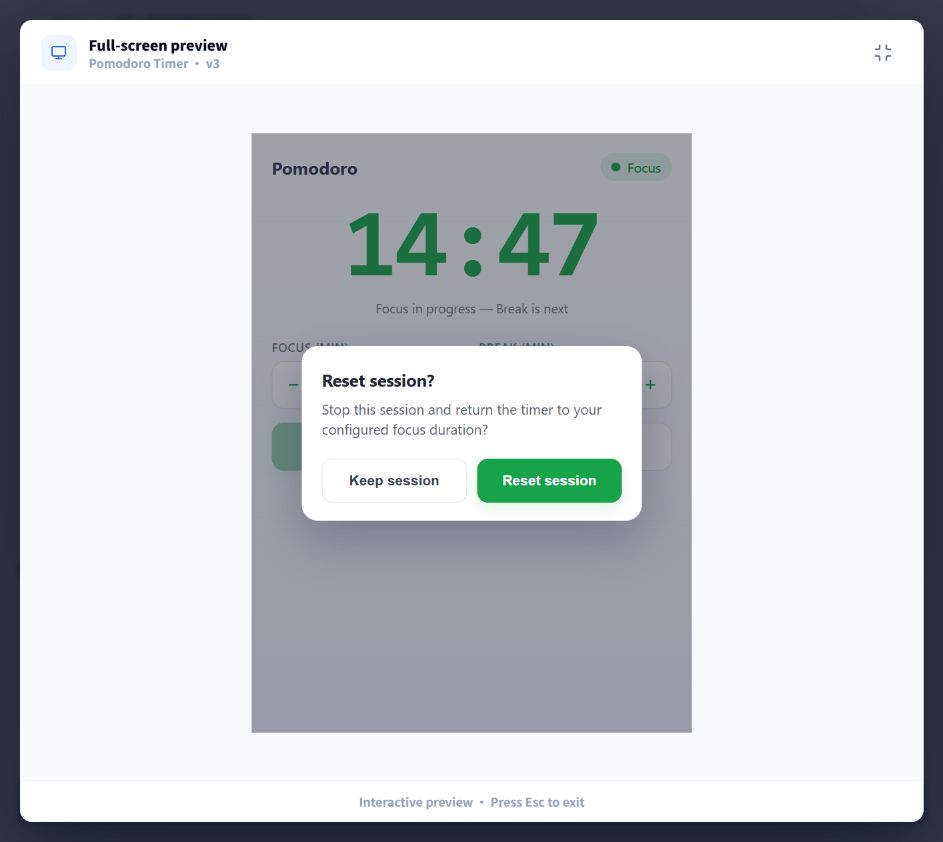
Actual v3 browser preview. The countdown continues while this confirmation is open.
Naming the two actions makes the request more specific than “add a warning.” It describes what the person using the tool should be able to do next.
Check the behavior, including canceling
A confirmation box is only useful if its buttons behave correctly. We tested these paths in v3 with the durations set to 15 and 3 minutes:
| Action | Observed result in the browser preview |
|---|---|
| Press Reset during a running session | The confirmation appears; the countdown continues behind it. |
| Choose Keep session while running | The confirmation closes and the running session continues. |
| Pause at 14:33, press Reset, then choose Keep session | The timer remains paused at 14:33. |
| Open the confirmation again while paused and choose Reset session | The timer returns to 15:00 and stays stopped. The 15/3 duration settings remain visible. |
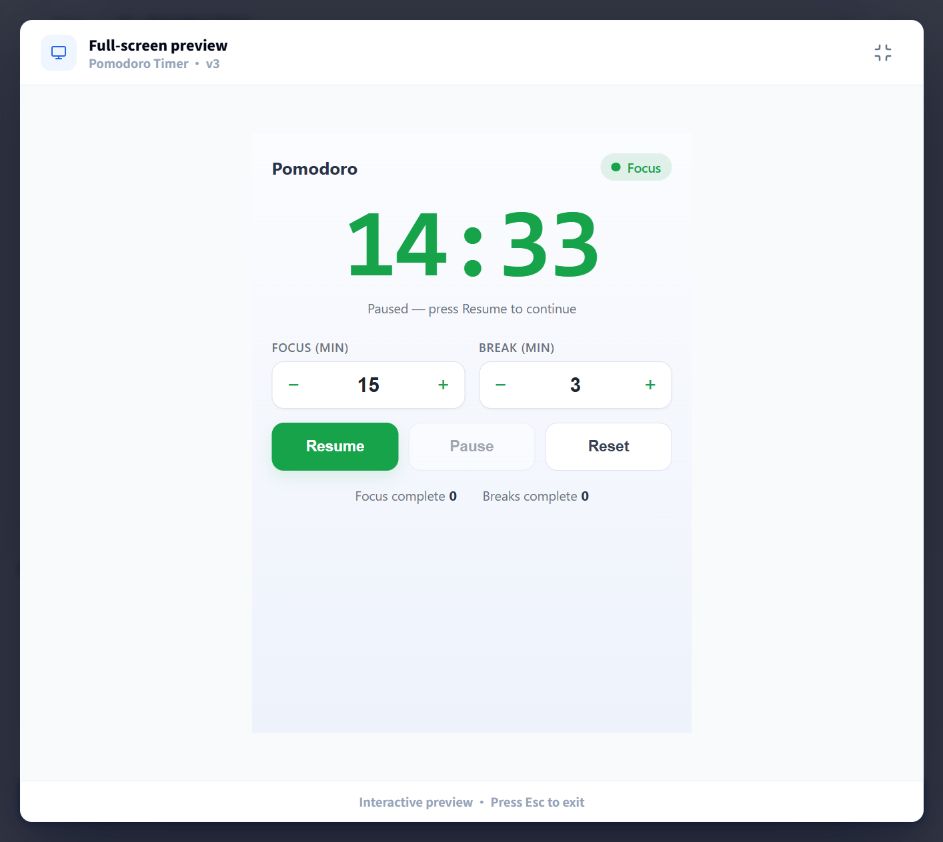
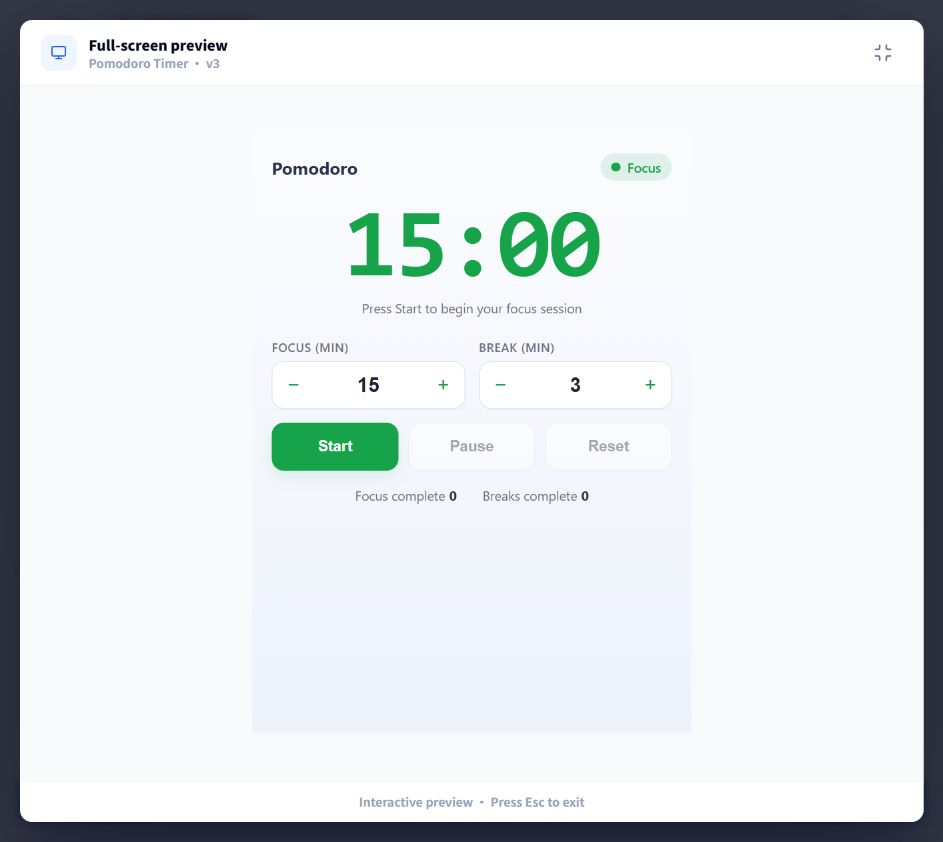
These checks support a specific conclusion: v3 adds a working confirmation before resetting an active session in the browser preview. They do not establish desktop restart persistence or other installed-app behavior.
For your own tool, test the main action, the cancel path, and any existing behavior affected by the change. If a check fails, describe that exact sequence in your next message.
A follow-up prompt template you can reuse
Use this template when you want to refine an AI-generated app without losing the parts that already work:
Currently, when I [action], the app [actual result].
Change it so [desired result].
Keep [working features or layout] unchanged.
I will check it by [steps and expected outcome].
For example, an appearance-only request could be:
Make the countdown easier to read and place the duration settings below it. Keep the existing labels, button actions, and timer behavior unchanged. All controls should remain visible at the current window size.
That last prompt is an additional example, not a change made in this recorded case. Choose the request that addresses your actual problem, and test its result before combining it with other changes.
What if the next version is still wrong?
Continue with an observable result: what you entered, what you clicked, what happened, and what you expected. A screenshot helps show a layout problem; a sequence of actions helps explain a behavior problem.
Use the version selector to review an earlier result before a major revision, and confirm which version you are viewing. Keep a usable version available while you work. If the same problem persists, narrow the request to one issue and follow the feedback guide with the relevant steps.
For features involving saved data, files, or desktop permissions, complete the relevant checks in the desktop app. The desktop guide explains getting started, and the permissions guide explains what to review before granting access.
Common questions about revising AI-generated apps
Do I need to start over if the first result is not right?
You can continue in the existing Builder project with a focused modification request. In this case, the same Pomodoro project progressed through v1, v2, and v3. Identify the working parts you want to retain in your follow-up.
Do I need to write code to request a change?
The requests in this case used ordinary English. They described buttons, visible states, and expected behavior. You still need to try the result and decide whether it meets your needs.
How many revisions will it take?
This case used two follow-up requests after the first draft. That is a record of this session, not a guarantee for other tools. Complexity, the initial result, and the clarity of the request can change the amount of work. Check membership and usage limits for the current resource rules.
Is a successful preview enough to share the app?
Use it to check the visible interface and interactions, then verify the desktop behavior the tool depends on. For this timer, saving settings across a desktop restart still needs confirmation. Follow the publishing and review guide before sharing a finished tool.
Try one focused improvement
Open Aelrox AI Builder, create a small tool or return to an existing project, and try its main workflow. Choose one thing that gets in your way. Describe the current behavior, the change you want, the parts to retain, and a way to check the result.