A useful desktop setup changes with the task. A tutorial may need notes, a reference image, and a file-search tool. A personal project may need a clock, a creative app, and a different set of reminders. Keeping everything visible at once makes the desktop harder to read.
Aelrox workspaces let you keep those setups separate. Each workspace keeps an Aelrox arrangement and associated workspace state. Give each one a meaningful name and switch to the collection that matches what you are doing. A micro app may also keep its own shared library across workspaces; switching layouts does not create a separate account or automatically duplicate its data.
The feature organizes your Aelrox environment. It does not require you to move all your applications or documents into a new system.
Create a workspace with a clear purpose
Open Workspaces from Aelrox's desktop controls. The list shows your named workspaces and indicates which one is active.
Choose a name that will still make sense next week. “Tutorial project,” “Personal,” or the name of a current project can be more useful than a numbered desktop. You want to recognize the work before opening it.
When creating a workspace, choose how to start:
| Option | When it helps |
|---|---|
| Blank workspace | You want a clean setup with only the tools for a new task. |
| Copy current workspace | You already have a useful arrangement and want a variation of it. |
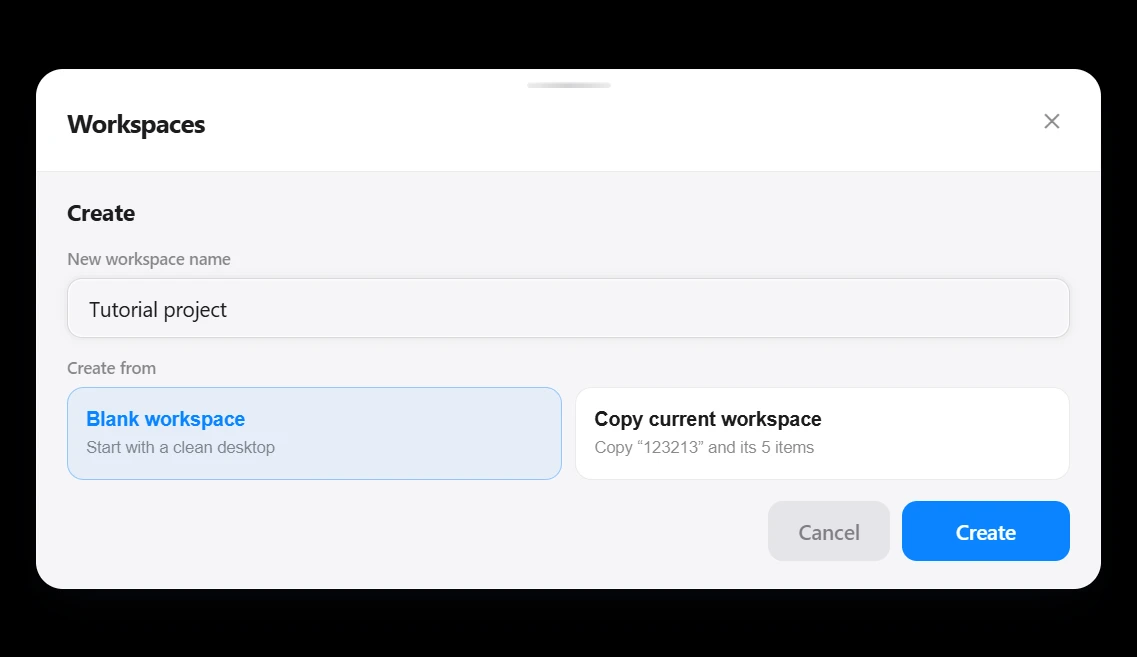
Creating a dedicated Tutorial project workspace from a blank setup on Windows.
When adding your second workspace, a blank one makes the separation easy to understand. Add a note and one micro app, then compare it with the setup you were using before.
Organize around a task you will return to
For a work setup, you might keep a task note beside File Search Desk and a reference tool. For a personal setup, you might use a clock and a creative micro app. The exact combination matters less than having a reason to return to each workspace.
Arrange the tools while doing the task. Keep the information you need to glance at visible and leave room for the main application you are using. A workspace is more useful when its layout reflects a working routine rather than a collection of every installed app.
The same micro app can be useful in different contexts. What matters is the workspace's own arrangement and saved state. Use recognizable sample content when first learning the feature so you can see which workspace you have opened.
Switch away, then return to the same work
Open Workspaces, find the destination, and choose Switch. Aelrox changes the active workspace and loads its corresponding environment.
When you return, inspect the information you were working with: the note text, the tools you placed, and any state the micro app is designed to preserve. That is the practical difference between a named workspace and a list of app shortcuts.
Save important work through the micro app's normal save or export controls before changing context. A workspace can preserve the Aelrox setup, but a connected device, a live recording, or an external resource may have its own lifecycle. Follow the relevant tool's instructions for those tasks.
Reuse a layout without rebuilding it
If a setup works well for more than one project, use the copy or duplicate controls to create a starting point. Give the copy its own name, then adapt its notes and tool arrangement to the new work.
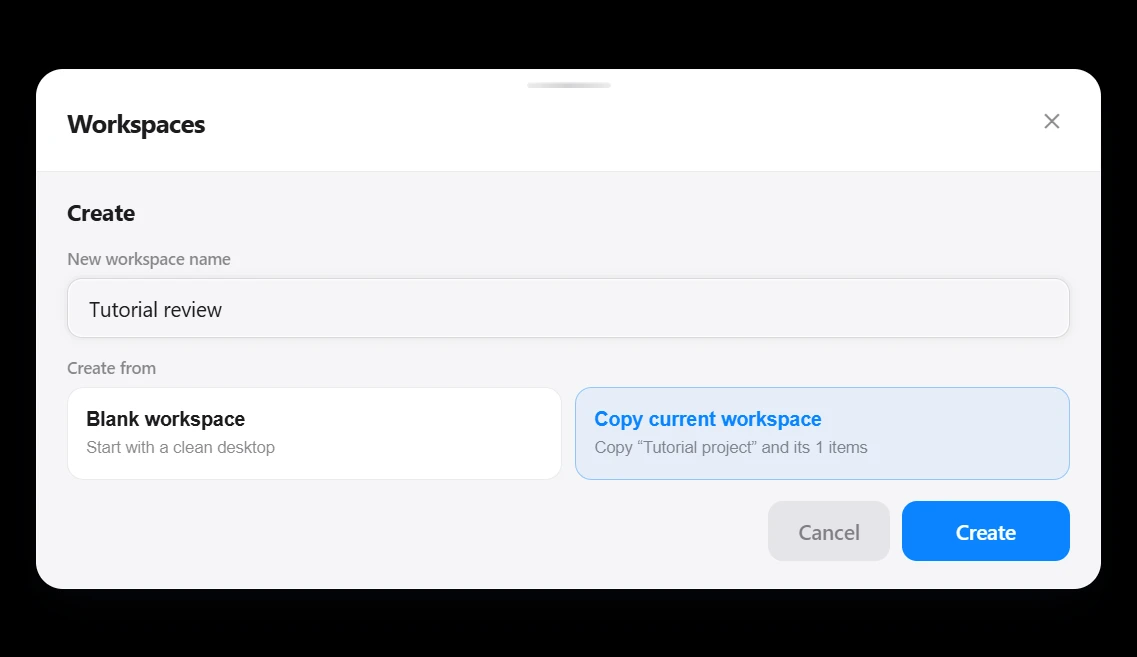
The copy option uses the current Tutorial project as the starting point for Tutorial review. The dialog identifies the source and its one item.
For example, a tutorial layout could become a reusable arrangement for finding assets, keeping a reference visible, and recording the next step. Another tutorial can begin with that arrangement while keeping its own project information.
Copying a workspace does not mean that every external file it references becomes an independent file copy. If two tools point to the same document on disk, treat that document according to its actual location and save behavior.
Keep the workspace list understandable
Use Rename when a temporary project becomes a longer-running activity. Keep active projects easy to distinguish, and avoid making a workspace for every tiny variation if a note or a tool setting would do the job.
Deletion is different from switching. Removing a workspace also removes its associated Aelrox state, so read the confirmation and preserve anything you want to keep first. Routine switching does not require deleting your previous setup.
Aelrox workspaces complement your operating system's windows and desktops. Their purpose is to organize Aelrox notes, micro apps, and related state; they are not a promise to save and restore every third-party application running on your computer.
Start with two setups
The easiest way to adopt workspaces is to separate two genuinely different activities. Keep one setup for your normal work and create another for a project or personal use. Place one recognizable note in each, switch between them, and build from there.
You can use the launcher to open tools in the active workspace and use Show/hide all Micro Apps when you only need temporary breathing room. Switching workspaces and temporarily hiding windows solve different problems, and both can help keep a useful desktop manageable.
Download Aelrox and create one additional workspace for a task you expect to return to.