
For a messy copied list, clean the line edges first, remove unwanted blank lines, and then deduplicate. Text Toolkit shows the result beside the original, so you can inspect each operation before using its output as the next input.
Order matters. A line with a trailing space is not an exact match for a line without it. Likewise, Poster 2 and poster 2 remain different unless you choose to ignore case.
This walkthrough uses Text Toolkit 1.0.1 and a prepared six-line list. The steps and three-line result were exercised in a browser preview of the published app code.
Paste a small list first
Install Text Toolkit in Aelrox, then paste your text into Original. You can also select Open text file for a UTF-8 file.
The example starts with these lines. The first line has two leading spaces, the final line has two trailing spaces, and there is one empty line:
␠␠Poster 10
Poster 2
Poster 2

poster 2
Poster 1␠␠
Here ␠ explains where the spaces are; do not type that symbol into the actual list. Copy this version with ordinary spaces:
  Poster 10
Poster 2
Poster 2

poster 2
Poster 1
Trim edges and remove blank lines
Select Trim edges. The right-hand Result preview removes leading and trailing whitespace from each line. Read it before selecting Use result as original.
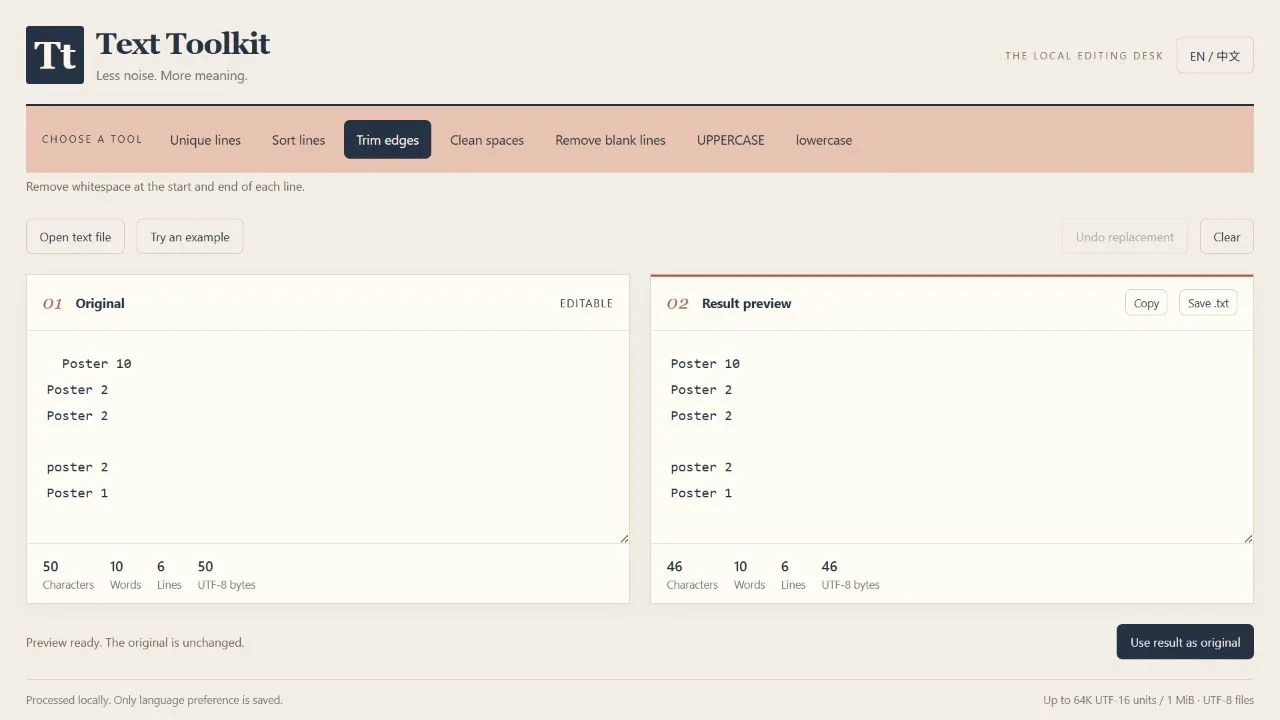
Trimming fixes the outer spaces; it does not remove duplicates or the blank line.
Now choose Remove blank lines and inspect the five remaining lines. Select Use result as original again to continue from that result. Merely selecting a different tool does not automatically chain the previous preview into it.
Use Clean spaces instead of Trim edges only when you also want repeated horizontal whitespace inside a line collapsed. That could change deliberately aligned text, so it is a separate decision.
Decide whether case should matter
Select Unique lines. With its default exact comparison, the repeated Poster 2 is removed, but poster 2 remains.
Enable Ignore case for this example, because those entries refer to the same poster. The first occurrence is retained, leaving:
Poster 10
Poster 2
Poster 1
If case distinguishes real identifiers in your data, leave Ignore case off. Deduplication is not a general data-correction rule; it follows the comparison you choose.
Sort the reviewed list
Select Use result as original, then Sort lines. The natural ascending order places 2 before 10:
Poster 1
Poster 2
Poster 10
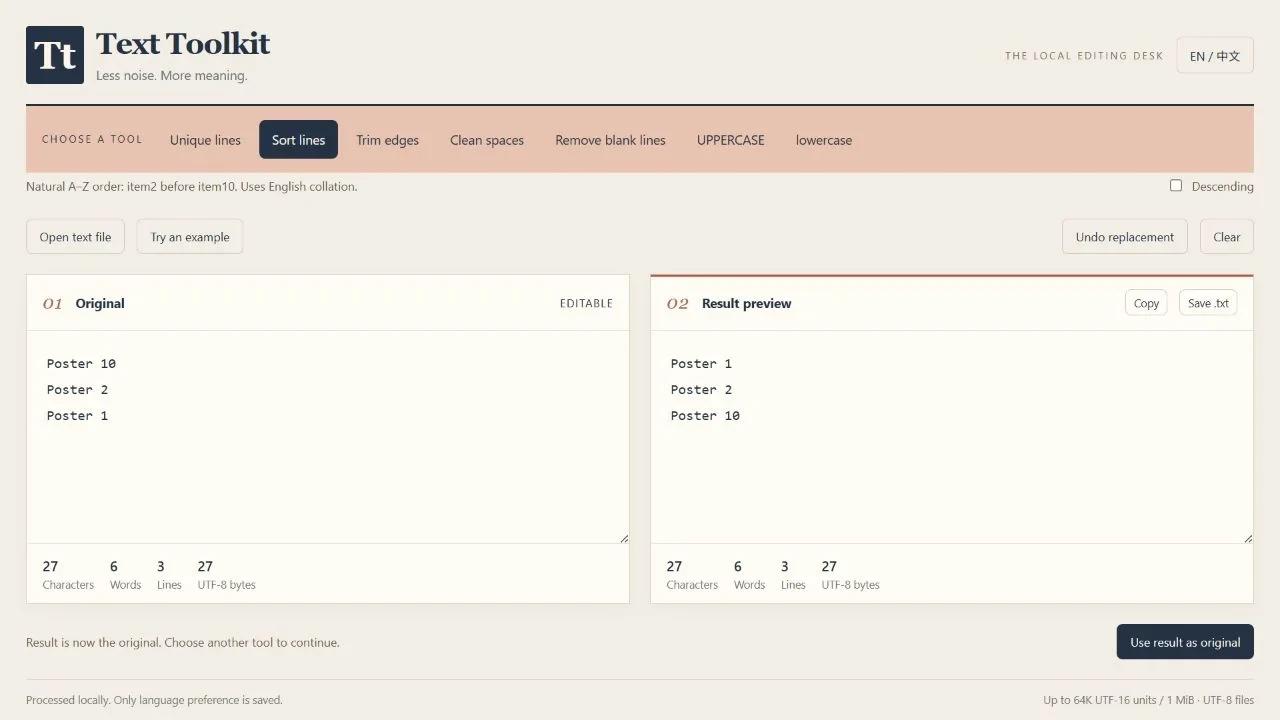
The final result contains three lines. This example used English natural sorting, not a custom numeric parser.
The cleaned result is ready to copy:
Poster 1
Poster 2
Poster 10
The sorter uses English collation. It is not a Chinese pinyin sorter or a way to interpret dates and identifiers in every possible format.
Save the result you intend to keep
Use Copy or Save .txt from the result pane. Before closing the app, check the pasted text or open the exported file to confirm you kept the result rather than the earlier original.
Undo replacement restores the previous replacement step; it is not a full history of every keystroke. Text and undo history are discarded when the window closes. Export uses UTF-8 text without a BOM, and line-based operations normalize line endings.
Text Toolkit handles input up to 65,536 UTF-16 units and 1 MiB. For structured JSON, use JSON Desk rather than applying line cleanup to a document whose structure matters.