
You have two product views, two room photos or a before-and-after pair, and want to send them as one picture. Copying them into a document can introduce inconsistent margins and awkward cropping.
Grid Studio's Collage mode places both images on a shared canvas and exports a single PNG or JPEG. You can change each crop without changing the original source file.
Add the two pictures
Open Grid Studio in Aelrox, select Collage, then + Add photos. Choose two PNG, JPEG or WebP images.
Select Side by side under Layout. Choose a canvas ratio that suits the destination: Wide · 16:9 for a horizontal presentation image, or Square · 1:1 for a compact comparison. A wider canvas is often easier for two landscape photos.
To explore without your own photos, Try demo loads four built-in illustrations. Remove Studio 4 and Studio 3 to leave a two-image example. The exported example below uses those first two illustrations in a square layout.
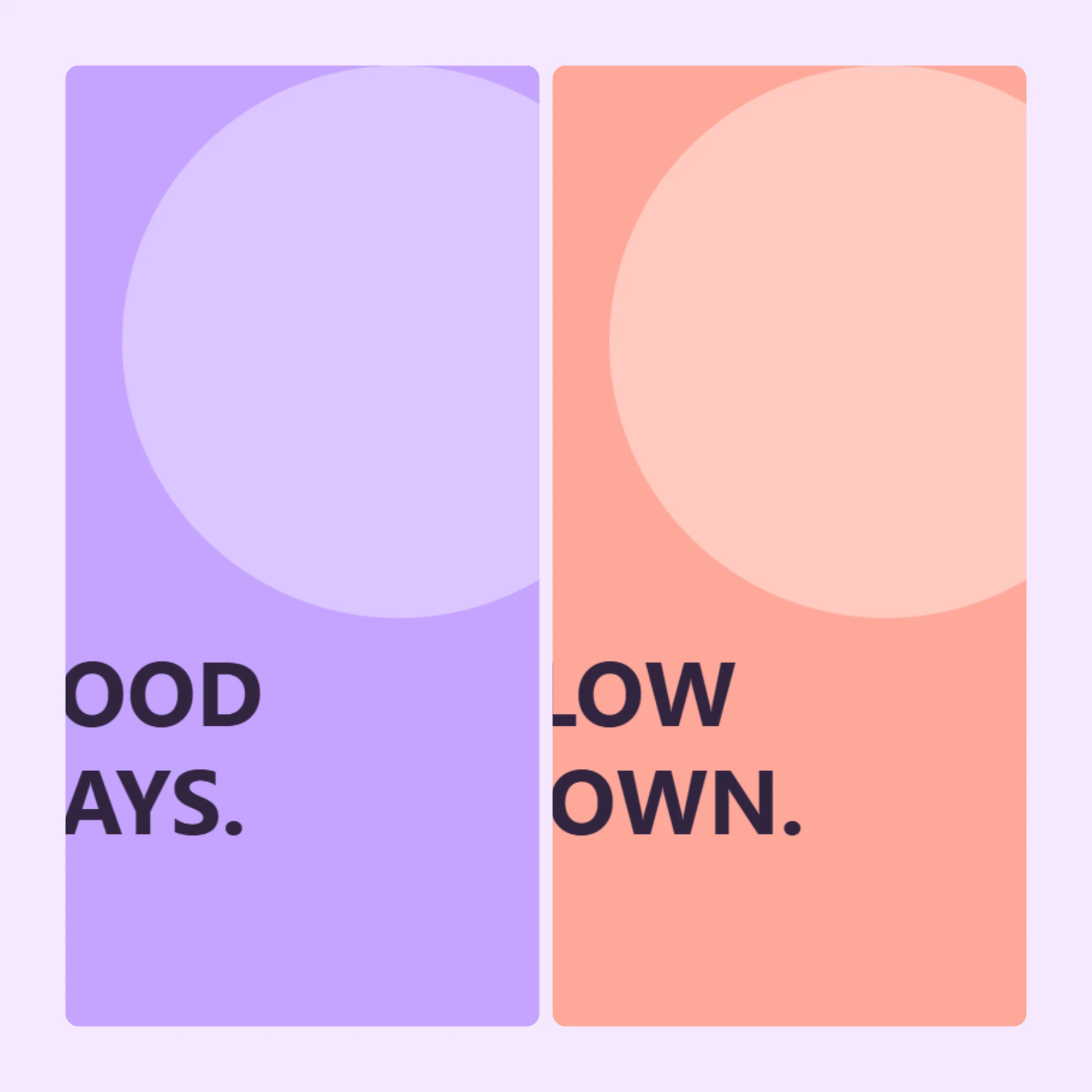
Actual 2160 × 2160 PNG exported from the Grid Studio 1.1.1 package in a standalone browser preview. The default Fill placement crops the lettering at the sides—use Fit full photo when that text must remain visible. These are built-in illustrations, not product photographs.
Choose between filling the cell and keeping the whole photo
Select a thumbnail or canvas cell before adjusting its image. Fill screen / cell fills the allotted area and may crop the edges. Fit full photo keeps the complete image visible, potentially leaving unused space around it.
For a product comparison, check that both products remain visible at a comparable scale. Drag on the canvas to adjust the crop and use Zoom for the selected photo. Reset crop restores its positioning when you want to start again.
Use Move left and Move right, or swap thumbnails, to choose which image appears first. The order is part of the message: a before-and-after comparison should not depend on readers guessing which side is which.
Make the spacing consistent
Adjust Spacing for the gap between photos and Outer margin for the canvas edge. Photo corners changes the rounding. Keep a neutral background when the goal is comparing the subjects rather than decorating them.
Review small details near the edges. If a crop removes something important, change placement or canvas ratio before increasing export size. More pixels will not restore cropped content.
Export and check the saved picture
Select PNG or JPEG, choose Long edge, and select Export image ↓. Open the resulting file and check both images, their order and the crop. In our square example, a 2160-pixel long edge produced a 2160 × 2160 image.
JPEG quality affects file size and detail; PNG does not preserve detail that was already lost through resizing or cropping. The current Collage interface accepts up to 12 photos, with a 25 MB / 40 MP limit per photo. Start with two for this task.
If the finished picture is too large for a form or message, follow the image-upload size walkthrough. For the composition itself, return to Grid Studio and keep both source images available until you are satisfied with the export.