
A project rarely lives in one application. The working folder is on your computer, reference material is on a website, and the file you need for the next step is somewhere in between. Finding those entry points repeatedly adds friction to otherwise straightforward work.
Quick Shelf gives websites, files, and folders a shared home inside Aelrox. Organize shortcuts into named groups, search the shelf, and register frequent entries for Aelrox Search Bar. A project can have one recognizable set of entry points even when its material lives in different places.
Build a shelf around one real project
Open Quick Shelf from the Aelrox micro-app store. Start with a project you expect to return to, such as a tutorial, a design handoff, or a release you are preparing.
Choose New group and give it a name that describes the work. A group called “Tutorial project” is easier to recognize later than a collection named “Miscellaneous.” Use a group color if it helps you distinguish related work at a glance.
Add only a few useful targets at first: the project's working folder, a reference website, and an important file. Quick Shelf keeps shortcuts to these targets; you can continue using their original locations and default applications.
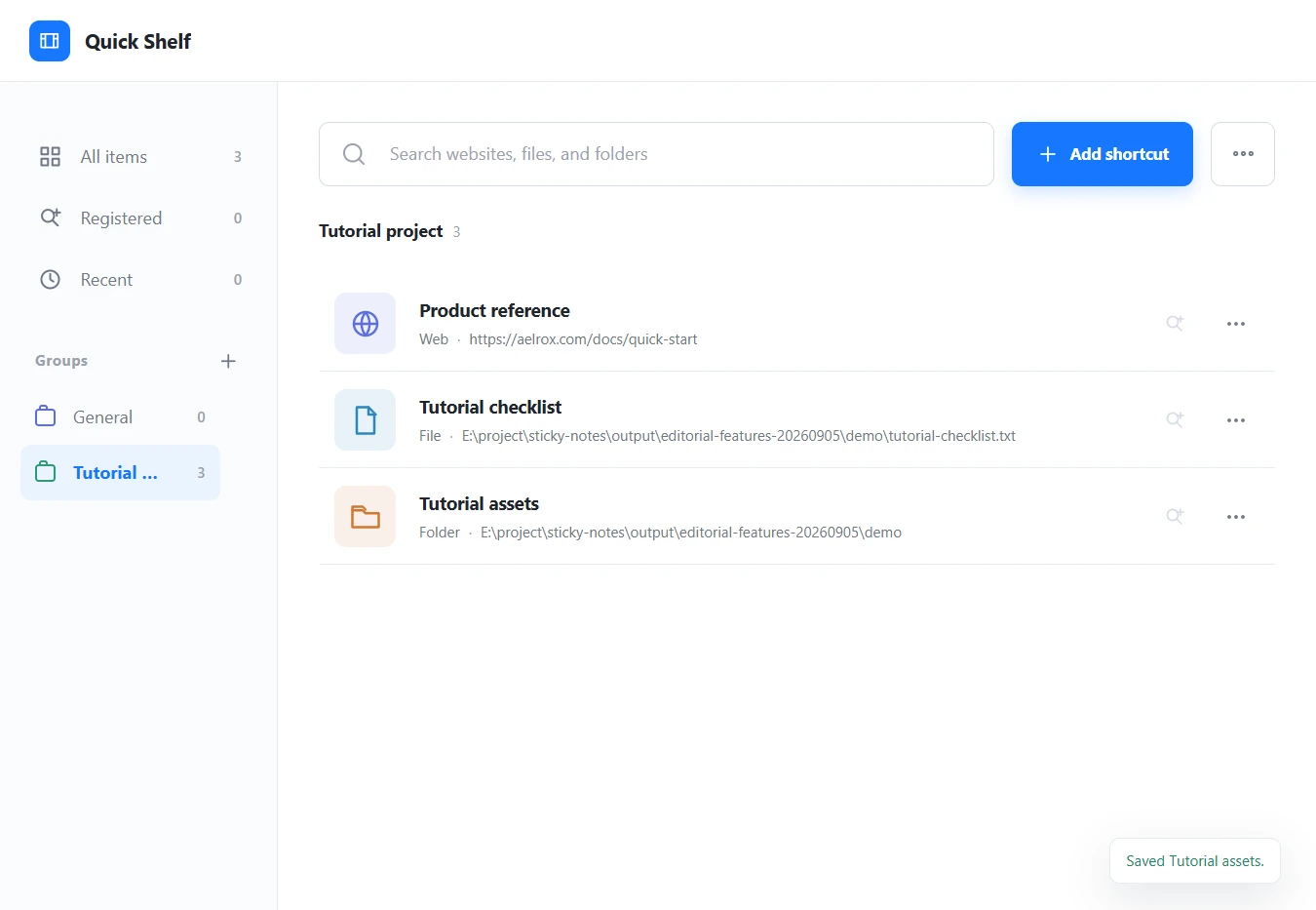
A real Quick Shelf 1.4.0 setup on Windows: one group with a reference website, a checklist file, and an assets folder.
Add websites and local targets
Choose Add shortcut to create an entry. For a website, provide its URL and a short, recognizable title. For a local file or folder, use the host picker or drop the target into the supported target area.
Local applications and operating-system shortcuts are treated as file targets. A folder entry is for a directory. Selecting the appropriate type helps you recognize what will happen when you open an item.
Name the shortcut for its purpose. “Tutorial assets” is more useful than a long directory path, and “Product reference” is more useful than a bare URL with several parameters. The original target remains associated with the entry.
You do not need to reorganize the actual project files to organize their shortcuts. This is particularly useful when a folder layout is shared with another application or when moving files would break an existing workflow.
Find the target by what you remember
Quick Shelf can search across titles, target paths or URLs, types, and group names. You might remember the project name before you remember the filename; a group gives you another way to locate the item.
Use All items for the full library, Registered for entries connected to launcher search, or Recent when you want to return to something you opened recently. Groups provide a more deliberate view of the work.
Arrange entries with drag and drop so the most useful ones are easy to reach. Keep names concise enough that you can distinguish them without opening each item.
Open project shortcuts directly from Search Bar
Quick Shelf includes a Register in All Apps control for individual shortcuts and a Registered library view. You can make this choice for selected entries without applying it to the whole group.
Register a shortcut, open Aelrox Search Bar, and type its saved name. Select the matching entry to open its target directly. For a reference website such as Product reference, this gives you a route to the page without opening the Quick Shelf window first. The same workflow can reach the files and folders you register.
In the Windows setup shown here, registering Product reference changed its icon to blue and increased the Registered count to one. The checklist and assets folder remained unregistered. The screenshot below records that state inside Quick Shelf.
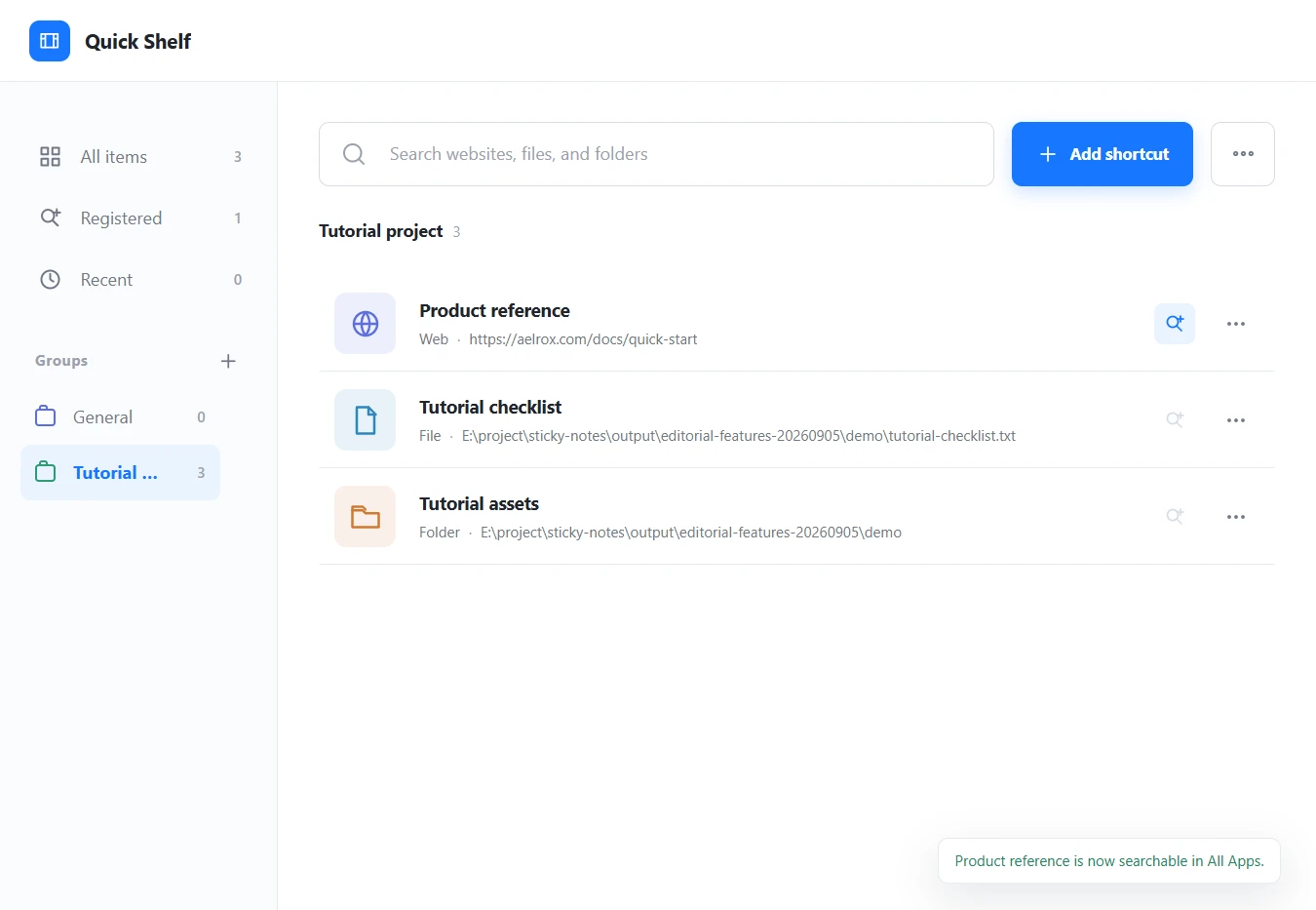
The blue registration control and Registered count show the selected entry. This screenshot shows registration in Quick Shelf, not a launcher search result.
Registration is deliberate. Saving a target in your library and marking it for the host's All Apps search are separate choices. Use the shelf's own search and group views to reach the full library regardless of which entries you register.
For a tutorial project, you might mark “Product reference” as a frequent entry while leaving older exports in the shelf. Keeping only a few current targets prominent makes the next work session easier to start.
Keep the library useful over time
A shortcut should continue to describe its destination. If you move or remove a local target, check its shelf entry and update it when needed. A saved shortcut is not a second copy of the file.
Quick Shelf offers Export and Import for a JSON library backup. Keep backups with a name you can recognize. A library backup preserves shortcut information; it does not bundle all the documents, applications, or folders those shortcuts point to. Local paths and available targets can also differ on another computer.
An occasional cleanup is more useful than registering everything. Remove obsolete entries through the app's normal controls, give ambiguous shortcuts clearer names, and keep the current project's targets together.
Start with one project and three entries. When you can open its website, working folder, and reference file without searching three different places, the shelf is already doing useful work.
Download Aelrox, open the micro-app store, and find Quick Shelf to build your first project group.