
JSON Desk formats JSON while retaining the original numeric text, including large integer IDs and long decimals. You can make a response easier to read without silently shortening the numbers you are trying to inspect.
This matters when a value is an identifier: changing its last digit can point to a different record, even if the formatted document still looks valid. Formatting is a presentation step, not permission to change the data.
The example uses JSON Desk 1.0.0. The numeric values below were checked in the current online preview and in the published app code. The screenshots show a browser preview; they do not demonstrate a desktop save dialog.
Start with a small response you can compare
Install JSON Desk in Aelrox. Paste this prepared example into JSON source:
{"orderId":9007199254740993,"customer":{"name":"Studio North"},"items":[{"sku":"CARD-001","quantity":2}],"amount":1234567890.123456789}
The two useful reference values are 9007199254740993 and 1234567890.123456789. Keep the original text available so you can compare them after formatting.
This is sample data. When working with your own response, remove credentials or personal information before sharing screenshots or copying it into a support conversation.
Format without changing the values
Choose 2 spaces and select Format. The same document becomes:
{
  "orderId": 9007199254740993,
  "customer": {
    "name": "Studio North"
  },
  "items": [
    {
      "sku": "CARD-001",
      "quantity": 2
    }
  ],
  "amount": 1234567890.123456789
}
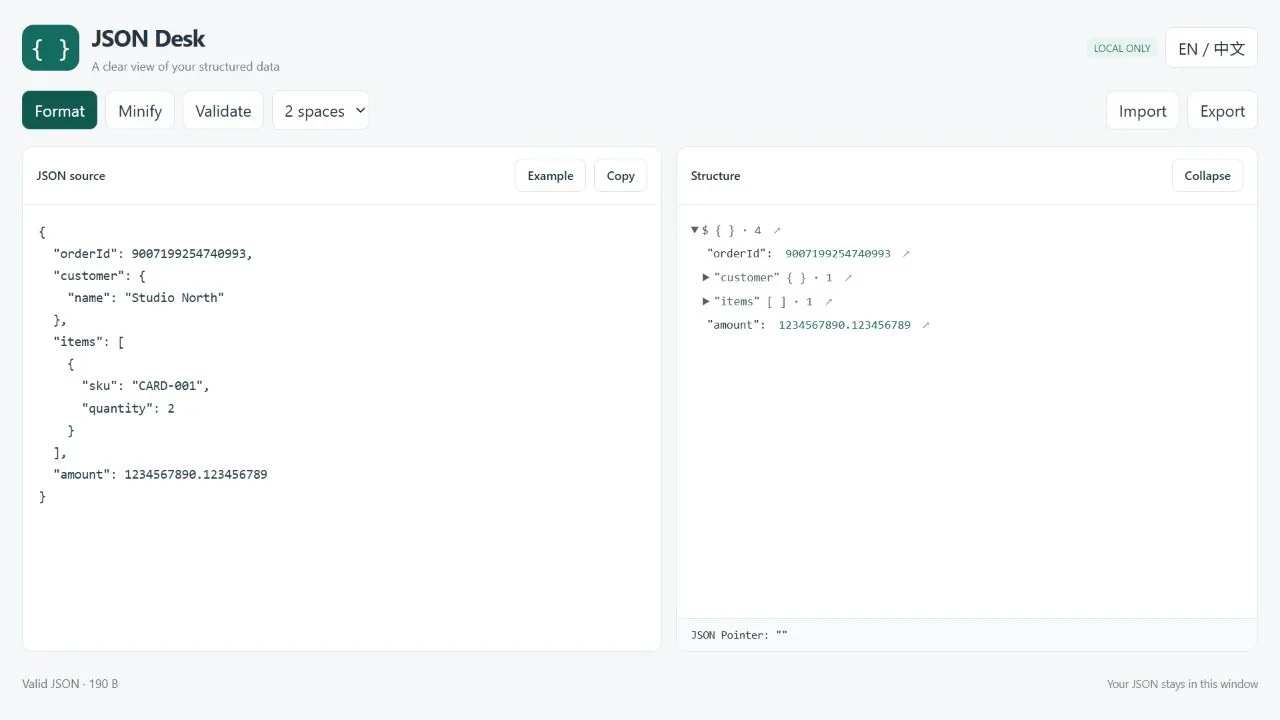
Both reference values remain visible with the same digits after formatting.
Use Minify when you want the compact representation again. Minifying removes formatting whitespace; it does not turn an ID into a shorter number. Compare the compact input and formatted output above: both retain the same digits. These examples were checked with the matching formatter; they do not demonstrate a desktop export dialog.
Use the structure view to locate a nested value
Expand items, then its first element, to inspect the product entry. The path-copy control beside the SKU identifies its location as /items/0/sku. This is a JSON Pointer path; it is useful when explaining which field you mean in a bug report.
The copied path is not the field's value. If you need CARD-001, read the value itself. JSON Pointer also differs from dot-notation query languages, so use it with tools that expect that path format.
Validate syntax separately from business meaning
Select Validate to check whether the document is valid JSON. If the parser reports an error, use its location to inspect the surrounding text. A missing value, trailing comma or unquoted property name needs correction before formatting can continue.
Valid JSON does not prove that an order exists, a quantity is sensible, or an API accepts the payload. JSON Desk does not validate your application's business rules or a JSON Schema in this workflow.
Keep the exact text when passing it on
Use Copy or Export for the reviewed document, then check the receiving editor or saved file. A later program can still reinterpret numbers using its own numeric representation. Preserving the digits here does not change that program's behavior.
The current editor handles standard JSON up to 1 MiB and limits nesting to 100 levels. It is not a JSON5 editor. Input content is not restored as a document history when you reopen the tool, so save anything you need to keep.
For ordinary line cleanup, see Text Toolkit. For structured data where exact numeric text matters, open JSON Desk.