
Folder Lens turns a selected folder into a size map and a ranked file list, so you can see which subfolders and files account for most of its contents. It is useful when a project has accumulated exports, reference images and old working files, but you do not yet know what deserves a closer look.
The example below uses Folder Lens 1.3.1 with a deliberately small folder prepared for this article. Its two binary sample files and one text file have known sizes. The screenshots are browser previews connected to the real Windows file service; folder selection was controlled. They demonstrate the reading workflow, not a disk-cleanup benchmark.
Select the project you want to inspect
Install Folder Lens in the Aelrox desktop app, open it, and select Choose folder. Pick the project folder you want to understand.
For this walkthrough, the prepared folder contains:
project/
  exports/
    final.bin       2 MiB
    preview.bin     1 MiB
  notes/
    readme.txt      1 KiB
These are sample files, not a claim about typical project sizes. Their exact total is 3,146,752 bytes. The interface rounds the total to 3.0 MiB.
Wait for Scan complete. Check the scanned-file count and any skipped or partial-result message. A canceled or limited scan describes only what was visited; it should not be treated as a complete inventory.
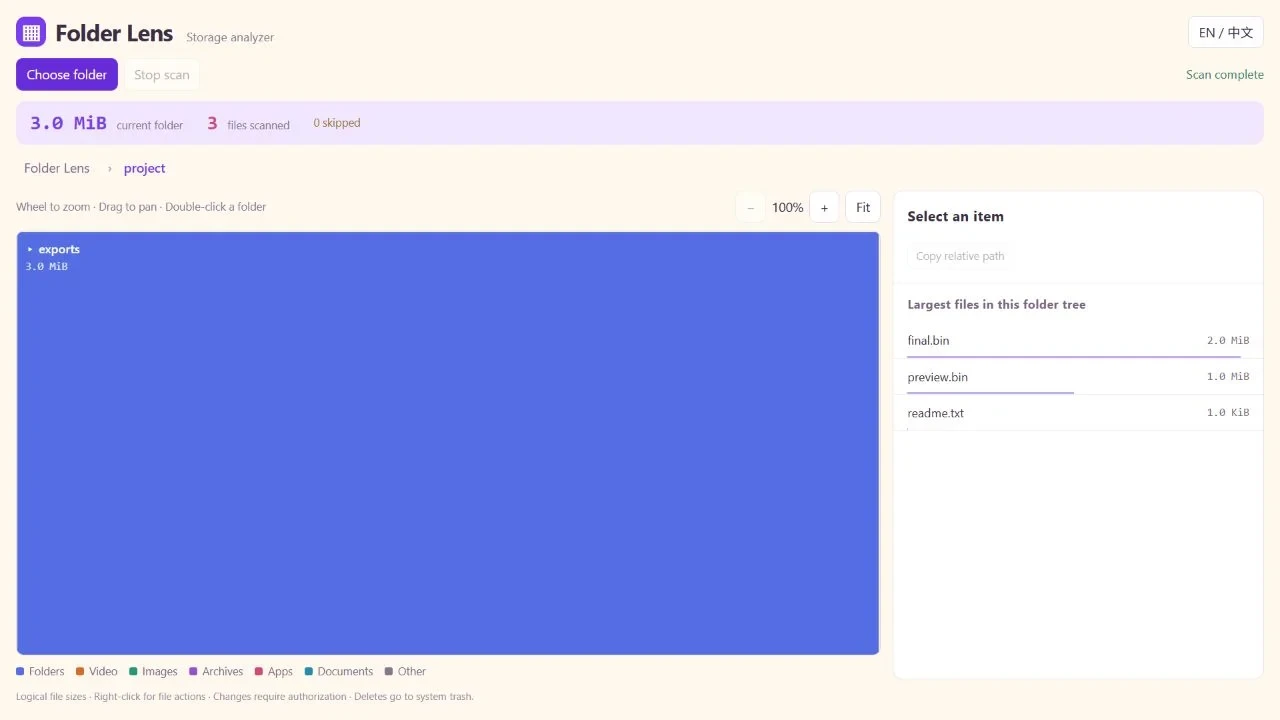
The two binary samples dominate this folder; the 1 KiB note occupies only a tiny fraction of the total.
Follow the largest area, then inspect a file
Larger rectangles represent larger logical file sizes. Double-click a directory to make it the current view, and use the breadcrumb path to return to an ancestor.
You can also select an item in Largest files in this folder tree. Selecting final.bin in the example enters its parent folder and highlights the 2 MiB file. Inside the 3 MiB exports folder, it accounts for 66.7% of the displayed total.
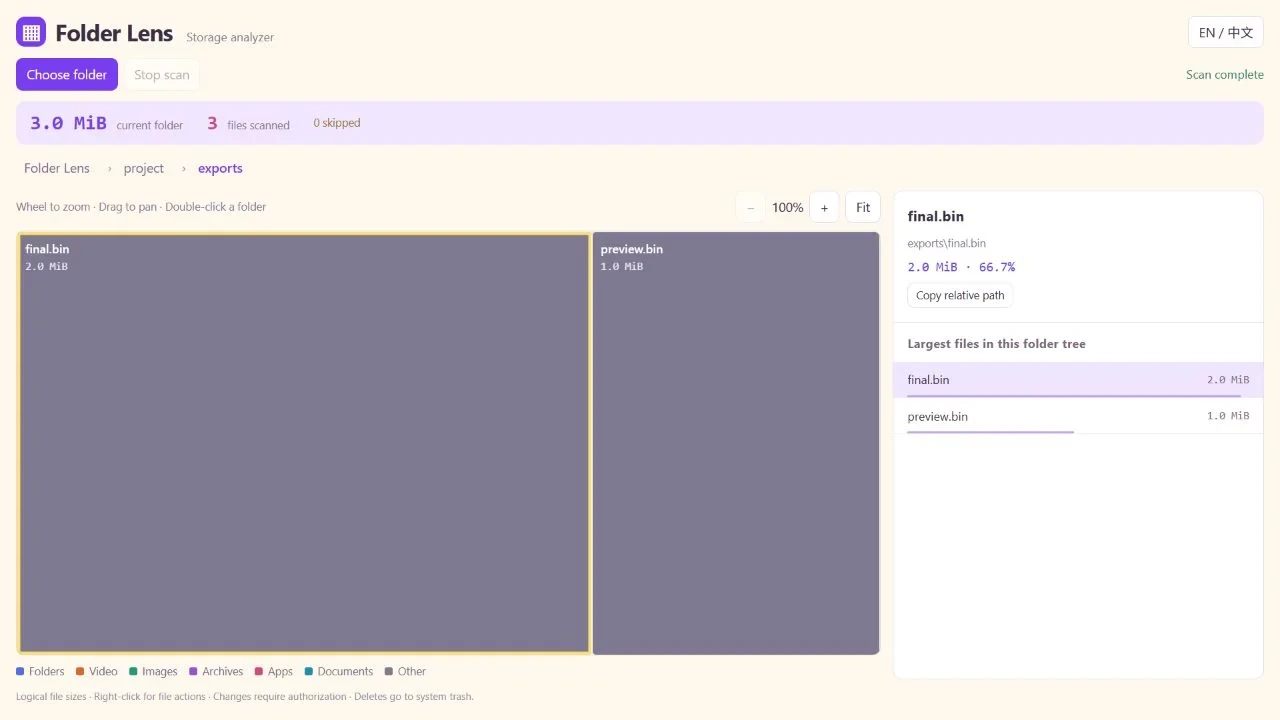
The percentage belongs to the current folder view. Navigating into a directory changes the context.
Use the wheel to zoom into crowded areas, drag to pan, and select Fit to reset the view. A very small rectangle is not necessarily a missing file; the ranked list can be easier to use when file sizes differ greatly.
Decide what the file is before changing it
The file name and relative path help you distinguish a final deliverable from an intermediate export. A large file may still be the only copy you need. Copy relative path gives you a reference to investigate or discuss with a teammate.
The desktop app also provides file actions through the context menu. These have different consequences from scanning and may require additional authorization. You do not need to copy or delete anything to complete this size inspection.
For a first pass, make a short review list: which files are expected, which look obsolete, and which need someone else's confirmation. This produces a useful result without turning the largest rectangle into an automatic deletion target.
File size is not the same as space you will recover
Folder Lens reports logical file sizes. Compression, sparse files and hard links can make those numbers differ from physical disk allocation. Moving a file to the system trash also does not necessarily free its occupied space immediately.
The app analyzes authorized folders; it is not a promise to inventory every protected location on your computer. If results are incomplete, narrow the folder or resolve the reported access issue before drawing conclusions.
Use File Search Desk when the problem is finding a file by name. Use Folder Lens when you already have a folder and want to understand what makes it large.