
PDF Notes in Aelrox extracts embedded PDF comments and matches highlighted text to produce a Markdown file. It keeps the source filename and page number beside each note, so the exported text remains useful when you return to the document.
This works with annotations stored in the PDF itself. A scanned page, a flattened yellow mark or notes kept only inside a reader's private library are different cases. PDF Notes does not perform OCR or retrieve a reader's private notes database.
Open the annotated file
Install Aelrox, find PDF Notes in the desktop Micro Apps Store and open it. Choose Add PDFs and select an annotated document. Wait for reading to finish, then review the extracted notes.
If your reader keeps annotations outside the file, first use that reader's own export or save workflow to obtain a PDF containing the annotations. Confirm that the file you choose is the annotated copy rather than the original unmarked document.
The document strip lets you select one PDF or All documents. The note filter lets you choose All notes, Comments or Highlights. These selections also control which notes appear in the Markdown export.
Check the quotation against the source
Our prepared example contains the sentence “Revenue grew by 18 percent this quarter.” Only 18 percent is highlighted; the attached comment says “Verify this growth figure.” A separate column contains unrelated text.
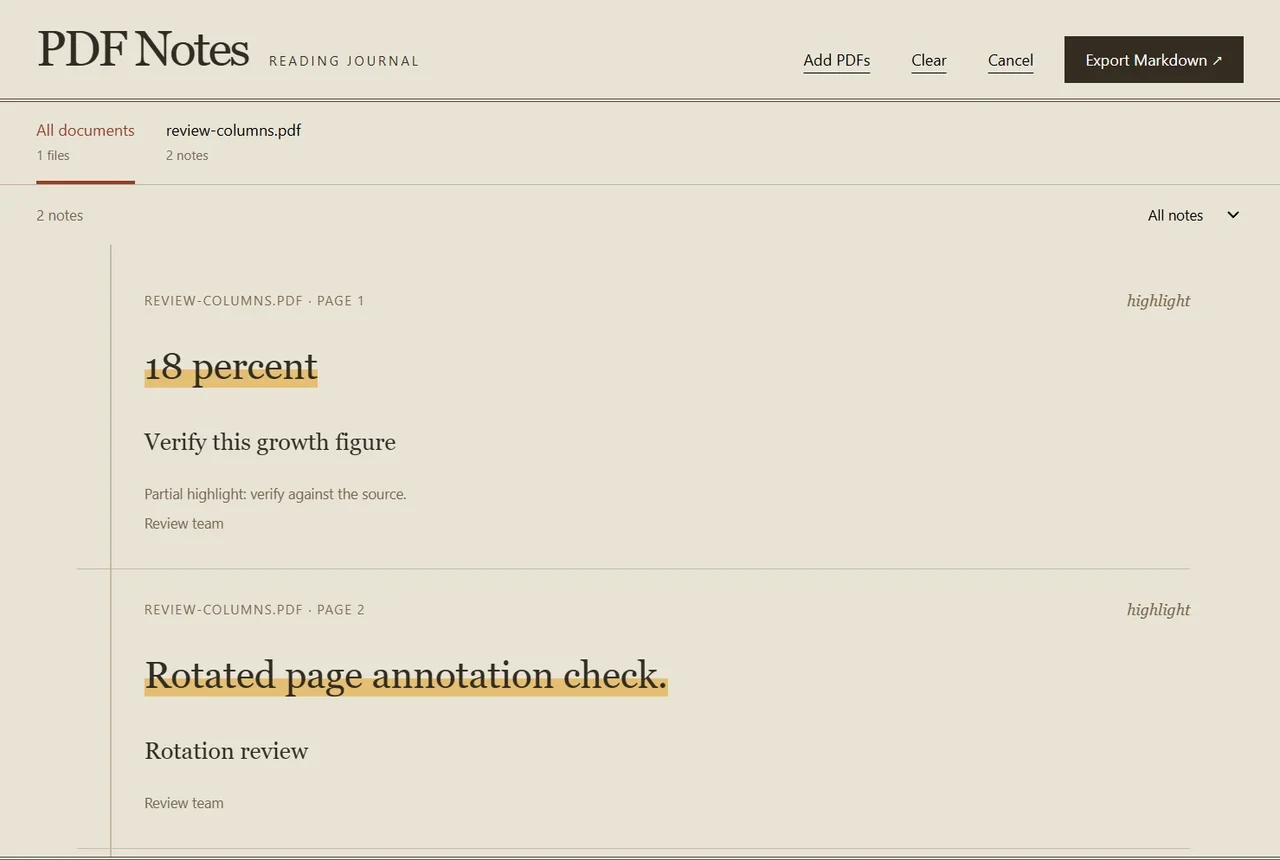
The example uses a prepared two-column PDF. The selected phrase is exported without the rest of its sentence or the unrelated column.
That distinction matters: a highlight has a position on the page, and the words need to be matched to it. Partial highlights use estimated character positions. When the app displays Partial highlight: verify against the source, compare the quotation with the PDF before reusing it.
In this example, the second page is rotated 90 degrees and contains another highlighted sentence. Both excerpts were checked against the prepared source. This is evidence for these particular layouts, not a guarantee for every PDF, font or annotation geometry.
If you see No matching text, inspect the source page. The page may lack extractable text, or the text and highlight positions may not match. Do not treat an empty quotation as proof that the highlighted area contains no information.
Export a usable reading note
Choose Export Markdown and select a save location. The result includes document headings, page numbers, quoted excerpts and comment text. For the first note in our example, the useful part is:
### Page 1 · highlight

> 18 percent

Verify this growth figure
The actual export also retains the partial-highlight review notice and available author and colour information. Open the .md file in your editor and check the quotations before using them in a report. Page numbers identify where to look; the export does not promise clickable links to exact annotations.
Choose the right input size
PDF Notes accepts up to 10 files, 32 MiB each, with 500 pages total and up to 5,000 annotations per document. Encrypted or damaged PDFs can fail to load; the current app does not offer password entry.
Selected document contents are processed locally by the micro-app. The original PDF is not edited when you export notes. For the host's file access controls, read micro-app permissions and safety.
Open PDF Notes in Aelrox with one annotated PDF, verify a short quotation, then export the notes you need.