
You receive an updated project note, but the filename does not explain what changed. Reading both copies from top to bottom works for a short note; it becomes harder when one inserted line shifts everything that follows.
File Compare aligns two text files side by side so you can review changed lines and lines present on only one side. Use it for plain-text notes, Markdown documents, logs or source files when you need to understand the differences before deciding what to keep.
This example uses two prepared Markdown handoff notes in File Compare 1.5.4. The comparison is read-only: it does not edit either file or merge the documents.
Open the two files
Open File Compare in the Aelrox desktop app. Select Files, then choose a file for File A and File B. You can also drag one file onto each side, or drop two files together to fill both sides. Check the displayed filenames before comparing.
Leave Compare as set to Auto for TXT or Markdown, or choose Text explicitly. Select Compare when both files are ready.
A and B indicate position, not which copy is authoritative. In this example A is the earlier handoff and B is the revision, but that is our choice rather than a rule enforced by the app.
Try a small project-note example
Create handoff-a.md. Start with the line # Website handoff, then add these lines:
Owner: Maya
Status: Draft
Assets: ready
Review: Friday
Create handoff-b.md with the same first line, # Website handoff, followed by:
Owner: Maya
Status: Ready
Assets: ready
Check: mobile layout
Review: Friday
Use UTF-8 and a final newline for both files to reproduce the example. The second file changes the status and adds a mobile-layout check. The other four lines stay the same.
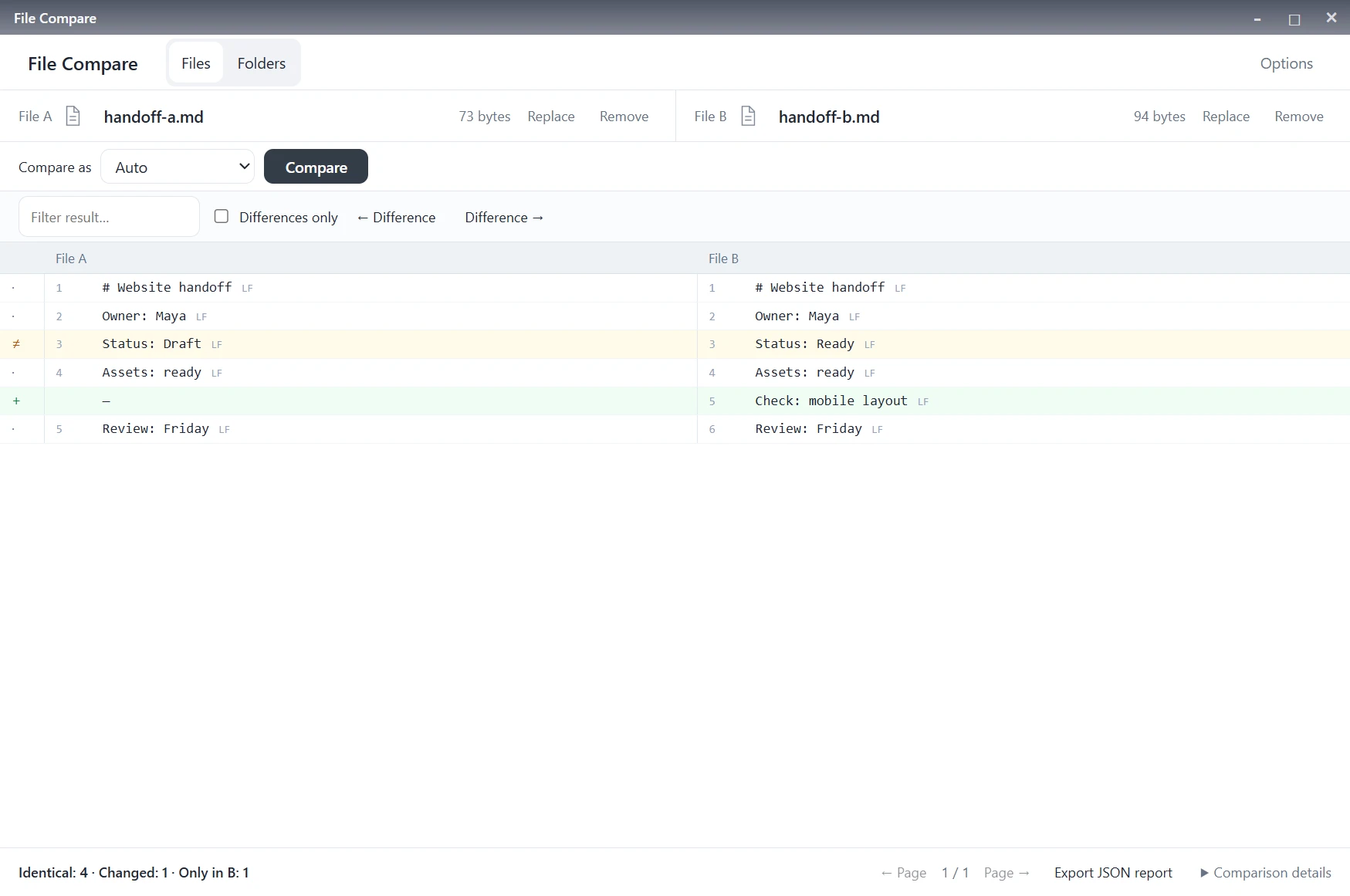
Actual comparison of the prepared notes: four identical lines, one changed line and one line only in B.
Read the aligned lines, not just the line numbers
The status line appears on both sides with different text: Draft in A and Ready in B. File Compare marks that row as changed.
The mobile-layout check appears only in B. A dash occupies its corresponding position in A. This keeps Review: Friday aligned even though it is line 5 in A and line 6 in B.
That distinction is the useful part of line alignment. A new line does not necessarily mean every line below it changed.
| Result | How to read it |
|---|---|
| Identical | The aligned lines match under the current comparison settings |
| Changed | The paired lines contain different text |
| Only in A | A line is present on the left without a matching line on the right |
| Only in B | A line is present on the right without a matching line on the left |
If A is an earlier version, a line only in B can represent an insertion and a line only in A can represent a deletion. With unrelated files, those labels simply describe the two sides; they do not establish editing history.
Turn on Differences only to focus on the changes. Use the difference arrows to move between them, or Filter result to narrow the view. Turn filtering off again when you need the surrounding context.
Decide whether whitespace differences matter
Open Options when two files look similar but still report differences. Ignore CRLF / LF is useful when one file uses Windows-style line endings and the other uses LF. The visible LF or CRLF markers help explain this distinction.
Ignore spaces and Ignore case are separate choices. Use them only when those differences do not matter to the task. Spaces can affect source code, indentation and Markdown formatting; case can change an identifier or a path.
Ignoring a difference does not rewrite the file. It changes the comparison rules. If your question is whether the original files are byte-for-byte identical, choose Binary bytes instead of relying on a text result with ignore options enabled.
Replace a file and review the next revision
Use Replace in either file bar or drag a new file onto that side. The comparison workspace stays open.
The previous result becomes dimmed and shows Files or settings changed · Compare to update. Select Compare to get the new result. Do not interpret the dimmed rows as a comparison of the newly selected file; they still belong to the previous pair.
When the current result is ready, choose Export JSON report to save it. In this example, the exported report includes the two filenames and the aligned rows with their statuses. It is a review record, not a merged document. Check its contents before sharing because it can include text from your files.
Know when to use a different comparison
Text mode works on decoded text, not the rendered appearance of a document. Comparing Markdown source does not compare its final page layout. Word, spreadsheet and presentation extraction are separate modes; they are not a promise to compare complete Office formatting. PDF page text is not covered by this walkthrough.
If text decoding fails, check the Encoding setting or save a UTF-8 copy in your editor. Do not assume a failed comparison means the files match. Text comparison has a 2 MiB-per-file and 50,000-line limit, with a processing budget for complex differences; split very large logs into relevant sections first.
For the next revision of a note, open File Compare and compare the two files before copying changes into your working document. If you have entire project copies rather than a single pair, follow the folder comparison walkthrough to locate the files that need attention.