When you have two copies of a project, matching folder names do not tell you whether their contents match. One copy may contain an extra file, while a file with the same name may contain different text.
File Compare compares two selected folders by relative path and reads matching files to check their bytes. Its side-by-side view separates files found only in one folder from files present in both but different. You can then open a matching pair to inspect the contents.
This walkthrough uses File Compare 1.5.4 and a small prepared example. It focuses on reviewing differences; the app does not merge, delete or synchronize the source folders.
Choose the two folders you want to check
Open File Compare in the Aelrox desktop app and select Folders. Choose the first directory under Folder A and the second under Folder B, or drag each folder into its selection area. Select Compare when both sides are ready. You can find the File Compare entry in the related app panel on this article.
A and B are simply the two sides of the comparison. Neither is automatically the original, the latest version or the correct copy.
For this example, the folders contain:
Folder A                 Folder B
notes/                   notes/
  changed.txt              changed.txt
same.txt                 same.txt
                         added.txt
The two same.txt files contain the same bytes. The changed.txt files have different contents, and added.txt exists only in B. These are deliberately small inputs so every result is easy to check.
Read the result across each row
The left and right columns show the corresponding entries, including their names and sizes. The middle column explains the result.
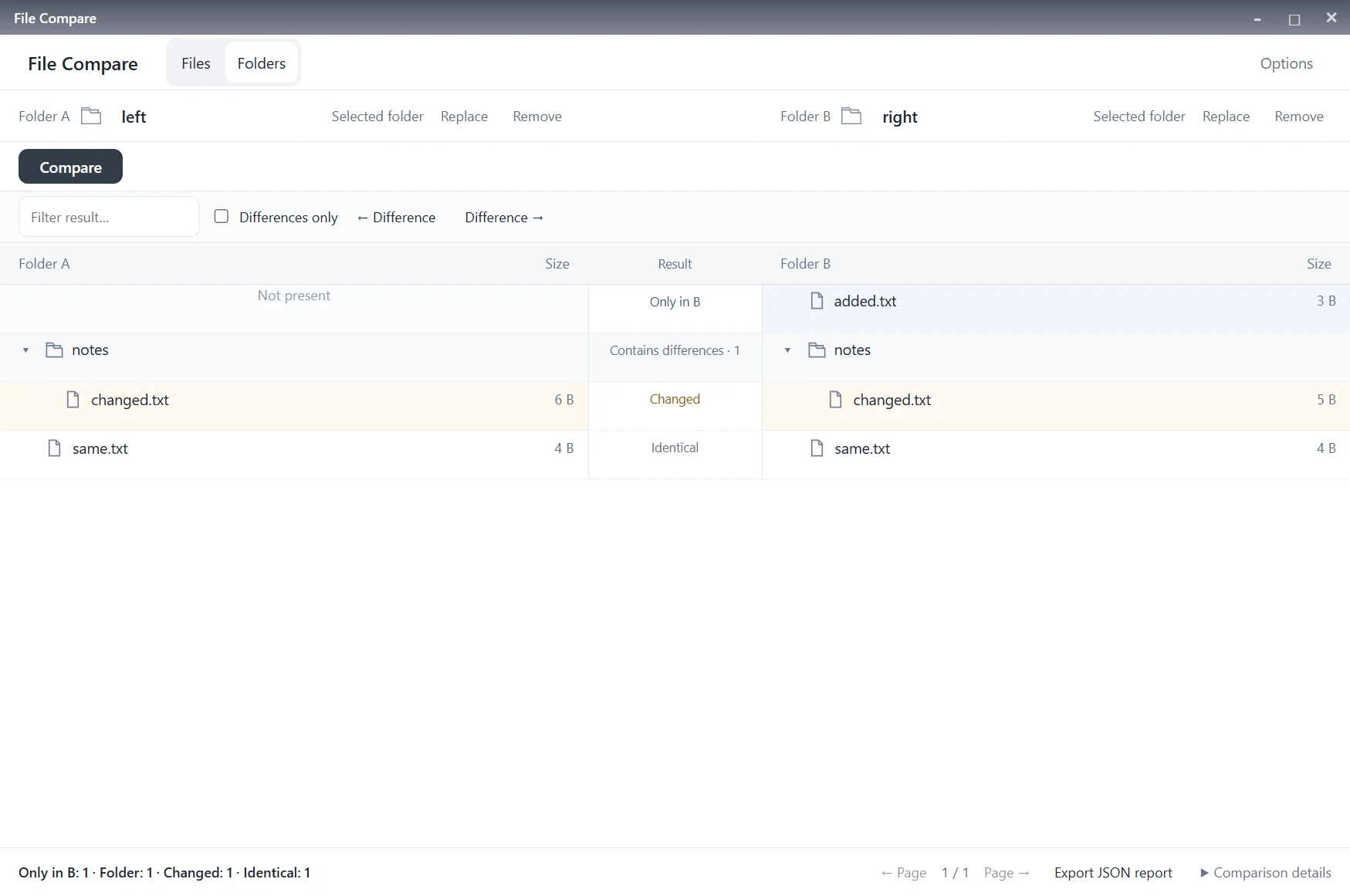
The sample has one file only in B, one changed file inside notes, and one identical file.
| Result | What it means | What to review |
|---|---|---|
| Only in A / Only in B | The relative path exists on one side only | Check whether the extra file belongs in your deliverable |
| Changed | The matching files have different contents, or the entries have incompatible types | Inspect the pair before choosing a copy |
| Identical | The compared file bytes match | No content difference was found for that pair |
| Contains differences | A directory contains reported differences below it | Expand the directory to locate them |
| Not compared | The entry could not be compared | Resolve the reported issue before treating the review as complete |
Not present marks the missing side of a row. It does not mean the app deleted anything. Likewise, Only in B does not prove that a file was recently added: it only describes the two folders you selected.
Focus on differences without losing the folder structure
Turn on Differences only to hide matching files. File Compare retains the parent directories of visible differences, so notes/changed.txt stays under notes rather than becoming an isolated filename.
Use the arrow beside a directory to collapse or expand its children. For a specific item, enter part of its name or path in Filter result. The difference navigation controls help you move between the visible differences.
This is useful for reviewing a project handoff: start with files found only on one side, then inspect changed pairs. A changed file deserves review even if its size looks familiar; file size alone is not a content comparison.
Open a changed file to understand the difference
Click the filename of a comparable pair to open its detailed comparison. For text files, the app aligns lines so you can see where content was inserted, removed or changed. Choose Back to folders to return to the directory results.
Folder comparison checks bytes. A text comparison with options such as Ignore CRLF / LF can show fewer meaningful differences because it deliberately ignores that distinction. If you need exact equality, keep that difference in mind when interpreting the detailed view.
Compare another pair without starting over
After the first comparison, use Replace in either file or folder bar, or drop a new item onto that side. The expanded workspace stays in place.
Previous results are dimmed and marked Files or settings changed · Compare to update. They still describe the previous comparison. Select Compare to refresh them; exporting the previous result is disabled while it is awaiting an update.
Once the current comparison is complete, Export JSON report lets you save a report for later review. Treat it as potentially sensitive: comparison reports can contain paths, names or content excerpts.
Check the scope before relying on the result
By default, folder comparison excludes .git and node_modules. Review Options if those directories are part of what you need to check. Symbolic links are not followed, and skipped or unreadable entries are not counted as matching files.
The app applies limits of 5,000 entries per side, 48 directory levels and a 2 GiB comparison budget. For larger trees, compare smaller project folders separately. If files change while a scan is running, rerun the comparison after the files have settled.
Matching uses relative paths, not a search for duplicate contents anywhere in the tree. Renaming or moving a file can therefore produce separate one-sided entries. File Compare is a review tool, not a folder synchronization tool.
Use File Compare when your question is “What differs between these two folders?” If you are instead investigating what occupies space inside one folder, see how to find large files in a project folder.