
To rename a group of files safely, build the new names first, check them for conflicts, and only then confirm the changes. Batch Rename puts those stages in one desktop window. You can add a project prefix, replace text, change letter case, or append numbering while keeping the file extensions.
This walkthrough uses Batch Rename 1.2.0 and three small text files prepared for the article. The screenshots show the published app code in a browser preview connected to Aelrox's Windows file service. The files were actually renamed and restored; folder selection and permission responses were controlled for this walkthrough, rather than captured from the desktop dialogs.
Open the tool and choose a small folder
Download Aelrox, then install Batch Rename from the Micro Apps Store. Open the tool and select Choose folder. Keep Include subfolders selected only when you want files inside those folders included as well.
Start with copies of a few files. For this example, the folder contains:
draft-01.txt
draft-02.txt
draft-03.txt
Scanning reads file names and metadata. It does not apply your naming rules to the files yet. Use the row checkboxes to exclude anything you do not want to change. Try example is useful for learning the controls, but its sample rows do not modify files.
Make the naming rule visible
Enter launch- in Prefix. Leave Append numbering enabled, Start at set to 1, and Digits set to 3. Leave the other fields unchanged.
The preview for this folder becomes:
| Original | New name |
|---|---|
| draft-01.txt | launch-draft-01_001.txt |
| draft-02.txt | launch-draft-02_002.txt |
| draft-03.txt | launch-draft-03_003.txt |
The original stem remains in the name: appending numbering does not replace it. Numbering follows the displayed order, so inspect that order before confirming. If you only need a prefix, turn numbering off.
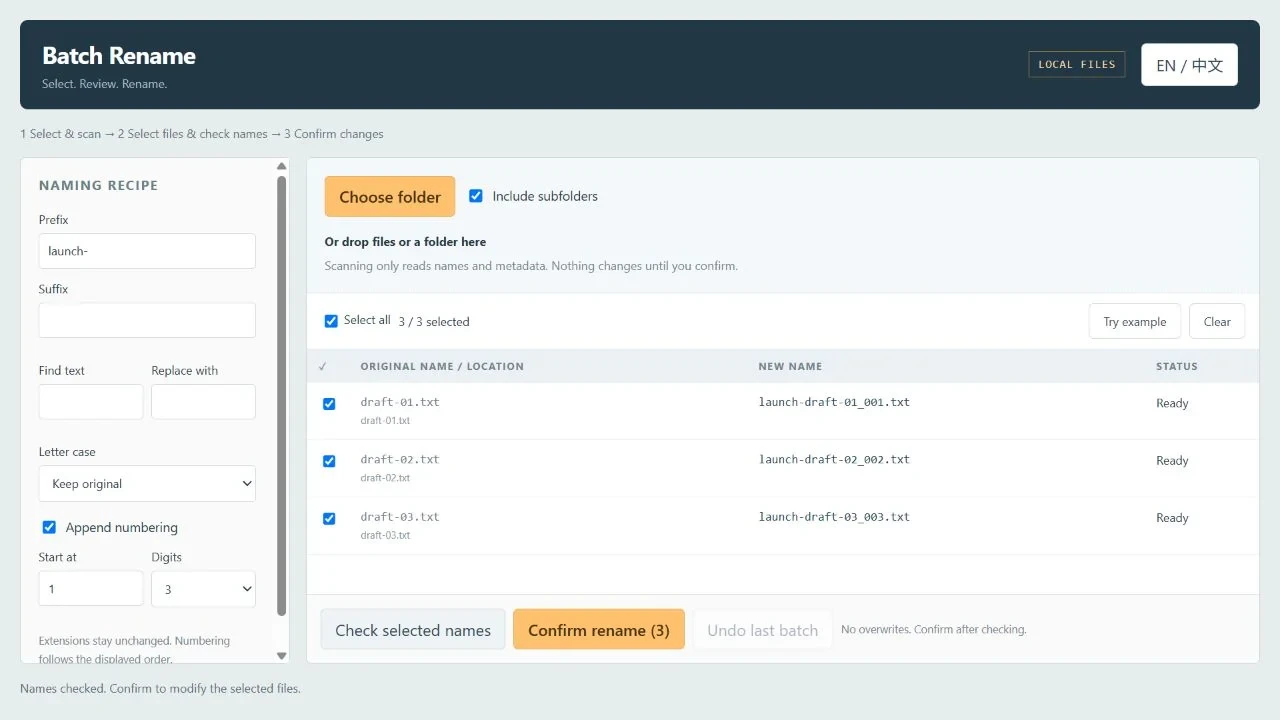
The checked preview from the prepared file folder. The files have not been renamed at this stage.
Check first, then confirm
Select Check selected names. If a target name already exists, fix the rule or deselect the affected row, then check again. Changing the rule or selection invalidates the previous check.
Read the final button's count before selecting Confirm rename (3). In normal desktop use, approve the requested write access only for the folder you intend to modify.
After the operation, inspect each row's status and the folder itself. This example produced three renamed files with unchanged contents. A partially successful batch is possible: successful changes remain applied if another file fails. Existing files are not overwritten to resolve a conflict.
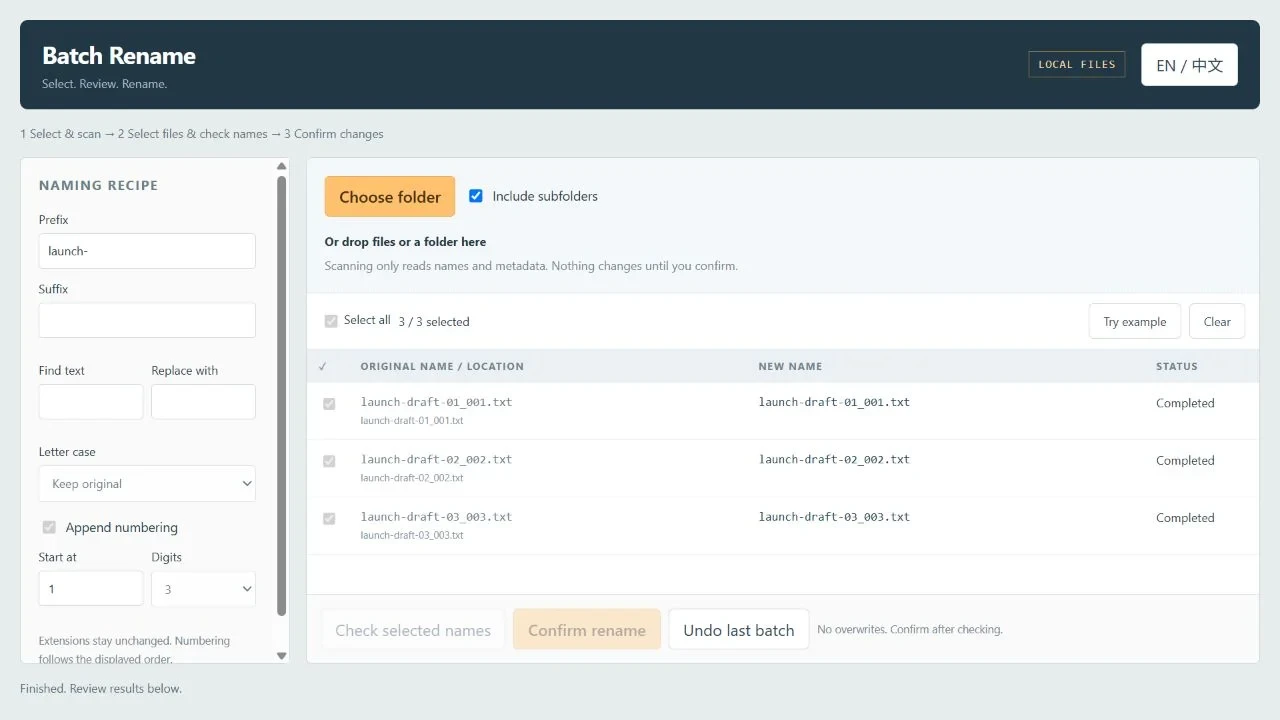
All three rows completed. The resulting names and file contents were also checked on disk.
Undo while the session is still open
Select Undo last batch to build a restore preview. Review the original names, then confirm the restoration. In this example, all three original names were restored.
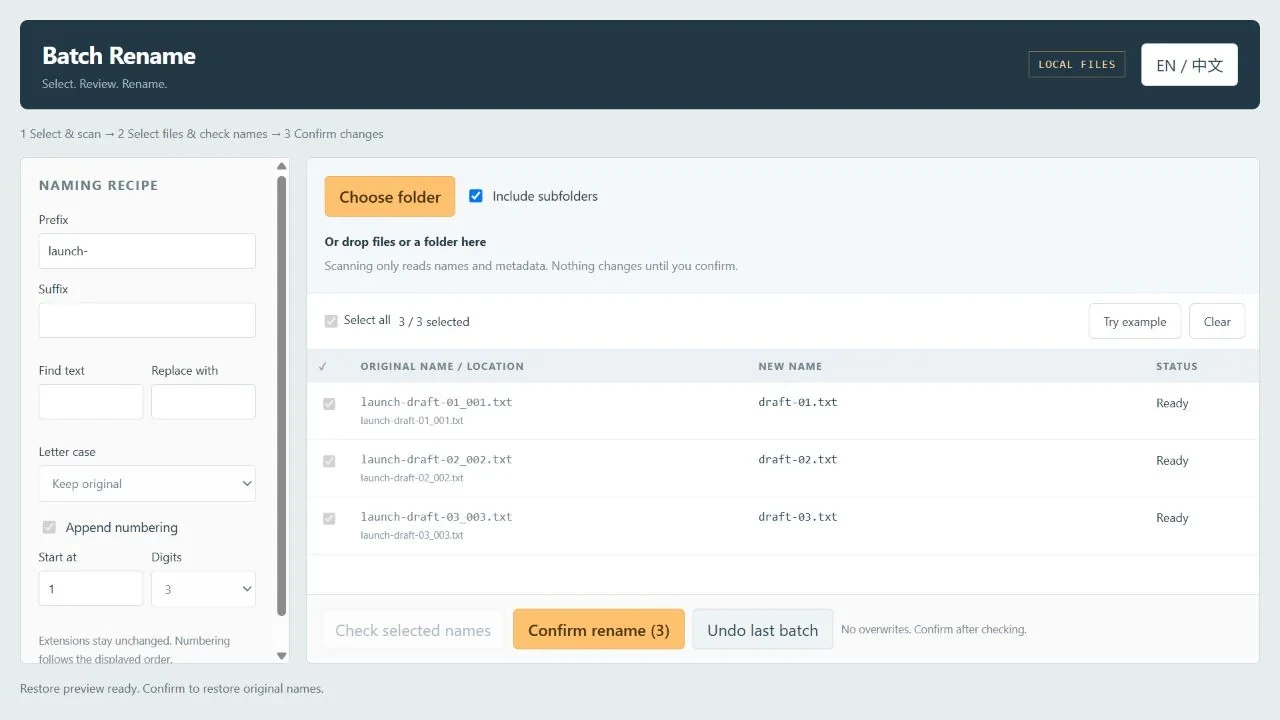
Undo is another reviewed operation, rather than an immediate silent change.
Undo covers the most recent batch in the current session. Choosing a different folder, closing the app, or revoking access ends that history. It is not a permanent backup or an undo history shared with File Explorer.
Know when to stop and review
If a file changes after the check, a conflict appears, or a scan is incomplete, review the affected rows before trying again. Some filesystems do not support the app's non-overwriting rename method; an error is a reason to inspect the result, not to assume the whole batch succeeded.
Need to find the folder first? See File Search Desk. When you are ready to organize its names, open Batch Rename.