

An Aelrox desktop pet is a small character that lives above your desktop windows. You install it as a micro app, place it where you want it, and interact with the character directly.
If you found Aelrox through the Niu Lai desktop pet video, start with the Niu Lai application below. You can install the existing character without creating a new one in Builder.
Choose a character
These three published applications offer different interactions:
| Pet | What it does | Choose it if you want… |
|---|---|---|
| Niu Lai | A cow character with pointer reactions and a voice reaction when double-clicked | The character associated with the Niu Lai video |
| Niu Lai Calf | An orange calf that calls for Mama when double-clicked | A smaller-character variation with its own voice |
| System Cat 2 | A pixel cat that responds to system status and has a hardware-status board | A companion that also gives you a glance at computer activity |
Start with one. That makes it easier to learn its controls and decide where it belongs on your desktop.
Install and open the pet
- Get the desktop client from the official download page and launch Aelrox.
- Open the detail page for your chosen pet using the links above.
- Select Open in Aelrox. Allow the browser to open the installed client when prompted.
- Follow Aelrox's installation and permission prompts for that application.
The browser handoff and account sign-in steps are explained in the Desktop App Guide. If the browser does not open the client, confirm that Aelrox is installed and has been launched, then try the detail page again.
Permission requests depend on the pet. Niu Lai uses audio for its voice reaction. System Cat uses system information to drive its status display. See Micro-App Safety & Permissions for an explanation of these user-facing access choices.
Move and interact with Niu Lai
Drag the character to an open part of your desktop. A position beside your main work area is usually more convenient than placing it over a button you click often.
Try hovering over the character, clicking it, and double-clicking it. Niu Lai has pointer reactions, and double-clicking requests its voice reaction. The calf has its own corresponding interaction and sound.
If you see a reaction but hear nothing, check your computer's output device and volume, and whether the app's audio request was allowed. A voice reaction is playback of the character's sound; it does not require you to speak into a microphone.
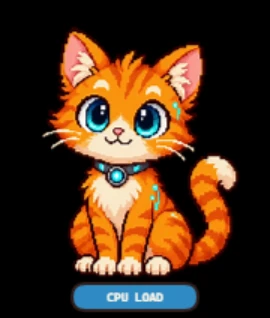
System Cat 2 running in the Windows client. This capture shows the character and its CPU LOAD button; it is not a screenshot of the hardware-status board.
Use System Cat's status board
System Cat 2 changes its animation in response to conditions such as CPU activity, memory use, charging, and network status. Its dedicated CPU LOAD button opens a board with available system readings.
Read the values as a quick view of current activity. A busy animation does not diagnose a faulty computer, and the pet does not speed up your CPU or free memory for you. If a reading is unavailable, the interface can show a missing value instead of a number; do not interpret that as zero usage.
This makes System Cat a different choice from a character that mainly reacts to clicks. Use whichever kind of interaction you actually want alongside your work.
Close it when you want a clear desktop
Open the character's Aelrox context menu and choose Close. The host menu also offers window controls such as Always on Top. Closing the running window is different from uninstalling the application; you can open an installed pet again later.
These are interactive desktop characters, not general conversational assistants. Choose one for the behavior shown on its application page rather than expecting every pet to chat, manage files, or monitor the computer.
Open Niu Lai to try the voice character, or open System Cat 2 if you prefer a companion with a status display.