
A short agenda or checklist can be useful beside the application you are working in. Ghost Reader is a TXT reader with a transparent, always-on-top desktop window, adjustable text and a toolbar that appears when you move to the top of the reading area.
This article covers Ghost Reader 1.1.1. Transparency is a visual setting: it does not make the window click-through or guarantee that it will be excluded from a screen share.
Prepare a reference that is easy to skim
Use a local TXT file with short sections instead of a dense wall of notes. Here is a simple example you can save yourself:
Chapter 1
Before the call
Open the agenda.
Check the three questions you need to answer.

Chapter 2
During the review
Record the decision.
Write down the next owner and due date.

Chapter 3
After the call
Confirm the next action before closing your notes.
To reproduce the screenshots, save the following as travel-notes.txt in UTF-8:
Chapter 1
Packing for a short trip

Keep the charging cable with the laptop. Check the meeting location before leaving.

Chapter 2
Before the call

Open the agenda and write down the three questions you need to answer.

Chapter 3
After the meeting

Save decisions with their owners and due dates.
Both examples are prepared reference text, not generated meeting summaries. The reader displays what you import; it does not listen to the meeting or create action items for you.
Open Ghost Reader in Aelrox and import the TXT file. Download Aelrox first if necessary. The current file limit is 20 MiB.
Set readability before transparency
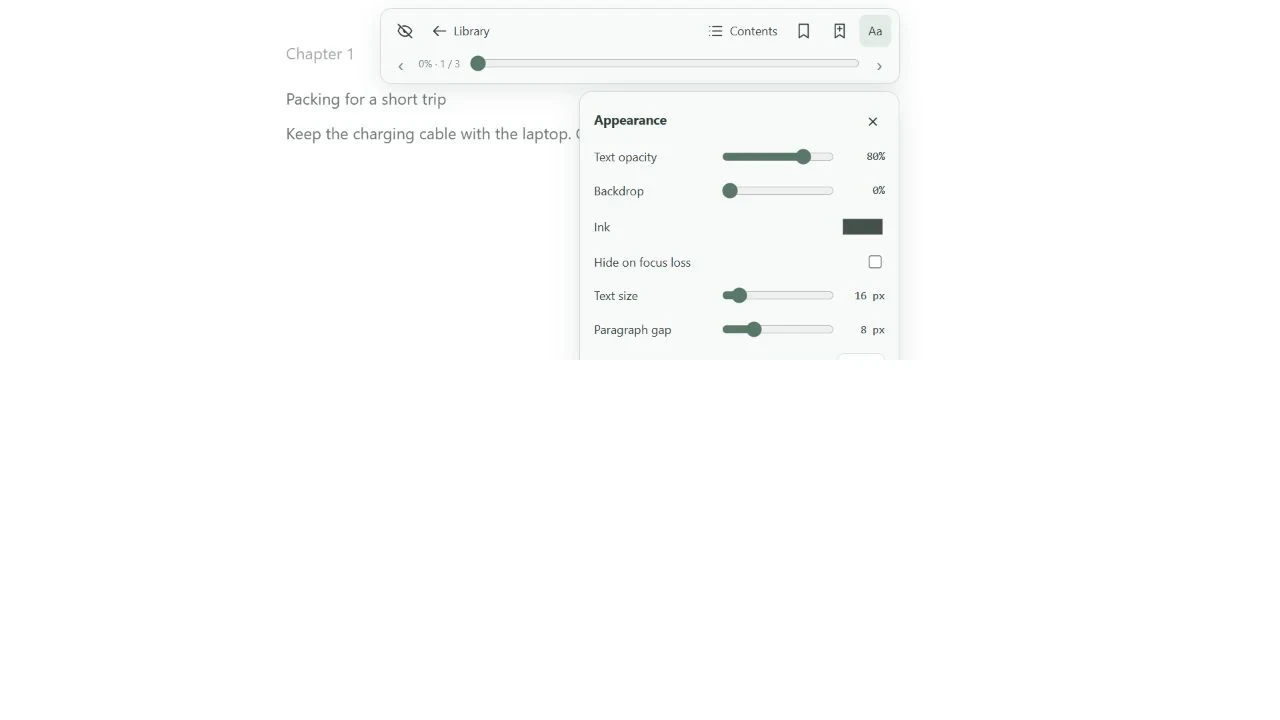
Browser-preview controls over a TXT sample. This image does not demonstrate a transparent window over other desktop applications.
Start with a background that makes the words easy to read. Adjust text size, line height and paragraph spacing first, then reduce the background opacity gradually.
Keep a visible contrast between the text and whatever is behind the window. A setting that works over a plain document can become unreadable over a detailed image or dark application. Increase opacity again when the background changes.
Paragraph spacing can range from 0 to 32 pixels. For a checklist, enough spacing to separate actions is usually more useful than fitting the greatest number of lines into the window.
Reveal controls without changing the reading layout
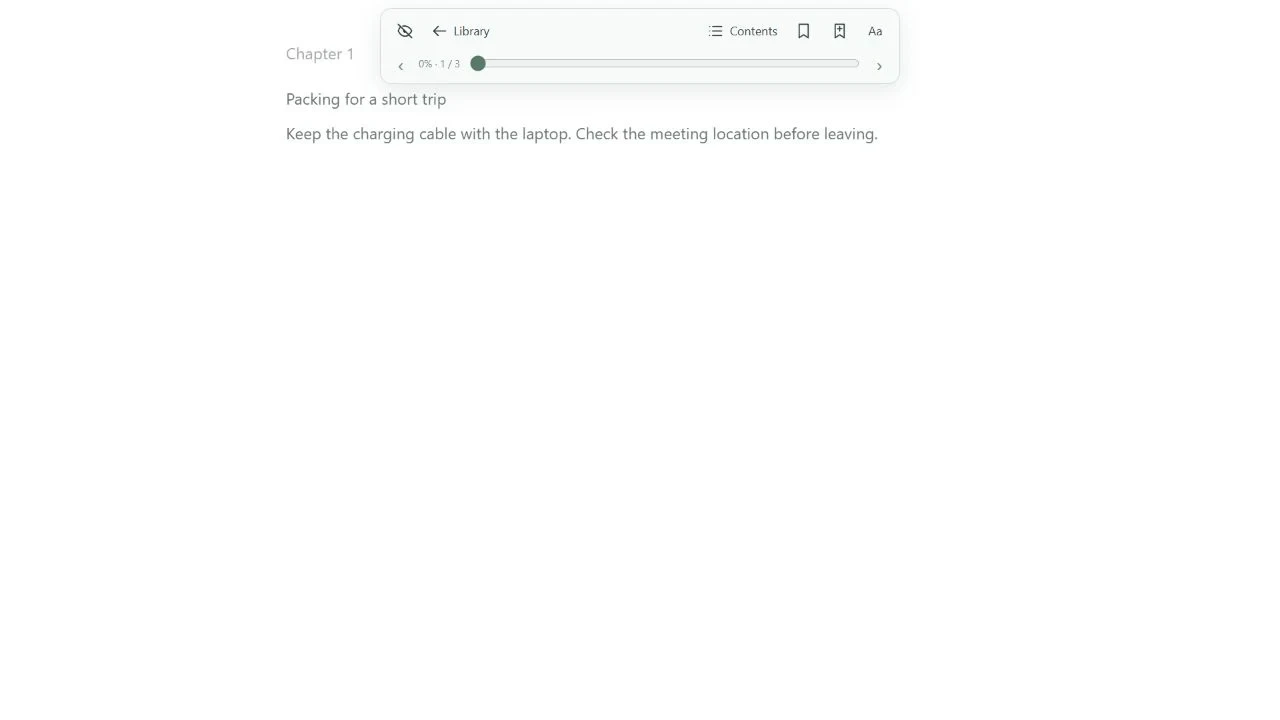
The reading controls are separate from the text. The screenshot uses the downloadable travel-notes sample.
Move to the top 32 pixels of the reading area to reveal the toolbar. Opening its panels does not reflow the text underneath, which helps you keep your place while adjusting the appearance.
Use detected chapters and bookmarks to revisit the section you need. Chapter detection depends on recognizable headings; it is not a guarantee that an arbitrary text dump will become a well-structured book. Reading progress is approximate rather than a printed page number.
If the characters look wrong, check the import encoding. The current reader handles UTF-8 and UTF-16 workflows. Choosing a different font does not repair text decoded with the wrong encoding.
Understand Hide, Resume and Escape
Use Hide when you want the reading content out of the way, and Resume to bring it back. Escape has a staged behavior: it closes an open panel first, then hides reading content when no panel remains open.
Escape is a shortcut for the focused reader window, not a global emergency hide key. If another application has focus, do not expect the reader to receive that key press.
For screen sharing, explicitly check which window or screen your meeting software is capturing. A transparent window can still be visible in the capture. Do not rely on Ghost Reader's appearance as a privacy control.
Choose it for an overlay, not every reading task
Ghost Reader is useful when the reference should remain visually close to another desktop task. Its transparency and always-on-top behavior depend on the Aelrox desktop host; a browser preview cannot establish how it behaves over other applications.
For a conventional bookshelf with a solid reading page, use Quiet Reader. For a small reference beside your work, start with Ghost Reader and tune contrast before reducing opacity.