
When you have a short product demonstration, spoken note or voice-over, an automatic transcript can give you a useful first subtitle draft. Voice Scribe accepts a local recording, produces timestamped segments and lets you review those segments before exporting SRT.
Voice Scribe 1.4.1 is intended for recordings of up to five minutes, with imports limited to 100 MiB. It is not a way to transcribe an hour-long meeting in one pass, and the first transcript still needs human review.
Set up before you need the subtitles
Open Voice Scribe in Aelrox. Download the desktop app if this is your first micro-app.
Install the speech engine when prompted. The current version uses the Base speech model; older instructions referring to a Tiny/Base choice do not describe this version. Engine setup downloads resources. Subsequent transcription uses the local engine, rather than uploading the recording to a hosted transcription service.
Choose Import media and select a short audio or video file. Whether a particular file can be decoded also depends on its codec and the desktop environment. A familiar extension alone does not guarantee compatibility. If decoding fails, export a supported audio version from your recording application and try that copy.
Use a short, reviewable recording
For our example, we created an approximately 14-second English WAV using a synthetic voice and this short demonstration script:
Open the project folder. Select the two files you want to compare. Choose Compare, then review the highlighted differences. The source files stay unchanged.
We imported that WAV, selected English, and ran Transcribe recording. The model produced four timestamped segments. The screenshots show the published package running locally in a browser with its actual speech model; the input is synthetic speech, not a microphone recording or an accuracy benchmark.
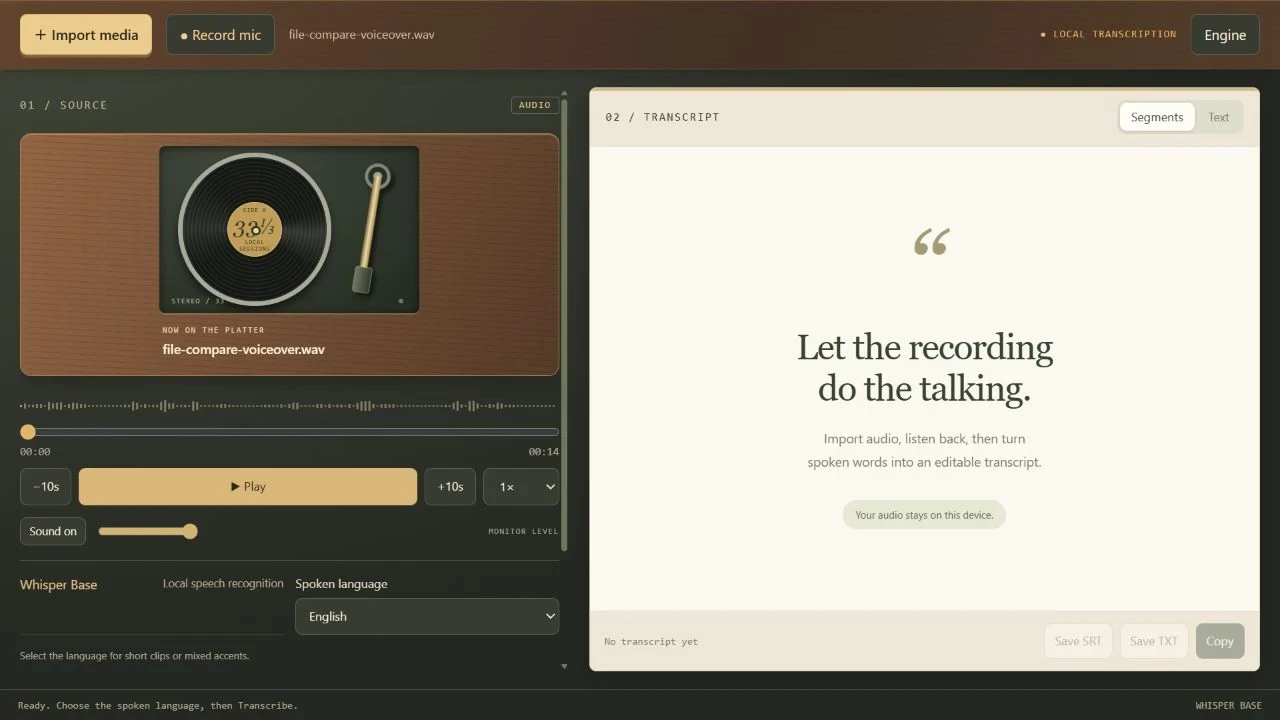
Input ready: check the filename, duration and spoken language before transcribing.
Listen to the input once before starting. Remove long stretches of silence and avoid music over the speech where possible. Keep the clip within the five-minute limit.
Correct segments before exporting SRT
Run transcription, then review the timestamped segments while playing the recording. Clicking a segment lets you listen near that part of the clip.
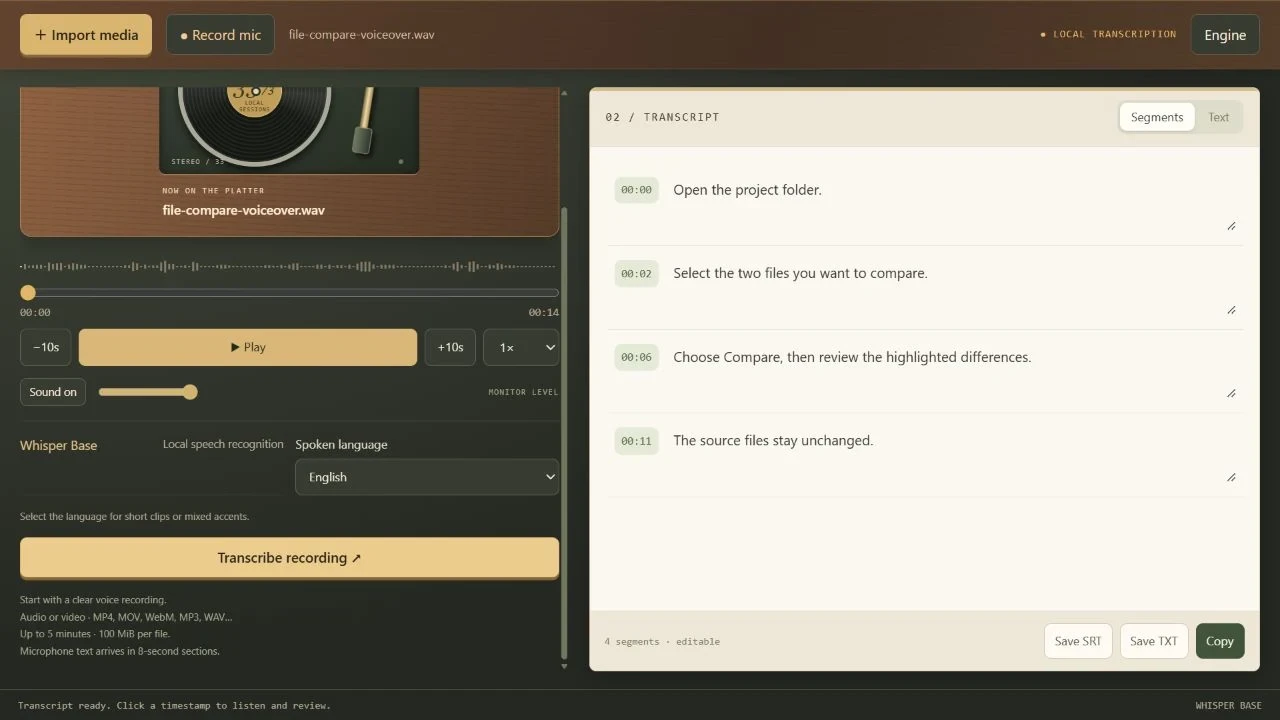
The model returned four editable segments from the synthetic voice-over.
Check three things separately:
- Words: correct names, numbers and product terminology.
- Timing: make sure the subtitle appears with the corresponding speech.
- Completeness: compare the first and last spoken lines with the transcript.
The distinction between the two editing surfaces matters: segment edits feed the SRT export; edits in the free-text transcript feed TXT. If your destination is a subtitle file, make your corrections in the segments rather than assuming a rewritten plain-text paragraph updates them.
Choose Save SRT, then load the saved file alongside the recording in the application where you will use it. Our exported sample contained this first subtitle:
1
00:00:00,000 --> 00:00:02,000
Open the project folder.
The file contained all four segments, ending at 00:00:13,300. These are the sample’s generated timings, not manually invented screenshot text. Watch the result once. A successful export alone does not establish that the words and timings are correct.
Recording directly is a separate option
Voice Scribe can also record the default microphone through Aelrox. This is microphone recording, not system-audio capture or camera recording. It processes audio in chunks with additional processing time, so it should not be treated as instant live captioning.
For repeatable subtitle work, importing a finished short recording is often easier to review: the input does not change while you correct the text.
Know what the transcript does not promise
The current workflow does not identify speakers or guarantee word-level timing. Noise, music and silence can lead to missing or invented words. Review sensitive or consequential wording against the recording itself.
Export what you need before closing the micro-app; the current session is not a permanent transcript library. Keep the original recording so you can revisit a correction later.
The illustrated run verifies imported-audio transcription and SRT content. It does not establish microphone behavior, real-world transcription accuracy or performance on every computer. Start with a short clip in Voice Scribe and judge the output by listening, not by how polished the generated text looks.