
An appendix in the wrong place or a few unnecessary pages can make a PDF awkward to share. Page Studio lets you arrange page thumbnails, rotate or remove pages, and save a new PDF. Your source file stays unchanged.
This walkthrough uses Page Studio 1.0.0 and a small three-page review pack. It focuses on page organization, not editing the words on a PDF page.
Open a small PDF and identify the output order
Open Page Studio in Aelrox, then choose Add PDFs or drop a PDF into the workspace. Download Aelrox if you have not installed the desktop app.
To reproduce the example, create a document with the three headings below on separate pages, then save it as a PDF. Our sample starts in this order:
| Source page | Page heading |
|---|---|
| 1 | Cover — Project Handoff |
| 2 | Checklist — Review screenshots |
| 3 | Appendix — Contact schedule |
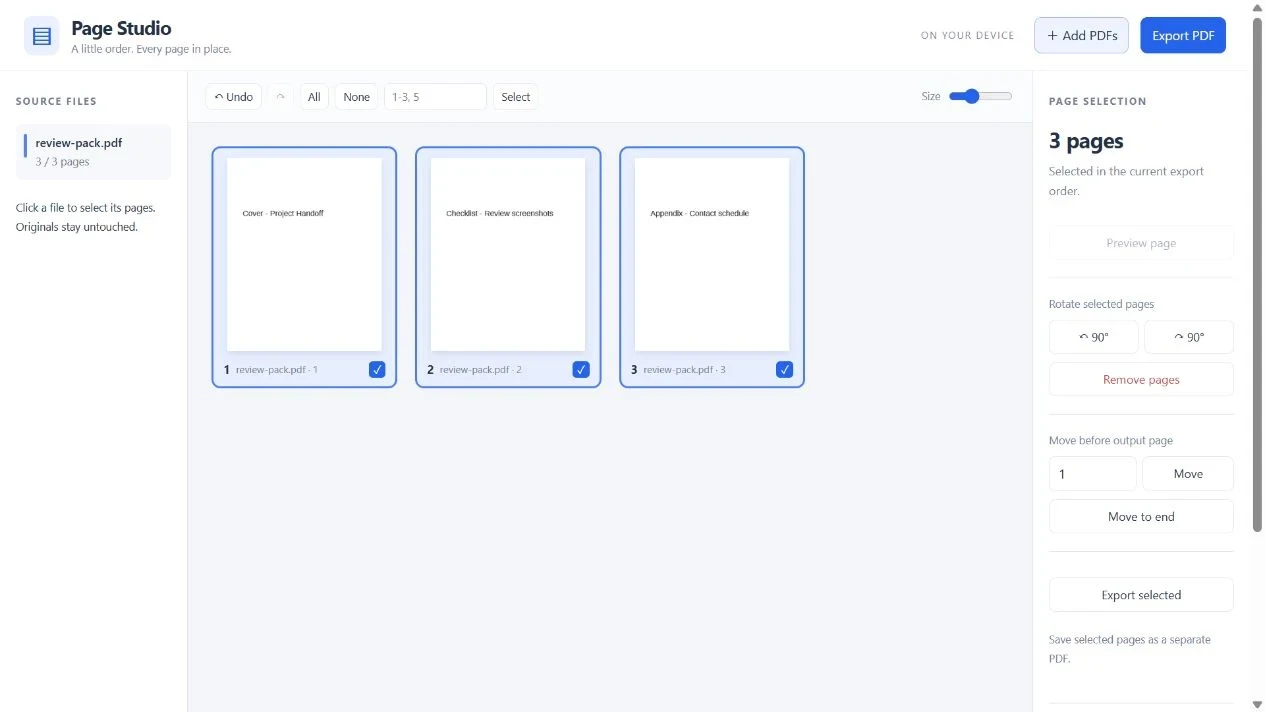
Three pages imported into the actual Page Studio browser preview.
The thumbnail position represents the page's place in the output. Its source label identifies where the page came from. After a move, those numbers can differ.
Move the appendix to the front
Select the third thumbnail, or enter 3 in Select output page numbers and choose Select. In Move before output page, enter 1, then choose Move.
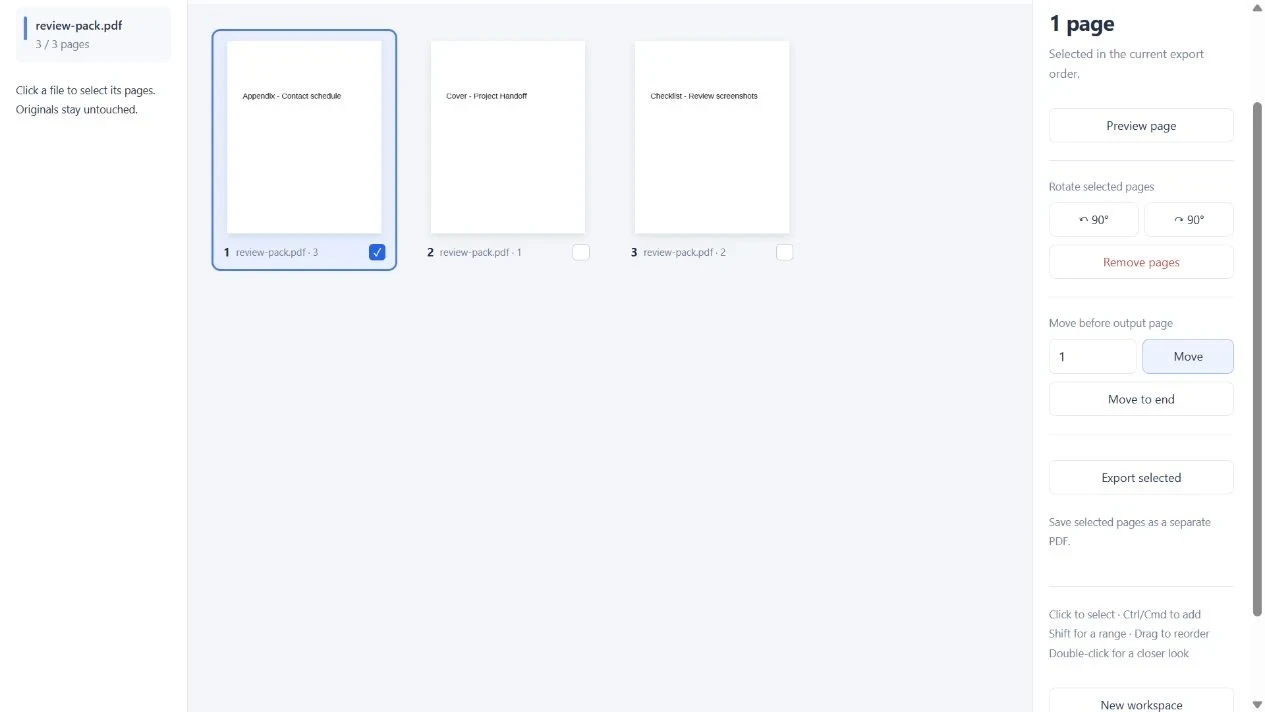
The selected appendix is now output page 1; the source labels still identify the original page numbers.
The appendix is now first. You can also drag pages to reorder them, use Ctrl/Cmd to add individual pages to a selection, or Shift to select a range. Undo is useful if a move lands in the wrong place.
In our browser-based check of the published package, this operation produced the following exported order:
- Appendix — Contact schedule
- Cover — Project Handoff
- Checklist — Review screenshots
We opened the exported PDF and extracted its page text to confirm that order; it was not inferred solely from the thumbnails. The original sample remains in its original order.
Choose between the whole arrangement and a selection
Export PDF saves the entire current arrangement. Export selected saves only the selected pages, in their current output order.
For example, after moving the appendix to the front, entering 1,3 selects the appendix and checklist. It does not mean original source pages one and three. Range input always refers to the current output positions.
To remove an unwanted page from the arrangement, select it and choose Remove pages. This changes the working arrangement, not the source PDF on disk. Review the thumbnails once more before exporting.
For sideways pages, use the left or right 90-degree rotation control. Preview a page when the thumbnail is too small to judge its orientation or contents.
Check the new PDF before sharing it
Save to a new filename, then open that file. Check the first page, final page, total page count and any rotated pages. If you exported a selection, make sure an unrelated page was not still selected.
Page Studio copies page text and graphics rather than converting every page into a screenshot. However, document-level bookmarks and structure are not reconstructed in the new file. If a navigation outline is important to the recipient, check that requirement before choosing a page-assembly workflow.
Files this workflow is intended for
The current limits are 40 MiB per PDF, 100 MiB of retained source files and 300 imported pages per workspace. Removing thumbnails does not immediately release source files retained for undo. Export and start a new workspace when you need to work on another large set.
Encrypted PDFs and documents containing interactive forms or signatures are not supported. Do not use a page-rearrangement copy as a way to preserve a signed document's verification. The workspace is held in memory, so export before closing; it is not an autosaved project.
Use Page Studio when the job is to put existing pages in the right order. Keep the originals alongside the exported copy until you have checked the result.