
A long TXT file is easy to open in an editor and easy to lose your place in. Quiet Reader imports plain-text books into a local bookshelf, detects recognizable chapter headings and remembers your reading position.
This walkthrough covers Quiet Reader 1.0.0. It is for TXT files, including UTF-8 and UTF-16 material. It is not an EPUB or PDF reader and does not sync your library across devices.
Import one small file first
Open Quiet Reader in Aelrox. If you are new to the desktop tools, download Aelrox before opening the micro-app.
Choose Import TXT and select a file. The limit is 20 MiB per book. For the downloadable sample below, choose UTF-8 under Import encoding.
For a small test, save the following as travel-notes.txt in UTF-8, then import it:
Chapter 1
Packing for a short trip

Keep the charging cable with the laptop. Check the meeting location before leaving.

Chapter 2
Before the call

Open the agenda and write down the three questions you need to answer.

Chapter 3
After the meeting

Save decisions with their owners and due dates.
In our browser-preview check of the published package, the bookshelf displayed travel-notes with 3 SECTIONS. The first section began at Chapter 1, and Page → moved to Chapter 2.
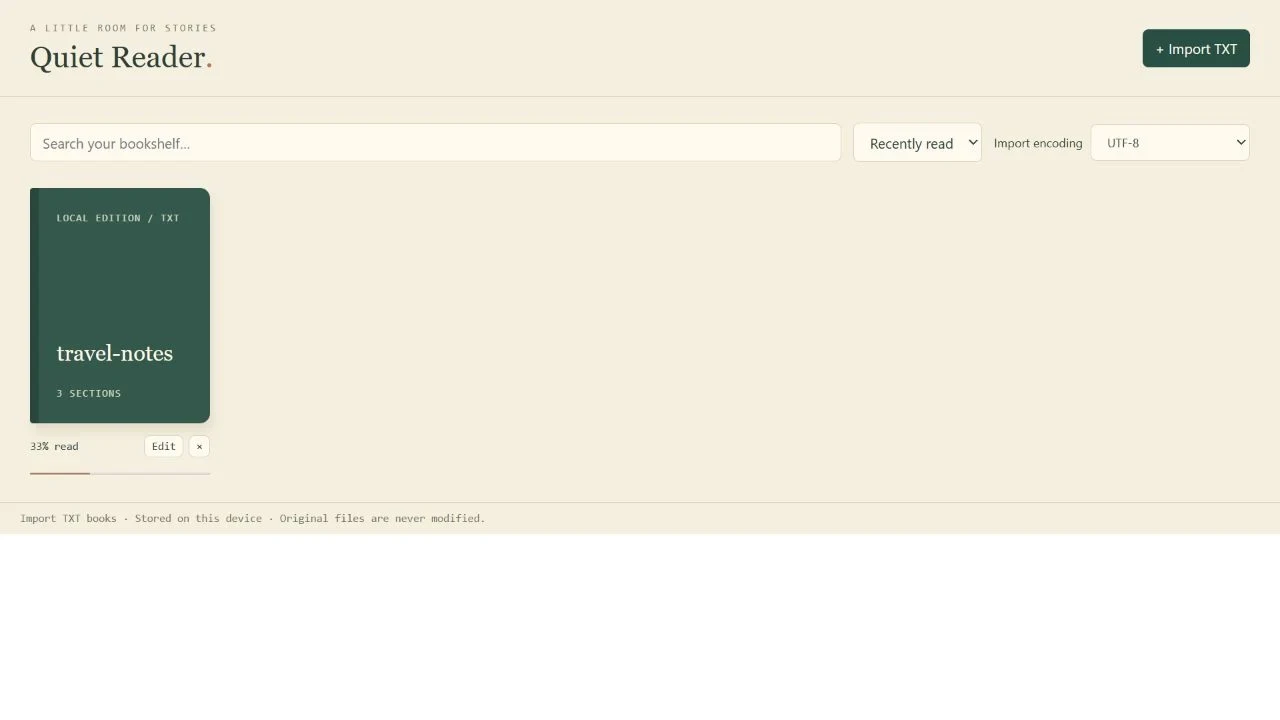
The sample after reading its second section. The shelf shows the saved position.
The sample is deliberately small so you can test navigation without searching through a long novel.
If the words appear garbled
An encoding mismatch can make a readable file look like broken characters. Before importing, use Import encoding to choose the known encoding, such as UTF-8, UTF-16 LE or UTF-16 BE.
If the automatic choice was wrong, try importing the original again with the correct setting. Changing text size or theme cannot fix an encoding mismatch. Keep the original file so you can retry without relying on an already-decoded copy.
Chapter navigation similarly depends on the text. Familiar headings such as Chapter 1 and Roman-numbered chapters can be detected. A document without recognizable headings may not produce the chapter list you expect.
Separate progress from bookmarks
Open the book and use Contents to choose a section. Use the page arrows or keyboard navigation to continue reading. The progress display indicates an estimated position in the text, not a page number in a printed edition.
In our three-section sample, moving to Chapter 2 showed 33% · 2 / 3. After refreshing the preview, the bookshelf still showed 33% read, and reopening the book returned to Chapter 2. That verifies this sample's browser-local persistence; it is not a cross-device synchronization test.
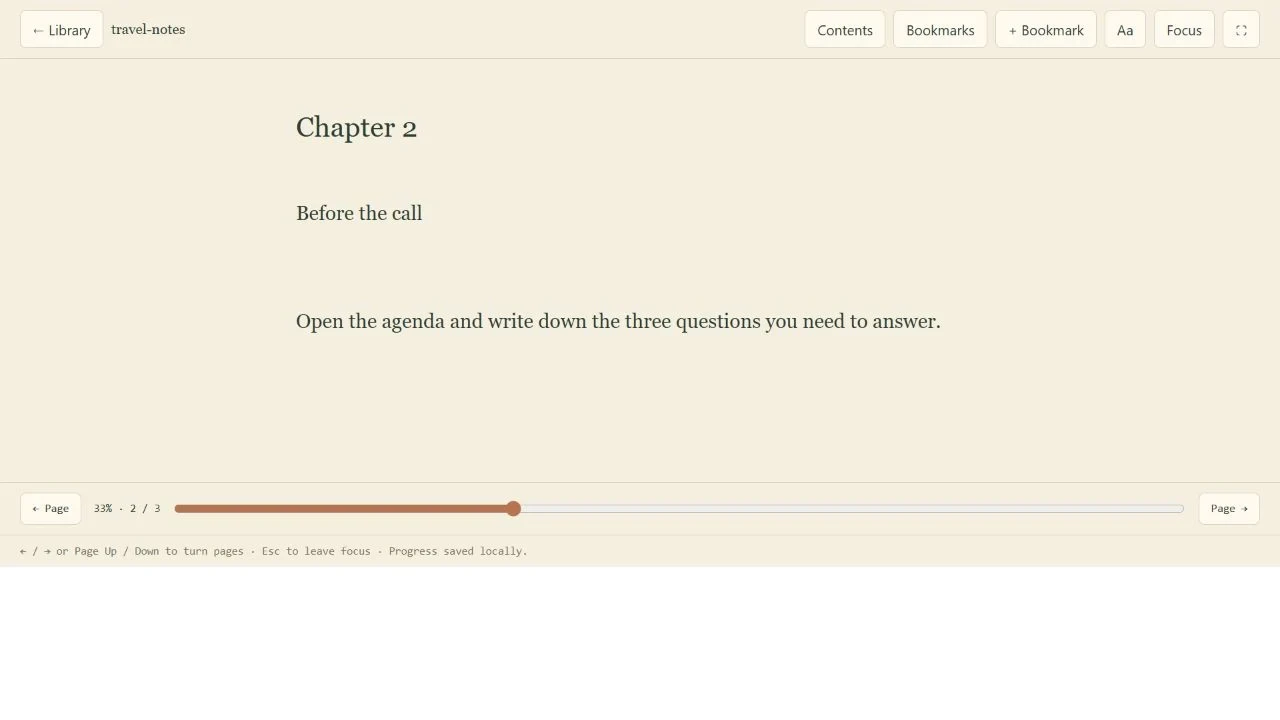
Actual browser-local restore after refresh. It does not imply cloud synchronization.
Use + Bookmark for a place you want to revisit independently of your most recent position. Your current progress will continue to change as you read, while a bookmark gives you a deliberate return point.
Make the page comfortable
Use Aa to adjust reading appearance. The available themes include paper, white, sage and night. Pick a background and text size that remain readable at your normal desktop distance.
Use Focus or fullscreen when you want more space for the text. Escape leaves focus mode. Return through Library when you want another book, then use bookshelf search or sorting to find it.
These controls change the reading presentation; they do not rewrite the TXT file.
Understand what the local library stores
Quiet Reader imports a copy into its local library. Removing a book from the bookshelf does not delete the original TXT file. Conversely, editing the original outside the reader should not be treated as an automatic update to the imported copy.
Keep originals backed up separately. “Saved on this device” does not mean cloud backup, account recovery or automatic availability on another computer.
Use Quiet Reader for a persistent TXT bookshelf. If your goal is a transparent reference above another application instead, Ghost Reader serves that different desktop workflow.