
You do not always need an editor to read a project README or a folder of Markdown notes. Markdown Desk renders local Markdown as a reading page, with an outline, search, tables, code, formulas and Mermaid diagrams.
Markdown Desk 1.1.1 is a reader. It does not edit the source file or export a PDF. It is useful when you want to understand a document without changing it.
Open a document or a folder
Open Markdown Desk in Aelrox. Download Aelrox if you need the desktop app.
Choose Open files for a single document or several notes. Choose Open folder when the documents link to one another or use images stored alongside the Markdown.
The current reader accepts UTF-8 .md, .markdown and .mdown files up to 2 MiB. Folder loading is bounded to 10,000 entries. For a large repository, choose the documentation subfolder rather than the whole project.
Try a small handoff document
Create a file named project-readme.md with the following structure:
# Project handoff

## Checklist
- [x] Draft prepared
- [ ] Review screenshots

## Budget
| Item | Count |
| --- | --- |
| Screens | 3 |
| Reviewers | 2 |
Our screenshot sample also includes a Mermaid flowchart, Draft → Review → Export, and a formula. You can add them to the file with the following Markdown:
## Process
```mermaid
flowchart LR
  Draft --> Review --> Export
```

## Formula
$x^2 + y^2 = z^2$
In our browser-preview check, its table appeared with the two counts, its diagram rendered as a flowchart and its formula rendered with superscripts. This check covered the sample; it does not mean every Mermaid diagram or Markdown extension is supported.
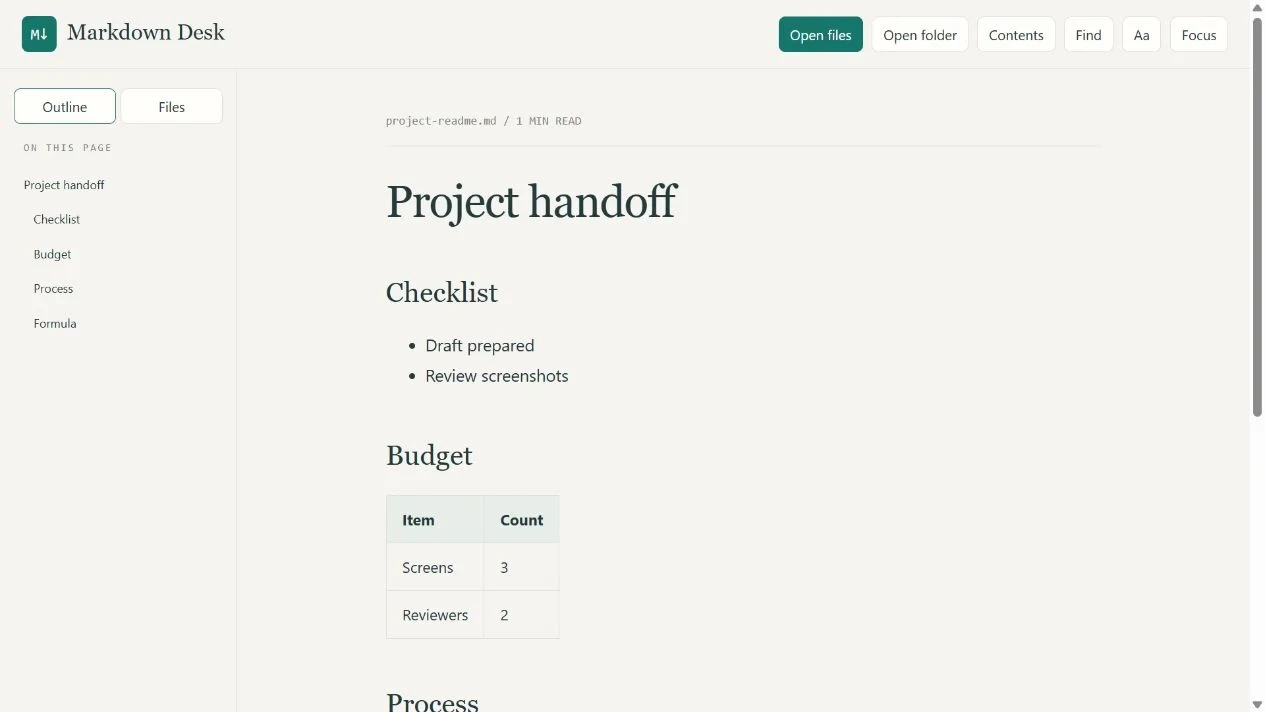
Actual local sample with a section outline and rendered table.
Use Outline to jump to a section, Files to switch among opened documents and Find to search the current document. Focus clears navigation from the reading area, while Aa adjusts its appearance.
Why an image may not appear
Relative images need access to the folder containing them. If a README refers to images/setup.png, opening only the README may not provide access to that image. Use Open folder and select the documentation tree that contains both files.
Supported local raster images are limited to 15 MiB and must stay within the selected folder tree. A path that points outside that tree is not permission to read another part of your computer.
Remote images and HTML image tags are blocked. This is why an online badge or remotely hosted illustration can be absent even when it appears on a repository website. It is a reading boundary, not evidence that the Markdown file was damaged. External links are copied rather than automatically opening another site.
Reading diagrams without losing their source
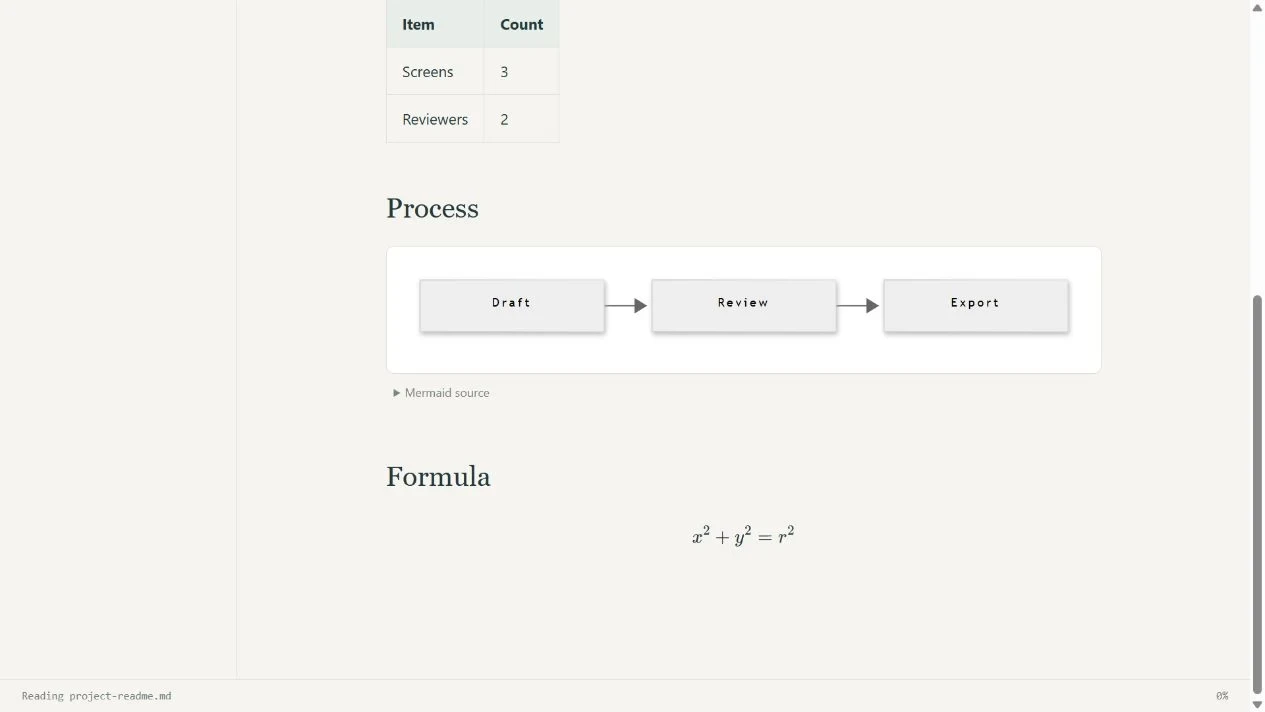
The sample’s Mermaid flowchart and formula rendered in the published package’s browser preview.
The reader supports Mermaid fenced blocks and KaTeX formulas. If a diagram cannot be rendered, the source remains available so you can still read or copy it. Complex or unsupported syntax may need revision in the application where you edit the document.
Reading a rendered checklist also does not turn Markdown Desk into a task editor. Change the checkboxes in your source editor, then reopen the document when needed.
What is remembered next time
The reader saves appearance preferences and reading positions locally, with positions for up to 100 documents. It does not store the document contents as a permanent library. Reopen your files after restarting to return to the saved place.
That differs from a TXT bookshelf, which imports a copy of the book. Choose Markdown Desk for local documentation with headings, code and linked assets; choose a text-book reader for a saved collection of plain-text reading material.
Start with one README in Markdown Desk, then open its folder if you need relative links and images. For access boundaries, see micro-app safety and permissions.