
A screenshot of an error, a meeting agenda or a scanned notice can contain exactly the words you need—and none of them are selectable. OCR Desk turns a selected image region into editable text. Crop to the relevant paragraph, run recognition, then check the result before copying it into your notes.
This workflow covers OCR Desk 1.1.1 and its local text recognition engine. It extracts text from images; it does not recreate a document's layout or turn a photographed table into a spreadsheet.
Open the screenshot and prepare the engine
Open OCR Desk in the micro-app store and launch it in Aelrox. If you do not have the desktop app yet, download Aelrox.
On first use, open Engine and choose Install engine. The current resource pack is approximately 55.3 MiB. Allow that download to finish before expecting recognition to work. The image recognition runs locally once the required resources are available; first-time setup needs a network connection.
Open or paste your screenshot. PNG, JPEG, WebP and BMP are supported, with a limit of 20 MiB and 24 megapixels per image. For a large screenshot, make a smaller capture of the text you actually need instead of importing an entire long page.
For a first check, download the English project handoff checklist, then choose Open image. This prepared input contains a heading, a meeting date and four numbered tasks.
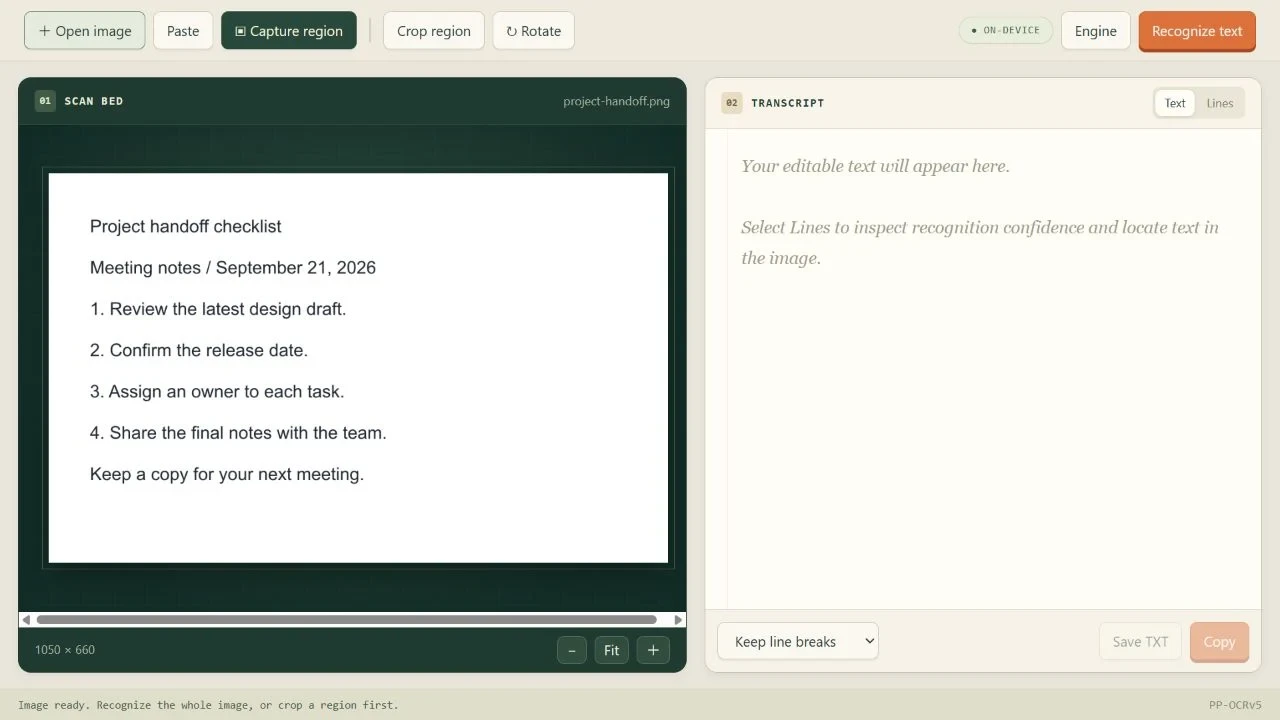
Our English checklist, opened in the application before recognition. Screenshots use the local browser preview with the actual OCR engine.
Crop for one answer, not the whole screen
Suppose an error screenshot contains a navigation sidebar, a timestamp, the message and a suggested command. Your useful output is the message plus the command, not every word in the interface.
- Crop around the message and command, leaving a small margin around the letters.
- Rotate the image if the lines are sideways.
- Choose Recognize text.
- Compare the extracted words with the image before using them.
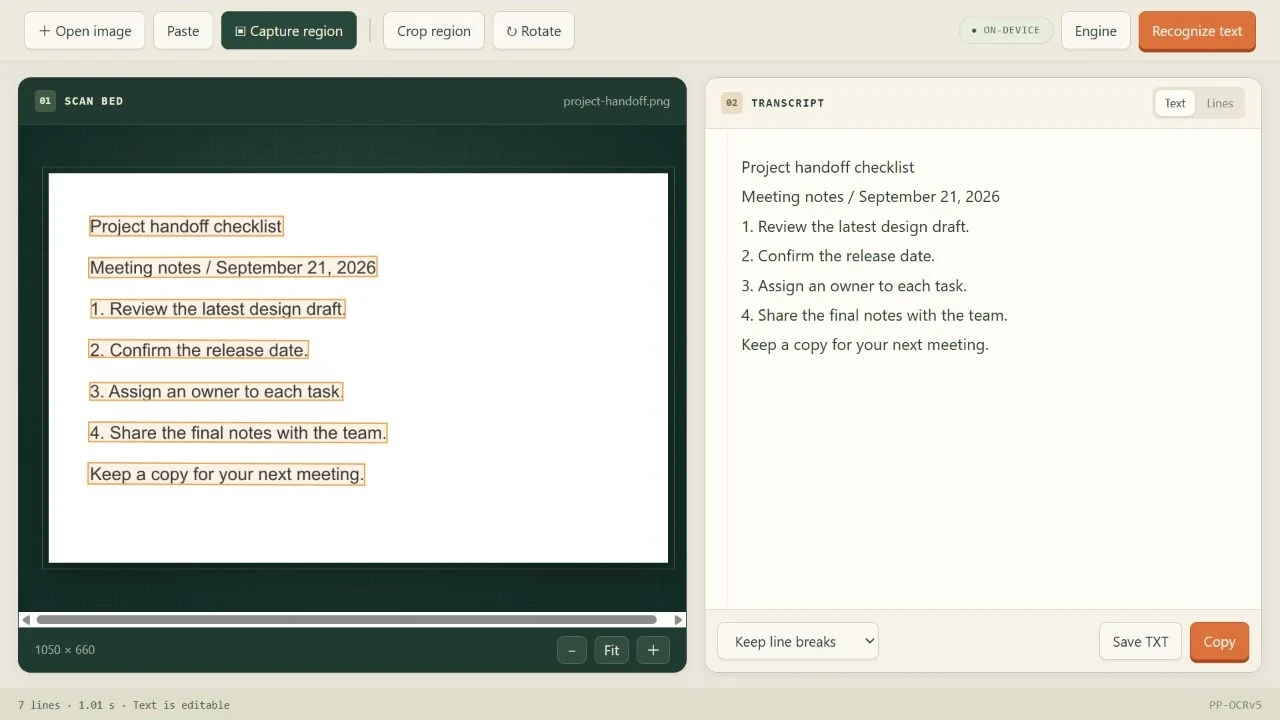
The sample produced seven lines. Text regions on the left correspond to the extracted text on the right.
Keep punctuation and spacing in mind. In an error code or filename, 0 and O, 1 and l, underscores and hyphens can change the meaning. OCR output should be treated as a draft transcription, especially for commands you intend to run.
Choose the right line treatment
Use Text for a copyable text result and Lines when you want to review recognized lines against the image.
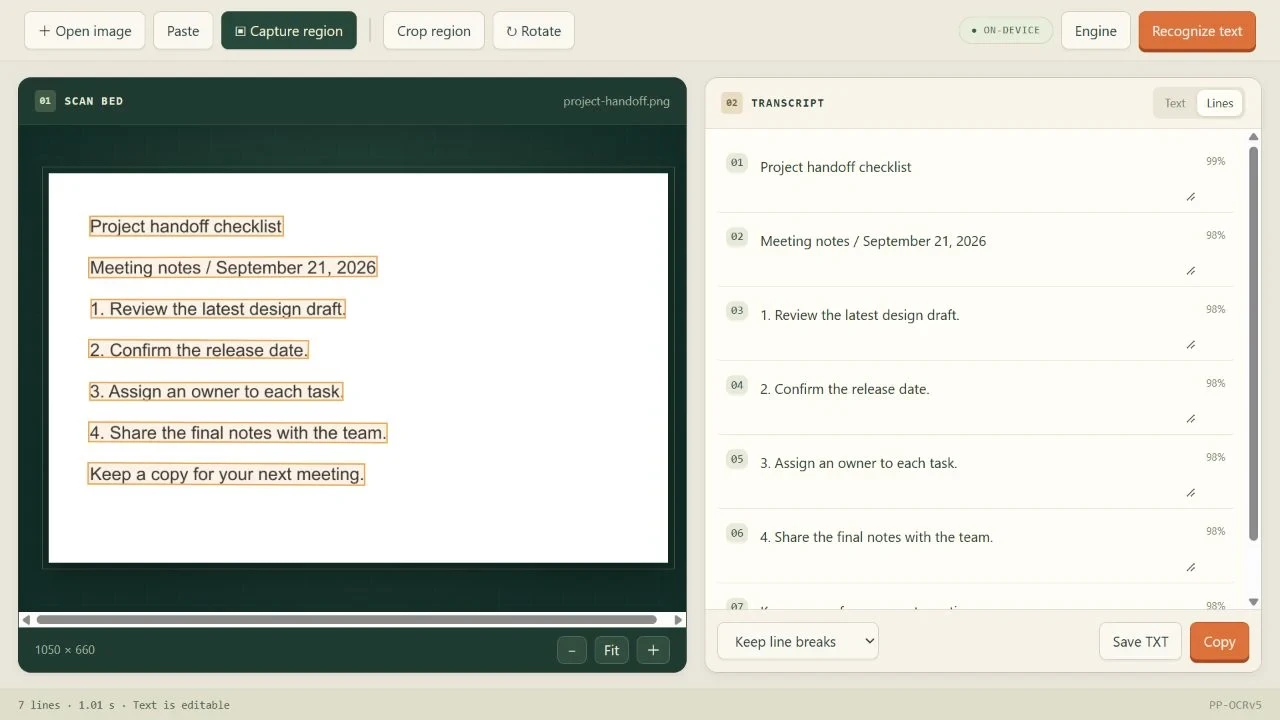
Use Lines to review the output against the source. The displayed confidence is a model score, not a measured accuracy guarantee.
The line-break choice depends on the destination:
| What you captured | Useful starting choice | What to check |
|---|---|---|
| Error message followed by a command | Keep line breaks | Keep the command separate from the explanation |
| A paragraph wrapped across several screen lines | Merge paragraphs | Confirm that separate paragraphs were not joined |
| An agenda or short list | Keep line breaks | Verify each item and any numbering |
These are review choices, not a promise that the original formatting will survive. Copy the checked result or use Save TXT for a plain-text file. A text file will not preserve fonts, columns or images.
If the image opens but recognition does not start
Opening an image and having an OCR engine available are separate steps. If the app asks for an Aelrox version with managed OCR resource packs, the image itself is not necessarily the problem.
If you see the same message, update Aelrox and reopen the micro-app. If the engine is missing, install it from Engine. Repeatedly importing the image will not fix an unavailable engine.
For a poor result, first try a tighter crop and a clearer source image. Very small letters, blur, unusual typography and overlapping graphics are reasons to verify the transcription carefully. No accuracy percentage is implied by this workflow.
Check the saved text against the image
The saved TXT contained all seven lines, from “Project handoff checklist” to “Keep a copy for your next meeting.” We checked the meeting date and all four numbered tasks against the image. For example, the third task remained 3. Assign an owner to each task. Keep this final check in your own workflow: a clean sample does not guarantee that a smaller or blurrier screenshot will be read correctly.
When a different workflow fits better
OCR Desk is useful for a screenshot or an image containing English text. It is not a PDF page organizer, a handwriting guarantee, a formula converter or a table-layout reconstruction tool. For a PDF that already has selectable text, try copying the original text before making a screenshot.
Start with one screenshot in OCR Desk, and verify one paragraph before processing the rest. See micro-app safety and permissions for how desktop access is controlled.