Font Proof compares selected TTF and OTF files inside Aelrox and exports a PNG specimen. You can try a headline, paragraph, currency amount and accented word without installing those fonts into your operating system. It is useful when choosing between files you already have permission to use.
The comparison becomes more useful when every font shows the same words. A typeface that looks good in its own promotional sample may be harder to read in your presentation title or a row of numbers.
Start with the text you actually need
Install the Aelrox desktop client, open the Micro Apps Store and find Font Proof. Add the tool and open it from the launcher. Font Proof runs in the desktop client; this page is a walkthrough rather than a browser font editor.
Choose Add fonts and select your .ttf or .otf files. For our example, we loaded six actual font files, including regular, bold, italic and display styles. The tool loads the selected files for its own specimen; it does not install them system-wide.
In Text, enter a short sample that covers your project. We used:
Quarterly review — 2026
Revenue €12,345.67 • café
ABCDEFGHIJKLMNOPQRSTUVWXYZ
abcdefghijklmnopqrstuvwxyz
0123456789
This prepared sample makes punctuation, currency, accents and number shapes visible together. Replace it with your own headline and supporting text before deciding.
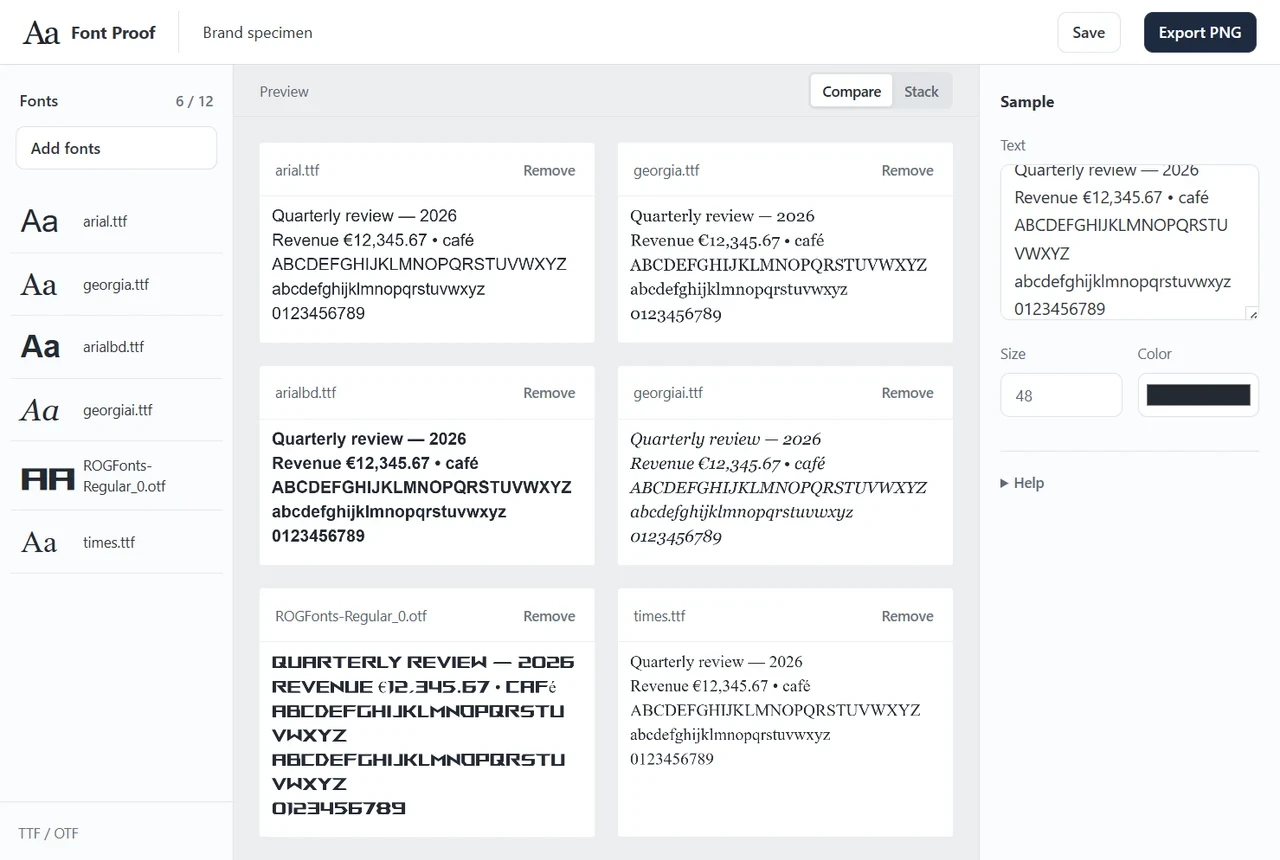
Six real font files shown with one prepared specimen in the Windows desktop app.
Compare shapes at a consistent size
Set Size and Color, then switch between Compare and Stack. Compare is helpful for scanning alternatives; Stack gives each specimen more room. On a narrow window the comparison adapts, and you can scroll to the other specimens.
Look at more than the headline. Can you distinguish the digits in a financial amount? Does the italic remain legible? Does the display face change lowercase letters into a different visual style? Include the characters that will appear in the final work.
If a character is missing from a font, the renderer may use a fallback font. Seeing a character on screen does not prove that the selected font contains that glyph. This tool does not validate font licences or replace checking a final document in the application where you will publish it.
Save a specimen for the decision
Select Export PNG and choose a destination. Open the saved image to check that the text and candidate fonts you need are present. The exported image is a visual comparison, not an installable font package or an editable text document.
Choose Save to retain your project text and styling. When you reopen Font Proof, select the font files again. Saving a project does not permanently retain access to the files or install them on the machine.
The current limits are 12 fonts, 16 MiB per file and 16 text lines per font, with a maximum combined PNG height of 16,000 pixels. Keep the specimen focused if you want a convenient image to review.
Keep the comparison local
The micro-app processes selected font files locally and does not upload their contents. File access is used to open the fonts you choose and save the exported image. See micro-app permissions and safety for the host's permission model.
Open Font Proof in the Aelrox store and start with two candidates and one real project headline. Add more fonts only when they help you make the choice.