Steam Screenshot Archive in Aelrox reads a folder you select, groups recognised screenshots by game and exports a ZIP copy organised by game and date. It is intended for local screenshots you want to collect before moving files or making a separate archive.
It does not download Steam cloud images, change Steam's index or synchronise a backup in the background. You choose the source folder and the destination for each export.
Select the local collection
Install Aelrox, find Steam Screenshot Archive in the desktop Micro Apps Store and open it. Choose Open folder and select the local screenshot collection you want to inspect.
The grouping expects a Steam-style layout with game IDs above their screenshots directories. For example, a selected remote directory can contain 111/screenshots and 222/screenshots. These are demonstration IDs, not game recommendations. Start with a folder you have already located on your machine; the app does not search your entire disk for Steam installations.
Review the number of images and the detected groups. Thumbnail directories are skipped so preview copies are not collected as extra originals. Symbolic links are also skipped.
Check the gallery before exporting
Select a game in Collections to narrow the gallery. Select a thumbnail to inspect the larger preview, and use Previous or Next to move between pages. Keyboard selection is also available in the filmstrip.
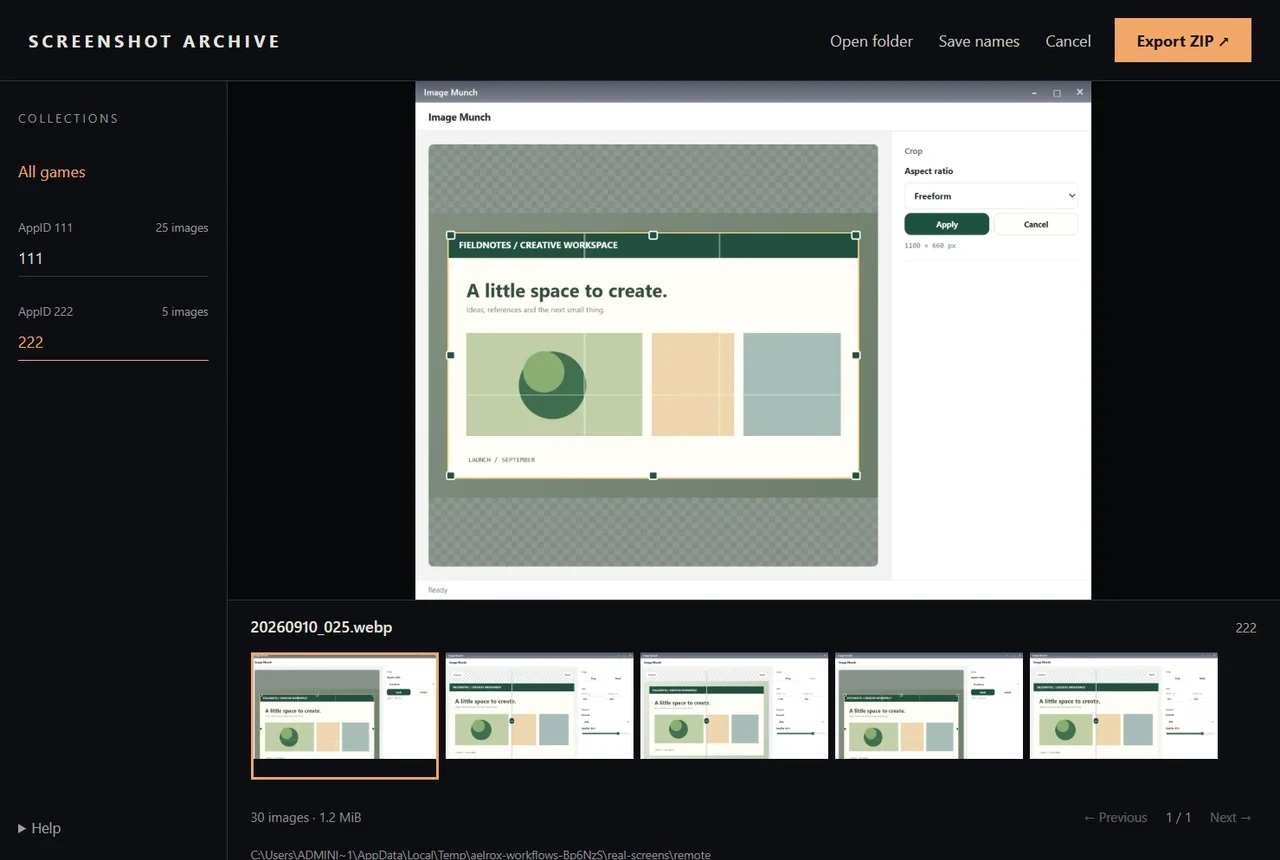
This walkthrough uses three real Aelrox screenshots repeated into a prepared 30-file, two-game directory. It is not a user's actual Steam library.
In that example, the first page held 24 files and the second held six. Filtering the second group showed its five files. This makes it possible to check grouping and image previews before making an archive.
Enter a readable game name where the app shows the game ID, then select Save names if you want to reuse that mapping. Names are entered manually; the app does not fetch game titles from Steam. The ID remains in the ZIP folder name to help distinguish games with the same display name.
Understand what Export ZIP includes
Export ZIP includes the complete scanned collection, even when a game filter is active. Filtering and pagination change the gallery, not the export scope. To archive a smaller collection, open a smaller source directory before exporting.
Choose Export ZIP, save the file and open it with an archive viewer. Check the folders and several images before relying on the copy. Our 30-file example exported all 30 files; each image's bytes matched its selected source file.
The date comes from a recognised screenshot filename where possible. Otherwise the tool uses the file's modification date in UTC, which may differ from the date you remember taking the screenshot. This is a file organisation convention, not a recovery of missing capture metadata.
Work within a bounded collection
The app accepts up to 500 images, 128 MiB in total and 32 MiB per image. Scanning is bounded to 5,000 directory entries and 12 levels. Split larger libraries into smaller source selections rather than assuming one export covers everything on disk.
Source files remain unchanged. Repeated names are numbered within the ZIP, and repeated exports create separate copies rather than an incremental backup. The micro-app does not upload screenshot contents. See file access and safety for the host's permission controls.
Open Steam Screenshot Archive in Aelrox, inspect one local collection, and verify the ZIP before using it as your archive.